Global Search
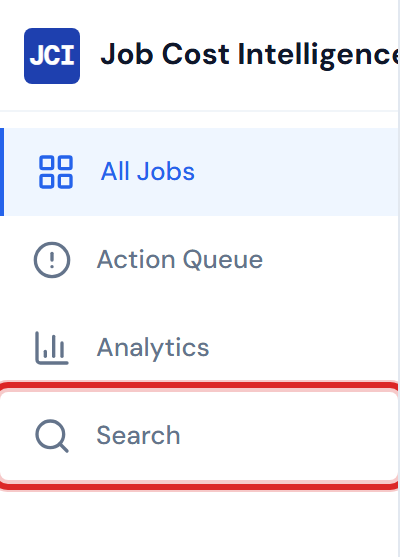
From anywhere in the dashboard, press Cmd+K (Mac) or Ctrl+K (Windows) to open the global search modal. Type a few characters of a job number, name, or company, pick a result, and you land on that job's detail page. There is also a Search button in the desktop sidebar and in the mobile bottom nav — they all open the same modal.
This page is the canonical reference for that modal. The Job Selector at the top of Job Detail is a related but separate widget; for fuzziness rules, the 2-character minimum, and the search keys, see Switching Jobs.
Press Cmd+K (Mac) or Ctrl+K (Windows) from anywhere in the dashboard to open global search. Works on every page once you're signed in.
Three ways to open it
The modal opens the same way regardless of how you launch it.
- Keyboard — Cmd+K (Mac) / Ctrl+K (Windows). The fastest way, and the one PMs reach for after a day or two of use. Works on every page once signed in.
- Sidebar Search button (desktop). Click the magnifier icon in the left sidebar. Its tooltip and accessible name read Search jobs (Ctrl+K), so you can rediscover the shortcut from the UI itself.
- Bottom-nav Search button (mobile). On phone-width screens, the bottom navigation bar shows a Search icon next to Jobs, Queue, and Analytics. Same modal as the desktop sidebar version.

Anatomy of the modal
The modal opens centered, with the page dimmed behind it. The search input auto-focuses, so you can start typing immediately. Three states matter.
When the input is empty
The dropdown shows up to 5 of your most-recently-visited jobs under a Recent Jobs header. Click any row to jump back. If you have not visited any jobs yet this session, you'll see the placeholder Type to search jobs by number, name, or company in light gray instead.
For the full treatment of how that list works — what populates it, when it clears — see Recent Jobs.
When you type two or more characters
The header changes to N Result(s) and up to 8 matching jobs appear, fuzzy-matched against job number, job name, and company name. So typing wel surfaces every job whose number, name, or company contains "wel" — and the substring is highlighted in each result so you can see why it matched.
When nothing matches
The dropdown shows a single line: No jobs found for "<your query>". Try fewer characters, or check that you're typing a job's number, name, or company — those are the only three things searched (more on that below).
What each result row shows
Each row has the same compact layout:
- Job number on the left, in monospace brand-blue text — easy to scan vertically.
- Job name on the top line beside the number.
- Company name in muted text on the second line.
- The matched substring is highlighted with a brand-blue background, so you can confirm at a glance which field matched.
That's it — no costs, no statuses, no PM names. Global Search is a navigation aid, not a summary.
Keyboard navigation inside the modal
Once the modal is open, the keyboard takes over.
| Key | What it does |
|---|---|
| ↓ / ↑ | Move the highlight down or up through the results. |
| Enter | Open the highlighted result. |
| Esc | Close the modal without selecting. |
| Click outside the modal | Same as Esc — closes without selecting. |
For the broader keyboard story across the dashboard, see Keyboard Shortcuts.
What happens when you pick a job
Picking a result — by mouse click or by Enter on a highlighted row — does four things in quick succession:
- The modal closes.
- The address bar updates to that job's URL (more on the URL shape under Deep Links and Sharing).
- The page navigates to that job's detail view, landing on the default Spend Analytics tab.
- The picked job is added to the top of your Recent Jobs list, ready for the next time you open the modal.
Picking a job sends you to that job's detail page. Your browser back button returns you to wherever you were before — All Jobs, Analytics, or another job. Global Search does not filter the page you're already on.
What you can — and can't — search for
The dashboard searches three fields only: job number, job name, and company. Typing a teammate's name will not surface their jobs. If you want PM-scoped browsing, use the My Jobs toggle on All Jobs — see My Jobs vs. All Jobs.
A few more limits worth knowing up front.
- Only jobs are searched. Not POs, not vendors, not cost codes. To filter the PO Detail table on a specific job, use the chip filters on the PO Detail tab.
- Two-character minimum. Typing a single character returns nothing. If you type
5and see no results, keep typing. - No per-company access scoping. Every signed-in user can see every job across all eight operating companies, so Global Search will surface jobs from companies you don't work on. That's intentional — see Companies and Access.
The dropdown shows at most 8 matches at a time. If your query has more candidates, type a few more characters to narrow it down. The Job Selector inside Job Detail caps at 12 — different widget, different cap. See Switching Jobs.
Recent Jobs is per-session
The Recent Jobs list at the top of the dropdown is held in your browser tab's memory. It clears on page refresh, on tab close, and on sign-out.
That's by design — see Recent Jobs for why, and for the full rules on what counts as "visiting" a job.
Where global search fits
A quick map of the related navigation surfaces.
| Surface | Where it lives | What it does |
|---|---|---|
| Global Search (this page) | Anywhere in the dashboard, via Cmd+K | Find any job by number, name, or company, then navigate. Caps at 8. |
| Job Selector | Top of Job Detail | Same fuzzy engine, but scoped to switching the current job. Caps at 12. See Switching Jobs. |
| All Jobs filters and search | All Jobs page | Filter and search the full jobs table in place — does not navigate. See Opening a Job. |
| My Jobs toggle | All Jobs and Action Queue | Scope the table to your assigned jobs. See My Jobs vs. All Jobs. |
Related pages
- Recent Jobs — what populates the empty-state list and when it clears.
- Keyboard Shortcuts — the full shortcut cheat sheet.
- Deep Links and Sharing — the URL shape that picking a job resolves to.
- Switching Jobs — the Job Detail-only selector that uses the same engine.
- My Jobs vs. All Jobs — for PM-scoped browsing.
- Opening a Job — the three ways to land on a job from All Jobs.