Signing In
JCI uses your work Google account to sign you in. There is no separate password to remember and no separate account to create — if your email is on an approved company domain, you're already set up. This page walks through the URL, the login screen, what happens behind the scenes, and where you land afterward.
Before you start
You need a Google Workspace account on one of the five approved PSS company domains. A personal @gmail.com won't work, and neither will a domain that isn't on the list below. If you're not sure whether your email is approved, the table in Companies and Access has every approved domain with an approximate user count.
The URL
The dashboard lives at:
https://dash.precisionsiteservices.com
Add it to your browser bookmarks the first time you sign in. It's the only URL you'll ever need to type for JCI.
The login page
When you open the URL while signed out, you land on a centered login card. It shows the JCI logo, the heading "Job Cost Intelligence," a short line that reads "Sign in with your company Google account," and a single Google-branded Sign in with Google button.
That button is the whole login experience. There is no email field, no password field, no separate "Forgot password" link.
Approved domains
Five Google Workspace domains are approved to sign in. Counts are approximate.
| Domain | Approximate users |
|---|---|
precisionsiteservices.com | ~31 |
reconsiteworks.com | ~10 |
sitedrywall.com | ~4 |
precisionsiteworks.com | ~1 |
sitereconstruction.com | ~1 |
Any account that isn't on one of these five domains — including personal Gmail — will be turned away at sign-in.
Signing in step by step
- Click Sign in with Google on the login card.
- A Google account chooser pops up.
- Pick your work account (the one on an approved domain). If you're already signed in to a personal Gmail account in the same browser, you may need to use "Use another account" to add your work account.
- The popup closes. You'll see a brief loading spinner while the dashboard sets up your session.
- You land on the All Jobs page.
Where you land
Where you land depends on whether you're set up as a Project Manager or as a Viewer. Both are first-class roles — the dashboard supports them equally — and both show up to a successful sign-in. The difference is how the data is scoped on arrival.
If you're a Project Manager
You land on All Jobs with the My Jobs toggle on by default, so the table is already scoped to the jobs you own. Your name and initials show up in the bottom of the sidebar.
If you want to see jobs that aren't yours — to help a peer or to look up a sister-company project — flip My Jobs off. See My Jobs vs. All Jobs for the full picture.
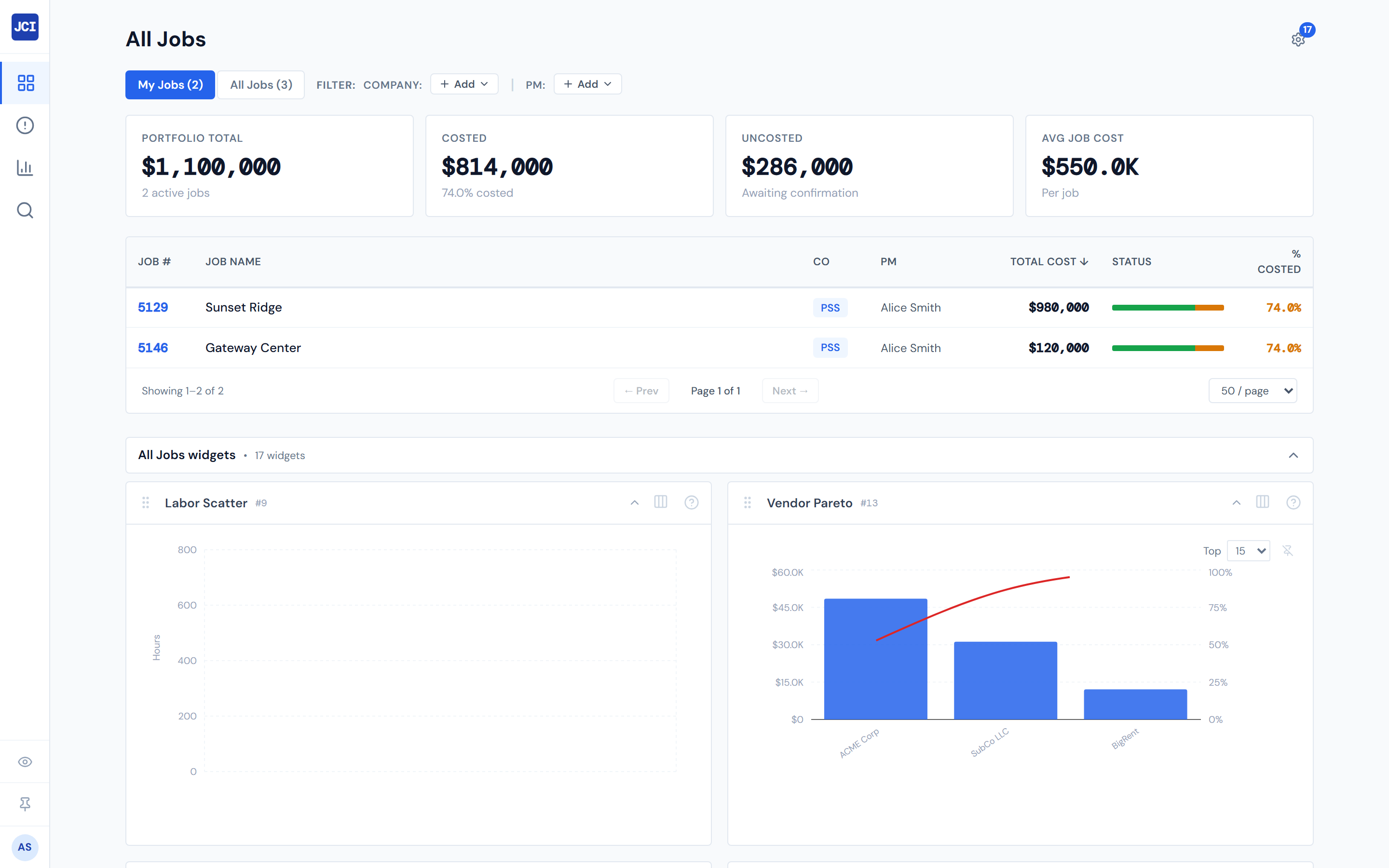
If you're a Viewer
You land on All Jobs with no My Jobs toggle visible — the toggle only renders for users who are set up in the PM directory. You see every job across every company, which is the right setup for estimators, accountants, and executives who don't own jobs day-to-day.
Viewer is not a lesser role. It's the correct setup for people whose work spans the whole portfolio.
Coming back later
The dashboard remembers you. If you close the tab and come back the next day, you'll land straight on All Jobs without having to sign in again — your Google session is still valid.
If you're on a shared computer, sign out explicitly when you're done. The dashboard treats your Google session as the source of truth, so leaving the tab open is the same as leaving yourself signed in.
Signing out
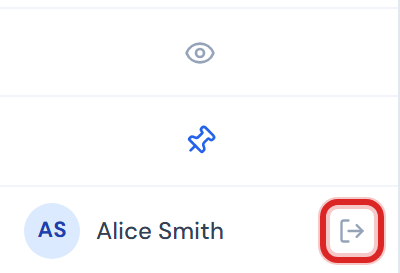
Sign-out lives in the bottom of the sidebar. Look for your circular initials badge at the very bottom — directly below it is the Sign out link. One click takes you back to the login page and ends your session.
If something goes wrong
This means the email you picked is not on one of the five approved domains. Double-check that you signed in with your work account, not a personal Gmail.
If you used the right work account and still saw the error, contact your administrator to confirm your account is set up correctly. See Troubleshooting for more.
What's next
You're in. The natural next stop is Your First Five Minutes — a five-step tour of the dashboard that gives you a productive first session.