PO Lifecycle Colors
Every purchase order in the dashboard is tagged with a lifecycle status shown as a colored badge. This page is the legend — what each color means, and what action (if any) it expects from you.
Red = your turn. Everything else means it's somewhere in the pipeline and doesn't need you to act.
The five colors
| Color | Status name | What it means | What to do |
|---|---|---|---|
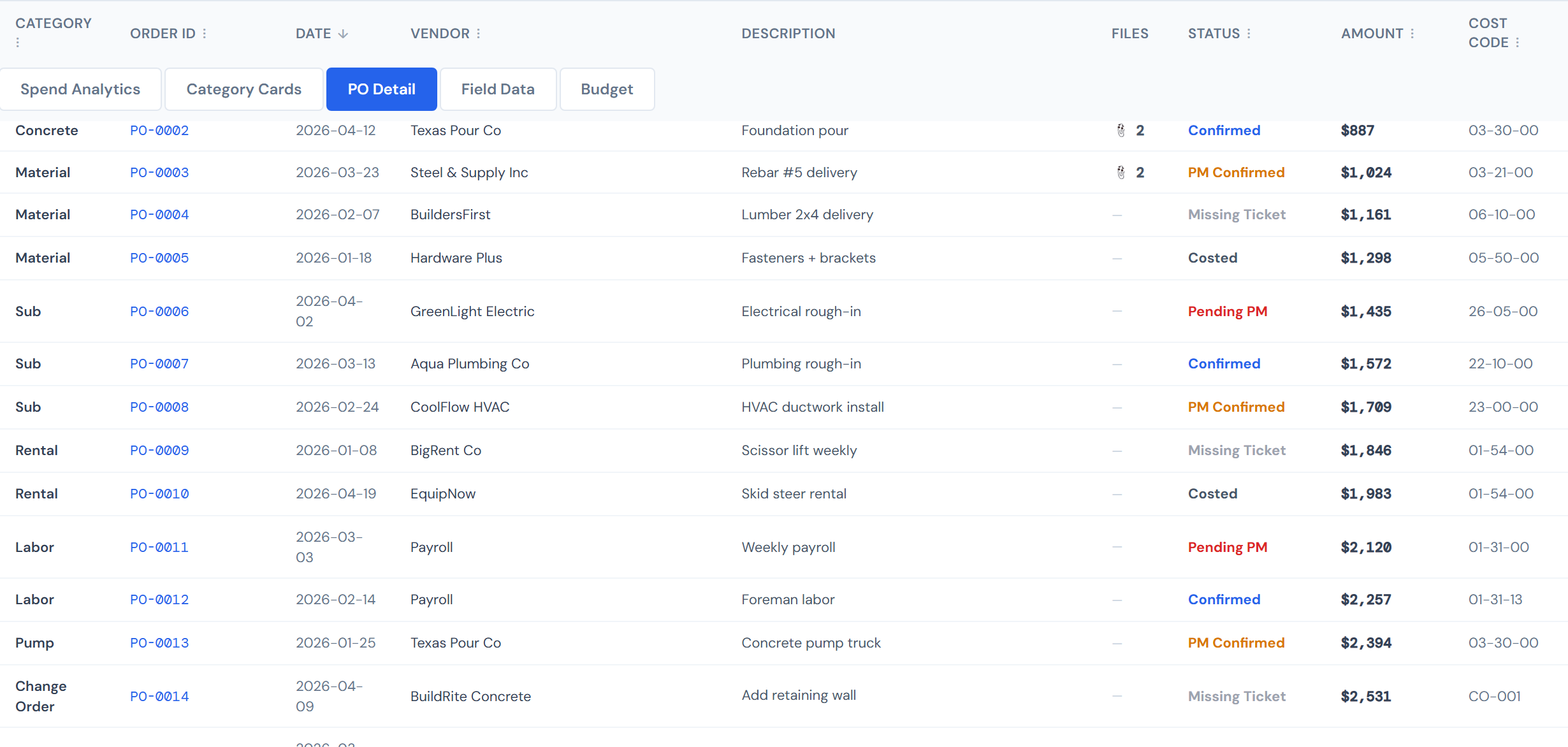
| Blue | Confirmed | The line is locked in. Labor lines auto-confirm on clock-in, which is why most blue rows you see are labor. | Nothing. |
| Green | Accounting Costed | Accounting has assigned a cost code. The line is fully resolved. | Nothing. |
| Amber | PM Confirmed | You confirmed it. It's now waiting on accounting to code. | Nothing — accounting picks it up next. |
| Red | Pending PM | Waiting on you to confirm. | Open it from the Action Queue and confirm. |
| Gray | Missing Ticket | No ticket image has been uploaded for this line. | Upload the ticket so the line can move forward. |
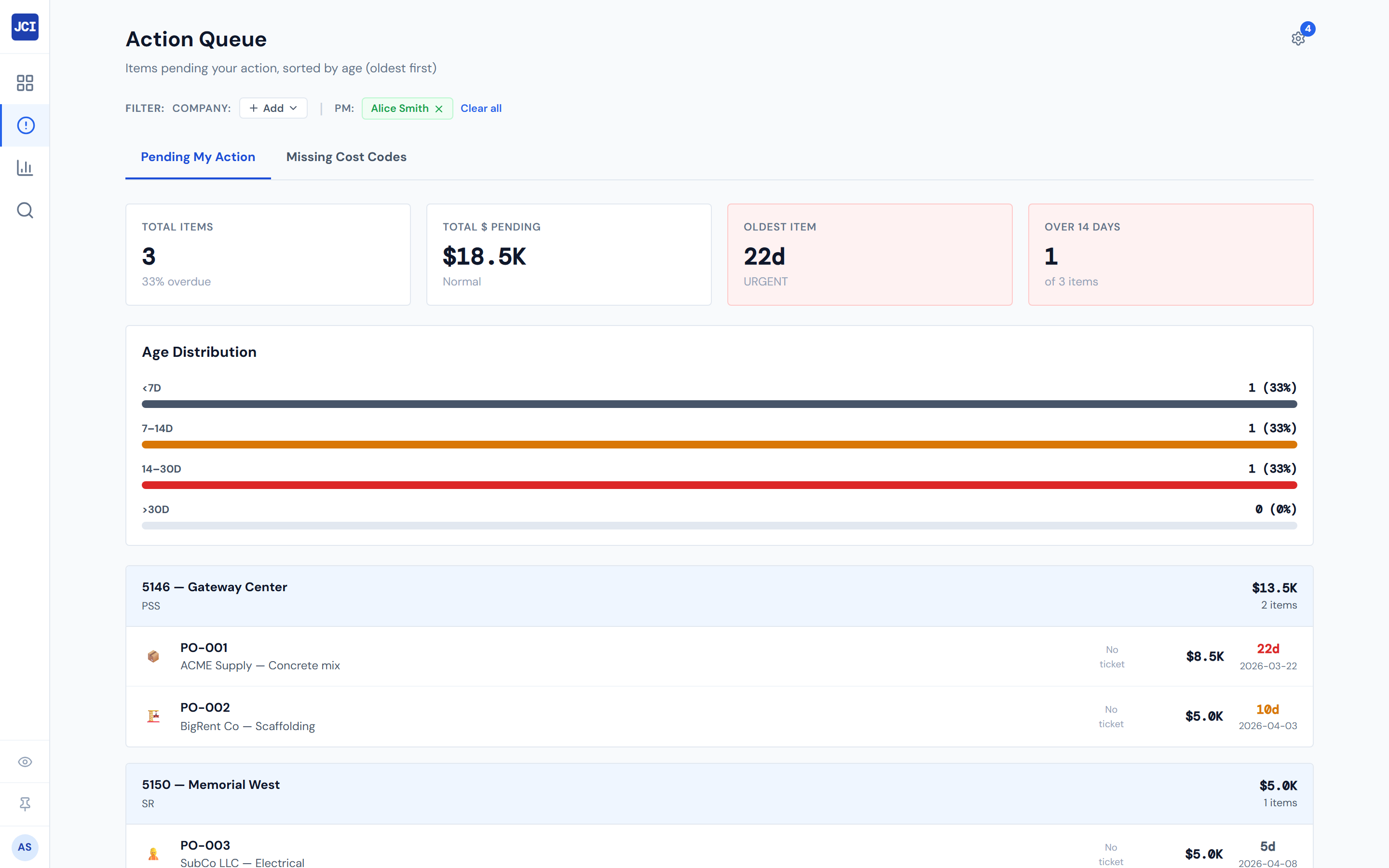
The first three statuses (Blue, Green, Amber) are all "no action needed." The last two (Red, Gray) are the ones the Action Queue surfaces because they're the ones that need someone to do something.
How a PO moves through the pipeline
Most POs follow this progression:
Two entry points feed the pipeline. Most PO lines start at Missing Ticket (gray), wait for a ticket to be uploaded, become Pending PM (red), and then move through your confirmation and accounting's coding to reach Accounting Costed (green). Labor lines are different — they auto-confirm at clock-in (blue) and skip directly to accounting.
A sixth status name — Approved
Change Orders carry their own status, Approved, which renders with the same green as Accounting Costed because an approved CO needs no further PM action.
"Approved" is the sixth status name but it reuses the green color. So there are five colors, six names. If you're staring at a green badge on a Change Order row, that's normal — it's the Approved status.
For the rest of what those CO rows mean and how to read them, see Change Order terms.
Why blue dominates the table
When you open the PO Detail tab on a busy job, you'll see a sea of blue. That's expected. As of the April 2026 snapshot, about 86% of all PO-detail rows in the system are blue — driven almost entirely by labor lines auto-confirming when crew clocks in. The other four statuses make up the remaining ~14%.
If your PO Detail looks all blue, that's not a bug. Filter the column or use the Pending tab on the Action Queue to see only the rows that need attention.
Costed versus pending
Most widgets and totals on the dashboard group the five statuses into two buckets:
- Costed = Green (Accounting Costed) or Blue (Confirmed). The cost is locked in.
- Pending = Amber (PM Confirmed), Red (Pending PM), or Gray (Missing Ticket). The cost is on its way to being locked in but isn't yet.
Knowing this grouping helps you read scorecards quickly. When a job shows "78% costed," that 78% is the Green + Blue share of the total. The other 22% is the amber/red/gray slice that's still moving.
Where you'll see these colors
The five colors show up across the dashboard in three main places:
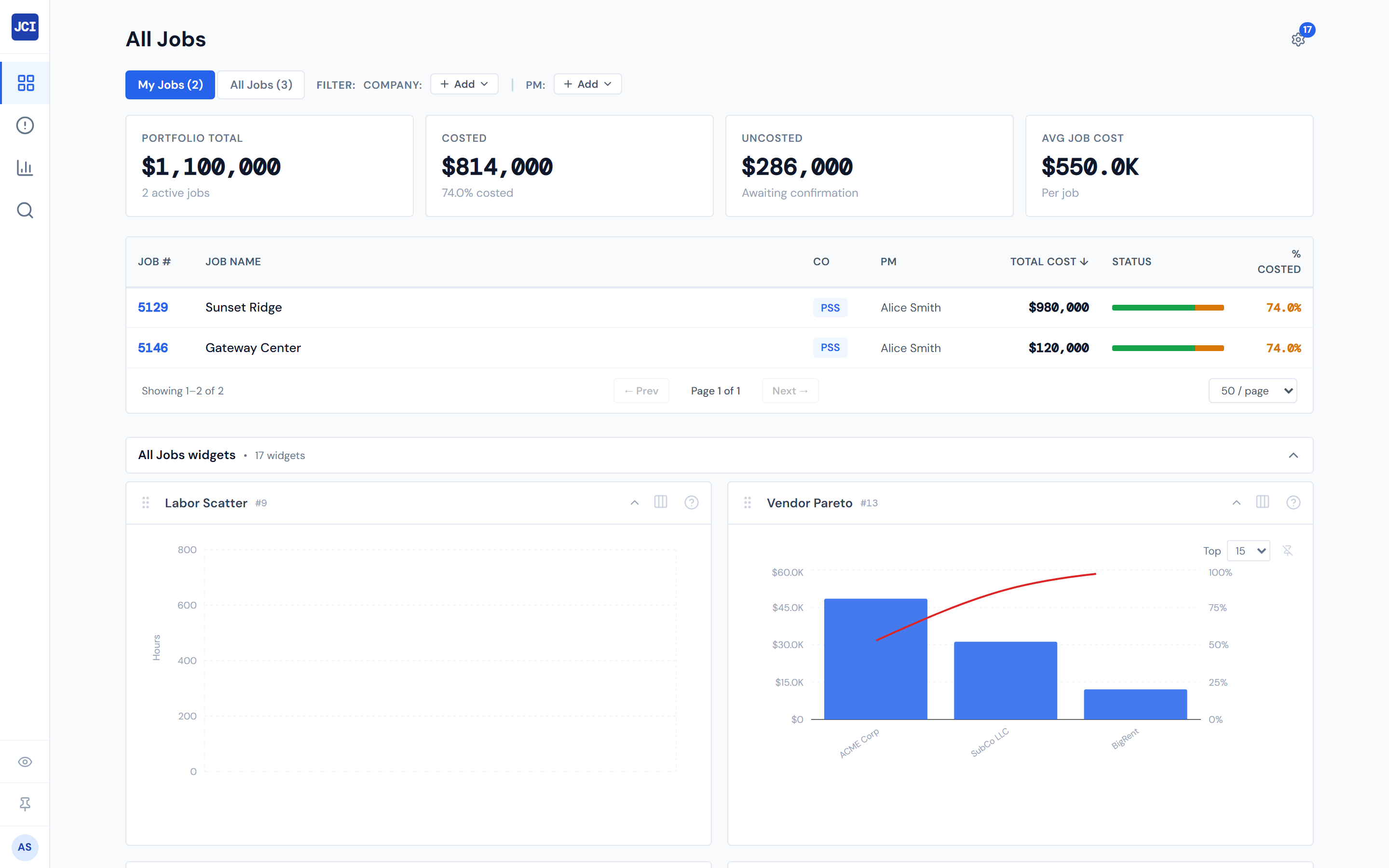
- All Jobs page → Status column shows each job's costed/pending split as a horizontal bar (not a single status). See Job Status for how to read that bar.
- Job Detail → PO Detail tab shows one badge per PO row — this is the most common place to see all five colors at once.
- Action Queue filters to the two statuses that need PM action: Pending PM (red) and Missing Ticket (gray). See Pending My Action and Missing Cost Codes (note: missing cost code is a separate concept from missing ticket — see below).
"Pending PM" versus "PM Confirmed"
These two sound almost identical and readers mix them up constantly:
- Pending PM (Red) = waiting on you. Action: confirm it.
- PM Confirmed (Amber) = you already confirmed it. Action: nothing — accounting takes it from here.
If you remember nothing else: red means it's still on your plate, amber means it's already off your plate.
Missing Ticket versus Missing Cost Code
Another easy confusion. Missing Ticket (gray, in the lifecycle table above) means no ticket image has been uploaded for the line. Missing Cost Code is a different concept entirely — a line that has no cost code assigned. The two have separate Action Queue tabs and separate fixes. For the cost-code side of the story, see Cost Codes and the Missing Cost Codes tab.
A note on pumps
Pump-category PO rows exist but their costs are never populated in source data — they're always $0. If you see a Pump line with what looks like a uniform badge across every job, that's why. It's not the lifecycle status doing something weird; the underlying cost is just always zero. See Categories for the full picture.
Related pages
- Job Status — different concept (active/closed and the % costed bar)
- Change Order Terms — what "Approved" means on CO rows
- PO Detail tab — the table where these badges live
- Confirming a PO — the action playbook for when you see red