Action Queue — Overview
The Action Queue is the page you land on first thing in the morning. It surfaces two things: POs that are waiting on you to confirm, and labor entries on your jobs that are missing a cost code. Every other page in this chapter assumes you've read this one first.
Red items are the only thing blocking accounting from closing the books on your jobs. A five-minute pass through this page clears the most blocking work first.
Where it lives
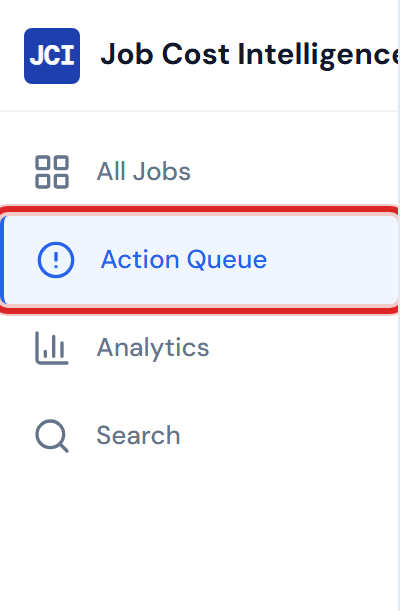
In the left sidebar, Action Queue is the second item from the top — right under All Jobs, above Analytics. The URL is /queue.
The three tabs at a glance
The page splits into three tabs. They all scope to your jobs, but each one answers a different question.
| Tab | What it shows | Sort order |
|---|---|---|
| Pending My Action | POs in red (Pending PM) status that you own, as a grid of job cards. | Oldest first. |
| Missing Cost Codes | Labor entries on your jobs without a cost code. | Newest first. |
| PO Detail | Every PO across all of your jobs — any status — in one sortable table. | Your choice (sortable columns). |
The deeper walkthroughs are on Pending My Action, Missing Cost Codes, and PO Detail.
Tab navigation showing the three tabs — Pending My Action, Missing Cost Codes, PO Detail — with Pending My Action selected.
The four summary cards
Across the top of the page are four cards summarizing what's currently in your Pending My Action tab.
| Card | What it shows | Subtitle / alert behavior |
|---|---|---|
| Total Items | Count of pending POs in the current view. | Shows the percentage that are 14 days old or more. |
| Total $ Pending | Sum of all pending PO dollars in the view. | Reads "Critical" above $100K, "High" above $50K, "Normal" otherwise. |
| Oldest Item | Age in days of the oldest pending PO. | Reads "URGENT" at 14 days or more, "Watch" at 7 days, "OK" otherwise. The card turns red-tinted at 14 days and over. |
| Over 14 Days | Count of POs that are 14 days old or more. | Card turns red-tinted whenever the count is greater than zero. |
The "Oldest Item" age is how old the underlying order is, not how long the PO has been waiting on you to confirm. A PO that sat in Confirmed for 18 days and dropped into Pending PM yesterday will still show its full creation-date age. See Aging and Priority for the full thresholds and the reasoning behind them.
Clicking Over 14 Days filters the card grid below to just the items 14 days old or more, with a removable "Showing: over 14 days ✕" chip above the grid. Click the card again (or the chip's ✕) to go back to the full view.
Oldest Item works a little differently: it filters the grid to whichever age range your single oldest item is actually in — "over 14 days" when it's overdue, but "7–14 days" or "under 7 days" when your queue is younger than that — and pops open that item's job card. It isn't a toggle: clicking it again keeps the filter on and just re-opens the card. To clear the filter, use the "Showing: … ✕" chip above the grid.
If you've hidden a job or dismissed individual items (see Pending My Action), the four cards, the age chart, and the Morning Briefing widget all exclude them. What you see is what the numbers describe.
The age distribution chart
Below the cards is a small horizontal bar chart with four buckets — recent, aging, overdue, and severely overdue. It mirrors the same data in the card grid but in aggregate, so you can read the shape of your queue at a glance. A healthy queue is mostly the recent (gray) bar; a worrying queue is dominated by red and dark red.
Each bar is clickable: click a bucket to filter the card grid to just those items, click again to clear. The full legend, including how the chart's four buckets relate to the row-level three-tier coloring, is on Aging and Priority.
Widgets at the top
Any widgets you've enabled for this page (the Morning Briefing, for example) render in a collapsible group right under the page title — above the filter bar and tabs, same as on every other page. Use the gear icon in the page header to choose which widgets appear.
Filters at the top
Between the widgets and the tabs is a small filter bar with two chips:
- Company — multi-select, defaults to all companies. The dropdown lists every company across your job portfolio, including ones with no pending items right now (useful for narrowing the PO Detail tab).
- PM — auto-seeded to your name on page load.
The Action Queue always shows your queue, not somebody else's. The PM chip exists for visual parity with other pages' filter bars; it doesn't let you swap into a teammate's view. Removing your name from the chip will not show another PM's queue. There is no "all PMs" mode anywhere on this page.
What the queue does NOT include
This is where most surprises come from. Knowing what's outside the queue is as important as knowing what's in it.
The Missing Cost Codes tab only surfaces labor entries — timeclock records without a cost code attached. Concrete, materials, subcontractor, rental, and pump POs missing a cost code do not appear here. If you're looking for those, you won't find them on this page.
The Pending My Action tab also has a strict scope:
- It only shows POs in the red Pending PM status. POs that are Confirmed (blue), Accounting Costed (green), or PM Confirmed (amber) are not in your queue. See PO Lifecycle Colors for the full state machine.
- It only shows items where you are listed as the PM. The match is by your user ID — a job whose PM field is a plain first name (rather than a user account) will not appear here. The same caveat affects My Jobs vs. All Jobs.
- It is not a project-wide audit list. There is no "show every Pending PM PO across the company" view from this page.
Refresh cadence
The Action Queue's data refreshes every four hours. If you confirmed a PO in Purchase Ordering ten minutes ago, expect a wait before it disappears from your queue — that's normal. See Data Refresh Rates for the full picture.
The empty state
When your queue is clear, the Pending My Action tab shows "No pending items — you're all caught up!" This is real — it's the response when the underlying query returns zero rows. Same idea for the Missing Cost Codes tab, which switches to a green callout: "All labor entries have cost codes assigned."
Both empty states are good news, not "no data" warnings.
If the grid is empty only because of an active age filter, you'll see "No items in this age range" instead — clear the filter chip to get everything back. And if you've hidden or dismissed everything yourself, it says "All pending items are hidden or dismissed" and points you at the restore pills. The "all caught up" message is reserved for a queue that's genuinely empty.
A typical morning view
Here's what the page looks like on a normal weekday with a few items in the queue.
The full Pending My Action tab on a normal weekday: four summary cards across the top (Total Items, Total $ Pending, Oldest Item, Over 14 Days), the Age Distribution bar chart below, and the collapsed job-card grid underneath with a couple of cards showing their oldest-item age badges. The previous capture showed the pre-redesign queue table and has been retired.
What to read next
- Pending My Action — anatomy of a row, the ticket thumbnail, and what clicking does.
- Missing Cost Codes — the labor-only tab and what to do with the items it surfaces.
- Aging and Priority — the legend for every age, color, and chart on the page.
- Daily Workflow — a five-step morning routine that uses everything above.
- Confirming a PO — what you do once you click through from a queue row.