Analytics — Overview
Analytics is the chart view of your portfolio. It rolls up every job you can see into spend trends, category mix, and per-company comparisons — the same data that drives All Jobs, but aggregated into pictures instead of rows.
Looking for a specific job? Use All Jobs. Looking at the whole portfolio? You're in the right place.
What you'll find on the page
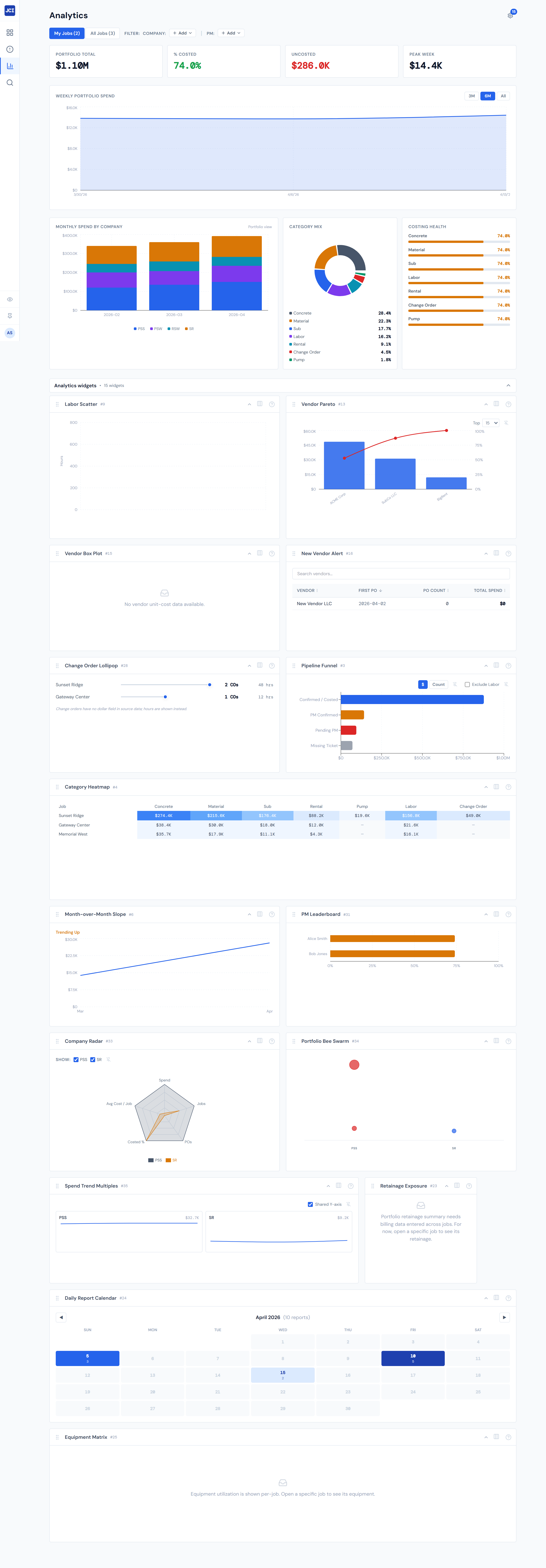
From top to bottom on a fresh sign-in:
- Four scorecards — Portfolio Total, % Costed, Uncosted, and Peak Week. The above-the-fold summary of where the portfolio stands today.
- Weekly Portfolio Spend — an area chart of total dollars per week, with 3M / 6M / All range buttons.
- Three breakdown cards side by side — Monthly Spend by Company (stacked bars), Category Mix (donut), and Costing Health (per-category bars).
- A customizable widget grid below the breakdowns. Empty by default — see the widgets caveat below.
Every chart on the page reads from the same scope. Flip a filter chip or the My Jobs / All Jobs toggle and the whole page refreshes in lockstep.
How Analytics differs from All Jobs
Both pages cover every job you have access to. They differ in shape:
| All Jobs | Analytics | |
|---|---|---|
| Format | Sortable, searchable table — one row per job | Charts and scorecards — every job rolled up |
| Best for | Finding a specific job | Seeing the shape of the portfolio |
| Same scope? | Yes — same My Jobs toggle, same Company / PM filters | Yes — same My Jobs toggle, same Company / PM filters |
| Drill into one job? | Click any row | See the drill-down workflow |
The two pages always read the same underlying data. If a job isn't on Analytics, it isn't on All Jobs either, and vice versa.
Who sees what
Every signed-in user can see every job across all eight companies. There is no per-company access control — the My Jobs toggle (PMs only) is the only built-in scoping mechanism. Anyone signed in can compare PSS against PSW against SR if they choose to.
See Companies and access for the full picture and My Jobs vs. All Jobs for the toggle's mechanics.
Filters that apply across the whole page
The filter row at the top of Analytics has the same controls as the one on All Jobs:
- My Jobs / All Jobs toggle (PMs only).
- Company chips and PM chips.
- Clear all link, visible when at least one chip is set.
Adding or removing a chip refreshes every scorecard, the area chart, and all three breakdown cards together. There is no chart on Analytics that ignores the filter row.
See Filter Banner and Company and PM filters for the chip mechanics.
A note on data freshness
Numbers on Analytics can be up to four hours stale. Charts redraw on a refresh schedule, so a ticket a PM uploaded an hour ago may not be on the page yet. See Data refresh rates for the full schedule.
This matters more on Analytics than on most pages. Executives and ops staff watch the trend lines and the Peak Week scorecard — if those numbers don't move after a known event, the most likely explanation is the refresh window, not a data error.
About the widget grid
The seven optional Analytics widgets (Pipeline Funnel, Category Heatmap, Month-over-Month Slope, PM Leaderboard, Company Radar, Portfolio Bee Swarm, Spend Trend Multiples) are opt-in. On a fresh account none of them appear. The grid below the breakdown cards will look empty until you add widgets through the gear icon.
This is intentional — the page stays light by default, and each user picks the widgets that match how they think about the portfolio. See Widgets overview for how the grid works and Showing and hiding widgets for adding the first one.
Where to go next
Three pages cover the rest of Analytics in detail:
- Portfolio View — what each of the four scorecards means, what colors signal, and how the Weekly Portfolio Spend chart reads.
- Trends and Weekly Spend — the 3M / 6M / All range toggle and the Monthly Spend by Company stacked bars.
- Drilling into a Job — Category Mix, Costing Health, and the honest path from a chart back to a single job.
Most readers won't need all three. If the four scorecards aren't reading the way you'd expect, start with Portfolio View. If a trend looks off, Trends and Weekly Spend. If you're trying to figure out which job is causing an outlier, Drilling into a Job.