CSV Export
Export the purchase orders for the current job to a CSV file you can open in Excel or send to accounting. The CSV reflects whatever filters you have applied on the PO Detail tab — not just the page you happen to be looking at.
CSV export lives in one place: the PO Detail tab on a Job Detail page. There is no portfolio-wide "export everything" button, no CSV from All Jobs, no CSV from Action Queue, no CSV from Analytics. If you want CSVs across multiple jobs, you'll export them one job at a time.
Two buttons, same data
The PO Detail tab has two ways to download the CSV. They produce the same rows. Use whichever is closer to what you're doing.
| Entry point | Where it is | When to use |
|---|---|---|
| Export CSV (table button) | Top-right corner of the PO table itself, on the table's title bar | You're already looking at the PO table and want a quick download |
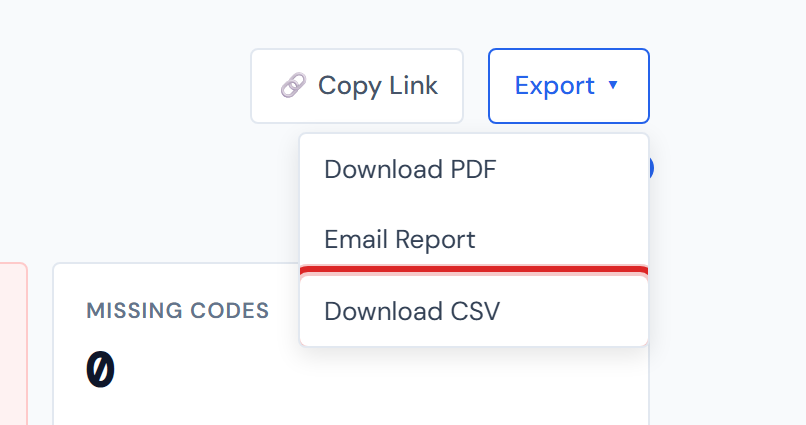
| Export ▾ → Download CSV (page-header dropdown) | The action bar at the top of every Job Detail tab, between Copy Link and any other tab content | You're on a different tab (Categories, Field Data, Budget) and want to grab the CSV without switching tabs first |
What the file contains
The columns in the file, in order:
| Column | What's in it |
|---|---|
| Category | The PO's category (Concrete, Material, Labor, Pump, etc.) |
| Order ID | The purchase order number |
| Date | The PO's date |
| Vendor | The vendor name |
| Description | The PO description |
| Files | The count of ticket images attached to the PO |
| Status | The lifecycle status (Confirmed, Accounting Costed, PM Confirmed, Pending PM, Missing Ticket) |
| Amount | The resolved cost — the same dollar figure shown in the table, formatted with two decimal places |
| Cost Code | The cost code, if one is assigned |
The file is plain CSV with a UTF-8 byte-order mark, so vendor names with
accented characters (José, Hernández) display correctly when you open
the file in Excel on Windows.
If your CSV opens with garbled characters, the file was likely re-saved or re-encoded somewhere between download and open. Re-export from the dashboard and open the fresh file directly.
Filters apply. Pagination doesn't.
This is the part that surprises people: the CSV contains every row that matches your current filters, not just the page you're looking at on screen.
If your PO Detail tab is filtered to "Concrete + Material, Pending PM only" and the result is 142 rows across 6 pages, the CSV has all 142 rows — even if you're sitting on page 1 with 25 visible.
If you want a narrower export, narrow your filters first.
The filter chips on the PO Detail tab scope the file. Set Category, Status, or any other filter to what you want to send out, then click Export CSV.
The current sort applies too. If you've sorted the table by Amount descending, the CSV rows come out in the same order.
See Category filter and Status filter for how the chips work.
Filenames
The two buttons produce slightly different filenames. This is intentional — the dropdown filename is part of the same family as the PDF and email attachment, the per-table filename matches the table you were just looking at.
| From | Filename pattern | Example |
|---|---|---|
| Export CSV (table button) | job-<jobNumber>-po-detail-<date>.csv | job-5164-po-detail-2026-04-24.csv |
| Export ▾ → Download CSV | JCI_<jobNumber>_POs_<date>.csv | JCI_5164_POs_2026-04-24.csv |
Either filename works for emailing or filing. Pick whichever your team prefers.
What the CSV doesn't cover
| Surface | CSV available? |
|---|---|
| Job Detail → PO Detail tab | Yes — both buttons described above |
| Job Detail → Categories tab | No |
| Job Detail → Field Data | No (daily reports, equipment, photos, sub reports are not in any CSV) |
| Job Detail → Budget tab | Has its own template-download CSV — see below |
| All Jobs page | No |
| Action Queue | No |
| Analytics charts and widgets | No |
There is no CSV export on All Jobs, Action Queue, or Analytics. The only CSV export is on a Job Detail page's PO Detail tab. If you need a portfolio-wide CSV, you'll need to export each job's PO Detail separately and combine the files yourself.
The Budget tab has its own CSV flow — a template download for setting up budgets and an error-report CSV when an import fails. That's a different mechanism from the PO export described here. See Budget Entry for the budget CSV flow.
Pump rows export at $0
Pump category rows always show 0.00 in the Amount column. Pump cost is
not populated in the source data, so this is expected behavior — not a
bug. See the Pump entry in the Glossary.
Pump rows always show 0.00 in the Amount column. If you're spot-checking totals against the table, the CSV total will match the on-screen table total exactly — pumps contribute zero to both.
What it shows you opened in Excel
Once it's open in Excel, the file is yours — sort, filter, pivot, paste into a workbook, send to accounting. The dashboard doesn't track what happens after the download.
A few details about the snapshot
The CSV is a snapshot at the moment you click Export. The dashboard's underlying numbers refresh on a schedule, so a PO that gets confirmed 30 minutes after you export won't be reflected in your downloaded file. If timing matters, re-export. See Data refresh rates for how often the numbers update.
Related
- PDF Export — same dropdown, same filter behavior; produces a formatted snapshot instead of raw rows
- Email Report — same dropdown; sends the PDF as an email attachment
- Copy Link — also in the action bar, for sharing a link to the job
- PO Detail tab — the table the CSV is built from
- Budget Entry — separate CSV flow for budget templates and import errors