Filter Bar
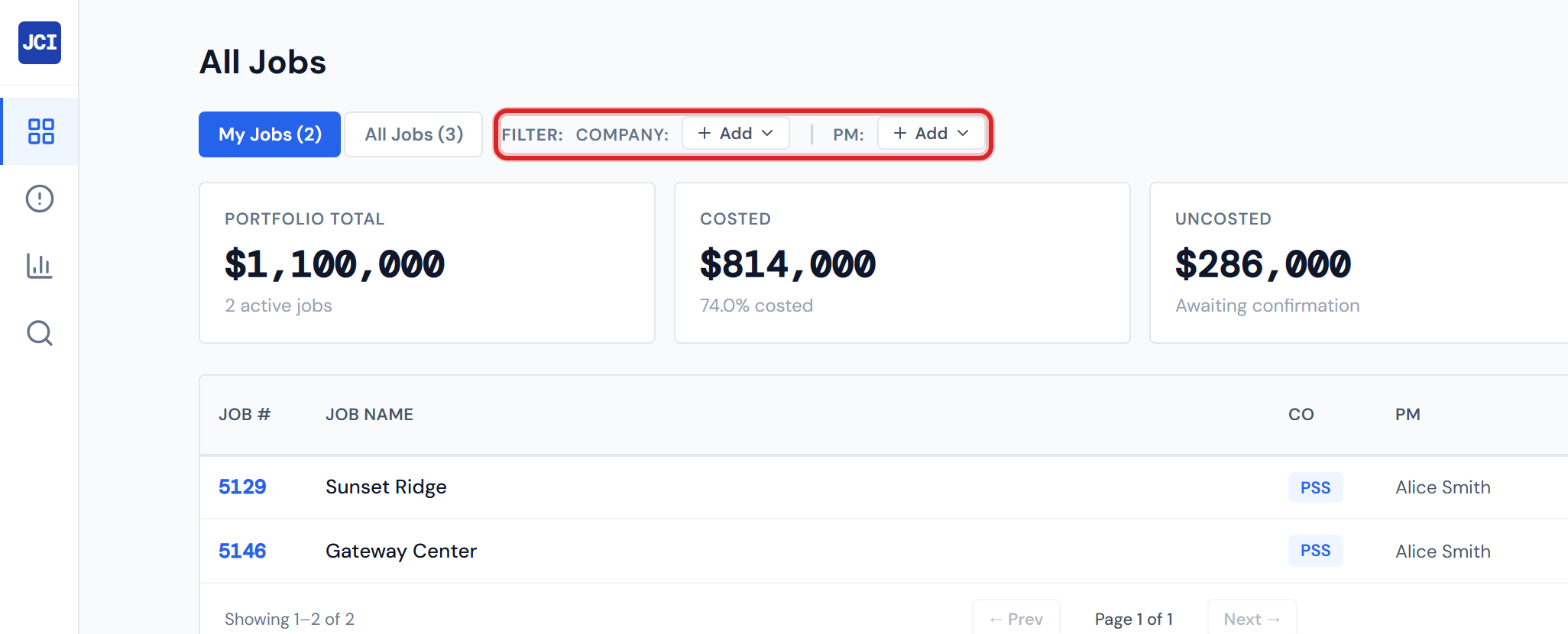
The filter bar narrows the All Jobs page to the companies and PMs you care about. Chips combine: every chip you add reduces the table further. The bar sits to the right of the My Jobs / All Jobs toggle and applies on top of whichever scope that toggle is in.
Combine the My Jobs toggle with one or two Company chips to focus on the slice you want without losing your scope.
What the bar looks like
Reading the bar left to right, you'll see:
- A FILTER: label.
- A Company: group with one blue chip per selected company and an Add button on the right.
- A vertical separator.
- A PM: group with one green chip per selected PM and an Add button on the right.
- A Clear all link on the far right — visible only when at least one chip is set.
Adding a filter
To add a Company or PM chip:
- Click Add inside the Company or PM group.
- A dropdown opens listing every option not already selected.
- Click an option. The dropdown closes and a chip appears in the group.
The table refilters as soon as the chip lands.
Removing a filter
To remove a single chip, click the × inside it. The chip disappears and the table re-broadens immediately.
To remove every chip in one click, click Clear all on the far right of the bar. Clear all removes every Company and PM chip together. It does not change the My Jobs toggle — the toggle is its own separate control.
How filters combine
Within one group, chips are inclusive. Adding two Company chips means "any of these companies." Adding three PM chips means "any of these PMs."
Between groups, chips are exclusive. A row has to match a selected Company and a selected PM. So Company SR plus PM Jared shows only Jared's SR jobs — not Jared's jobs across all companies, and not all SR jobs.
The My Jobs toggle composes on top of all of this. When My Jobs is on, the chip filters narrow the already-narrowed list to what the toggle is showing.
Where the dropdown options come from
The Add Company dropdown is built from the distinct company values on the loaded jobs, sorted alphabetically. The Add PM dropdown is built the same way from the distinct PM values. If a company has no active jobs in the loaded set, it doesn't appear in the dropdown.
The PM dropdown reflects the raw PM field on each job. That field is messy by design — you may see proper names, user IDs, and the occasional comma-separated string as separate dropdown rows for the same person. If you can't find a PM by name, scroll for the same person under a different value or use the My Jobs toggle instead. See My Jobs vs. All Jobs for why this happens.
Overflow at six chips
If you select more than six chips in either group, only the first six render inline and a small +N more indicator shows the remainder count. The chips that aren't rendered are still active filters — the indicator is purely visual.
Filter state lasts for one visit
Filters reset when you leave the page or refresh the browser. There's no saved-filter feature on All Jobs today — your chip selections live for the current visit to this page only.
If you navigate to Analytics and back, the bar will be empty again. Set up the chips you want at the start of your session.
Filtering is not access control
The Company filter narrows what you see; it does not change what you have access to. Every signed-in user can see every company. If a teammate doesn't see jobs they expect, the cause is the chips on this bar or the My Jobs toggle, not a permission setting.
Related pages
- All Jobs overview — page anatomy and where the filter bar sits
- The Jobs Table — the table that the filters scope
- Sorting and Columns — how filter changes also reset pagination
- My Jobs vs. All Jobs — the toggle that composes with these chips
- Company / PM filters — the same controls, with cross-page reference detail
- My Jobs toggle — the toggle's deeper reference page
- Companies and divisions — what each company name represents
- Glossary — entries for "PM" and "Company"