Filter Banner
When any filter is active on a widget page, a red banner pins itself to the bottom of your screen and shows every active filter as a chip you can remove. It's how you stay oriented when you've scrolled past the top of the page and the numbers in front of you no longer reflect the full dataset.
Banner means filtered. Click × on any chip to remove that one filter. Use Clear all to remove every filter on the page.
What it looks like
A full-width red bar with a Filtered by: label on the left, then a row of white chips, each shaped like:
Category: Concrete [×]PM: Jared McKenzie [×]Vendor: ABC Concrete [×]
A Clear all link sits on the right side of the banner — but only when two or more chips are active. With a single chip, the chip's own × button is the only way to clear it.
When it appears, when it disappears
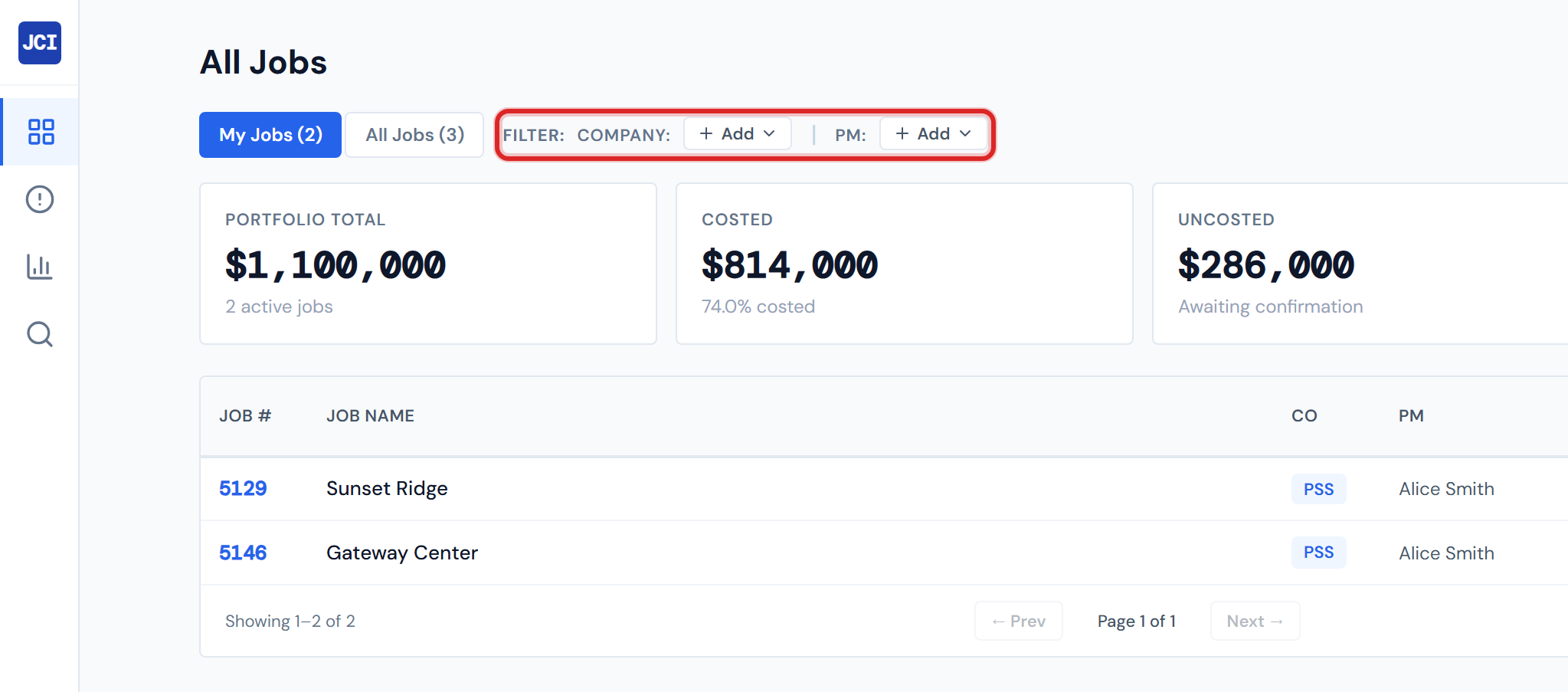
The banner is silent when no filters are active. No red bar at the bottom of the page means nothing is narrowing the data on screen. There's nothing to scroll down and find — the banner is either there or it isn't.
It appears the moment a chip lands on the page, and it disappears in any of these cases:
- You remove the last chip (via × on the chip itself).
- You click
Clear allon the banner or on the top filter row. - You navigate to a different page.
Where it appears
The banner shows up on every page that mounts widgets:
| Page | Banner can appear? |
|---|---|
| All Jobs | Yes |
| Analytics | Yes |
| Action Queue | Yes |
| Job Detail | Yes |
| Sign-in screen | No |
| Global Search dropdown | No |
Sign-in and the global Search dropdown aren't widget pages, so the banner doesn't render there.
Position on screen
The banner is fixed to the bottom of the viewport regardless of how far you've scrolled. On a desktop browser it sits flush against the bottom edge of the window. On a phone, it lifts up about 64 pixels to clear the bottom navigation bar so both stay visible at the same time.
Its z-index keeps it above page content but below any modal dialogs you open — if a settings panel or detail popover is open, that takes priority over the banner.
On a phone, if you see the bottom navigation bar AND the red banner stacked on top of each other, that's the intended behavior. The banner clears the nav so neither hides the other.
What kinds of chips appear
Six kinds of chips can show up in the banner. Where the chip comes from depends on its type:
| Chip type | Where it comes from |
|---|---|
Company | Top filter row, OR the Company Radar widget |
PM | Top filter row, the green + My Jobs shortcut, OR the PM Leaderboard widget |
Category | Cost Waterfall, or Budget vs Actual (drill-down only) |
Vendor | Vendor Pareto (drill-down only) |
Cost Code | Cost Code Treemap, or Labor Cost Code Bars (drill-down only) |
Job | When a widget emits a job-level chip |
For the widget-side mechanics see Drill-Down Chips. For the top-bar Company and PM controls see Company and PM Filters.
The banner mirrors the top filter row
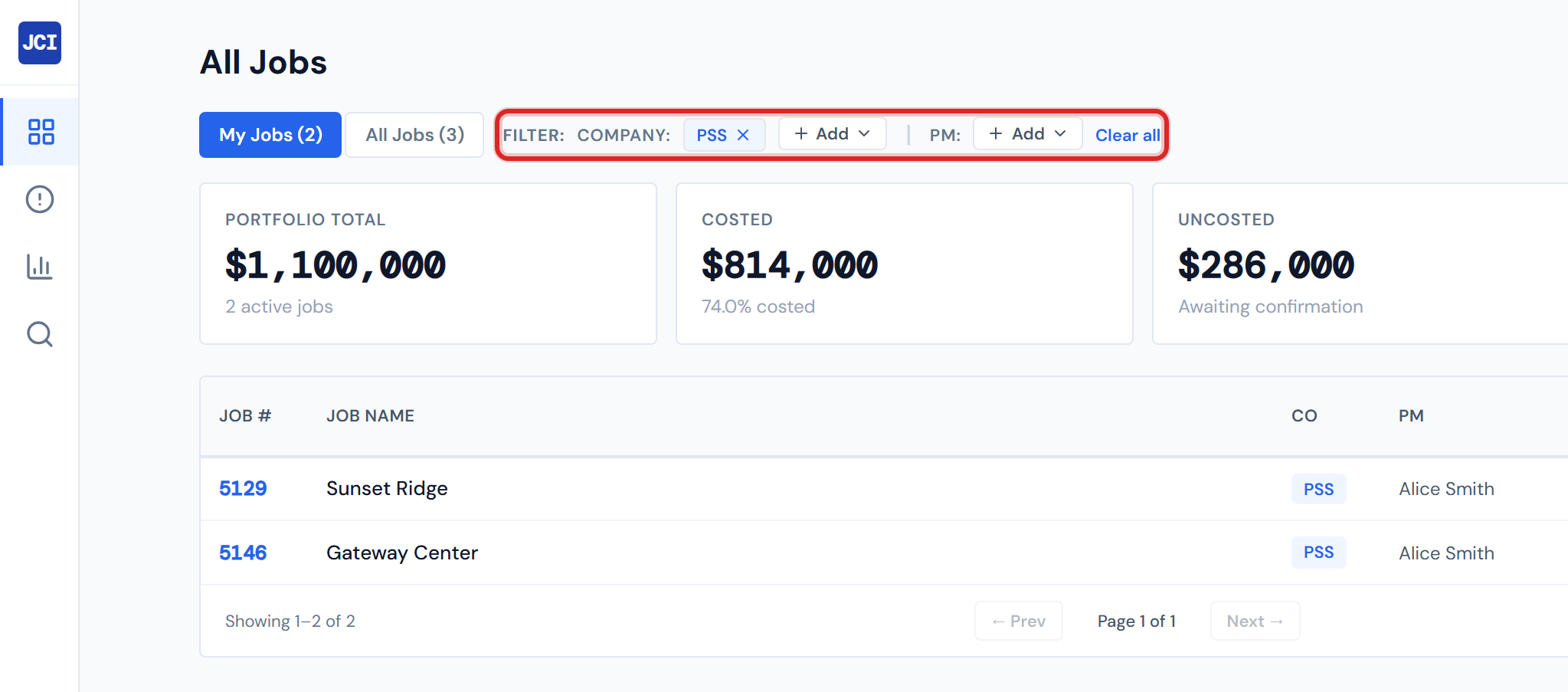
Company and PM chips appear in two places at once: the top filter row at the top of the page (with their color-coded styling — blue for Company, green for PM) AND the bottom red banner (with the uniform white-on-red styling).
This isn't two filters. It's the same filter rendered in two places. Removing a chip from either spot removes it from both. The dual rendering exists so you can still see what's filtered after you scroll past the top of the page.
Seeing the same chip in both the top filter row and the bottom banner is correct, not a duplicate. The banner is a mirror, not a separate filter set.
The four widget-only chip types — Category, Vendor, Cost Code, and Job — only appear in the bottom banner, because the top filter row only handles Company and PM.
Removing chips
Three paths get you out of a filtered state:
- Click × on a single chip — removes just that one filter. The banner reflows. If it was the last chip, the banner disappears entirely.
- Click
Clear allon the right side of the banner — removes every chip on the page. The banner disappears. - Use the top filter row's controls — they share state with the banner, so removing a chip up top removes it from the banner too.
The Clear all link only renders when two or more chips are active. With a single chip, the chip's own × button is the only path. Don't go looking for Clear all if you only have one chip — it isn't there.
What's not in the banner
A few things deliberately stay out of the banner:
- The My Jobs toggle. The My Jobs / All Jobs segmented toggle scopes the page by your account, but it doesn't add a chip and it doesn't render in the banner. A page can be scoped to your jobs only AND show no banner at the same time. To know whether My Jobs is on, look at the toggle at the top of the page. See My Jobs Toggle.
- The hidden user-account behind a PM chip. When a PM is filtered, you see the human-readable name (
PM: Jared McKenzie). The system tracks the matching account behind the scenes, but it never renders as a separate chip — only the name is visible.
Chips do not persist across pages
Chips on one page do not carry over to another. If you drilled into a category on Analytics and then click into All Jobs, the All Jobs banner starts empty. Each page mounts its own filter state.
This catches readers who expect a workflow to follow them. The drill-down narrows the page you're on; switching pages drops the chips. To carry a filtered view across sessions or to a colleague, see Copy Link — a deep link is the only way to preserve a chipped state.
The single exception is tab switching within Job Detail. Switching between Spend Analytics, PO Detail, and Field Data tabs keeps your drill-down chips active because the tabs all live inside the same page. Navigating away from Job Detail entirely still clears them.
Why is the banner red?
The red is intentional. It's the same hue used for the Pending PM PO status across the dashboard, repurposed here as a deliberate pattern interrupt. The banner is loud on purpose — when something is filtering your view, you should notice it.
It does not mean "your action is required" or "danger." It means "this view is filtered."
The red is the same hue as the Pending PM PO status — a deliberate pattern interrupt. See PO Lifecycle Colors for where else this red appears in the dashboard.
Empty filter, full data
This trips up most people the first time they clear all chips and expect zero rows. An unset filter means "all values matching" — clearing all chips returns the full dataset, not zero rows. If a page suddenly looks busier after you removed your last chip, that's why.
There is no "show me nothing" state. To narrow, add chips; to widen, remove them.
Accessibility
The banner uses a polite live-region announcement, so a screen reader will announce filter additions and removals as they happen — without stealing focus from whatever you were doing. Each chip is keyboard-focusable: Tab to a chip, then press Enter or Space to remove it. The Clear all link is also focusable.
Numbers and freshness
The banner reflects the dataset that the page is currently showing, which can be up to four hours old. See Data Refresh Rates for the cadence.
Related
- Company and PM Filters — the top-bar Company and PM chips that mirror into the banner
- Drill-Down Chips — the widget-side chip emitters
- My Jobs Toggle — the personal-scope toggle that does NOT render in the banner
- Cross-Widget Drill-Down — the widget-system perspective on what produces banner chips
- Drilling into a Job — the narrative workflow that ends with chips in the banner
- PO Lifecycle Colors — where else the dashboard uses the banner's red hue
- Mobile and Responsive — for the BottomNav clearance behavior
- Troubleshooting — "I can't tell why my page is filtered"
- Copy Link — the only way to preserve a chipped state across sessions
- Data Refresh Rates — the 4-hour lag