Drill-Down Chips
Many widgets are clickable. Click a bar, slice, or cell on a chart and that value becomes a filter chip — narrowing every other widget, scorecard, and table on the page to just that slice. This is how the dashboard supports "show me only Concrete on this job" or "narrow Analytics to just this PM's work" without you having to open a separate filter.
This page is the reference for which widgets emit chips, what kinds of chips they emit, how those chips behave, and what to expect when you stack multiple drill-downs.
Click a bar, slice, or cell on a widget to filter the rest of the page by it. Click × on the resulting chip in the Filter Banner to remove it.
What an emitted chip looks like
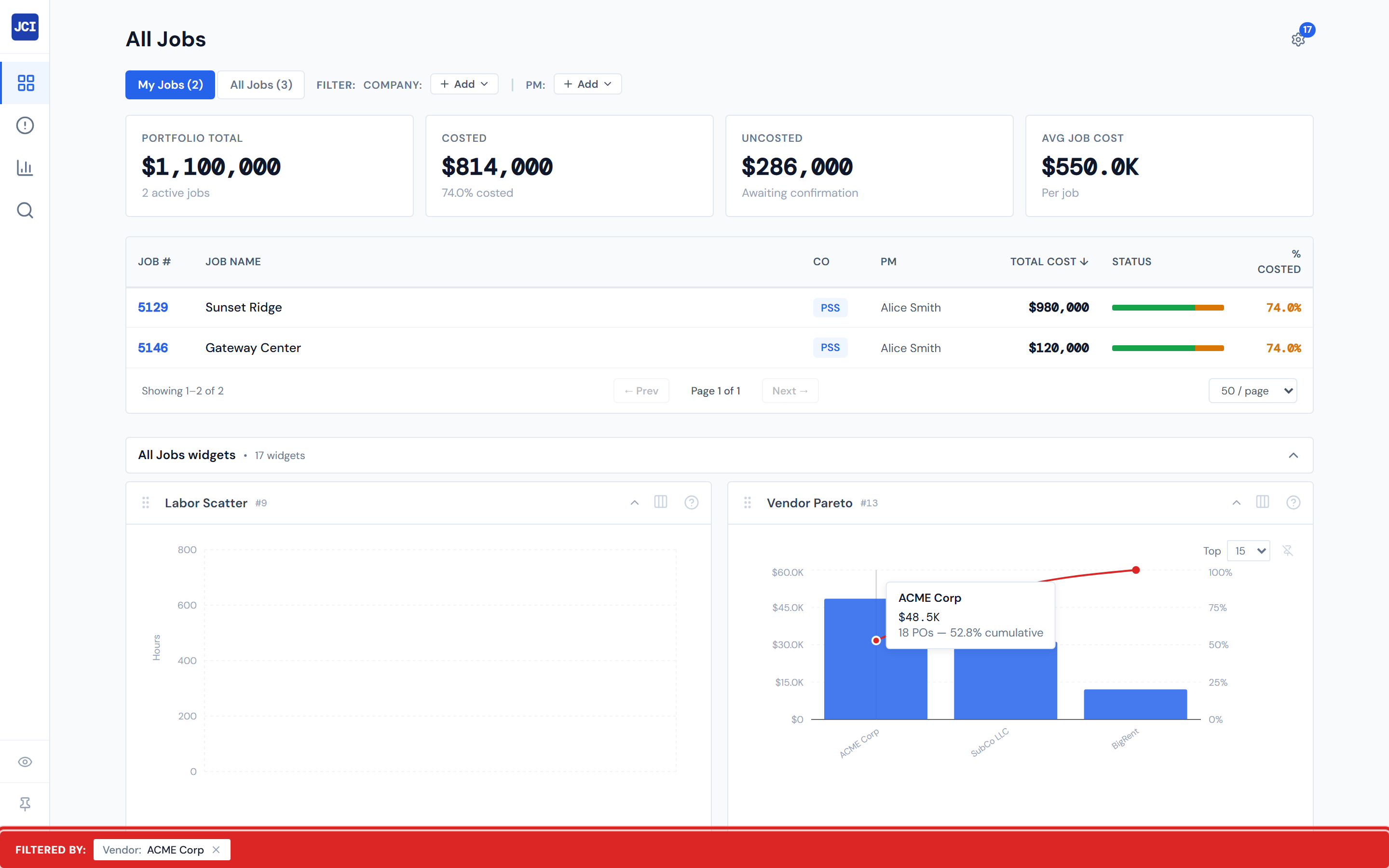
A chip emitted by a widget appears as a small white pill in the red Filter Banner at the bottom of the page. The form is Type: Value — for example:
Category: ConcretePM: Jared McKenzieVendor: ABC ConcreteCost Code: 03-300
Each chip has an × button to remove it. With two or more chips active, a Clear all link appears on the right side of the banner.
Chips also affect the top filter row (sometimes)
Most chip types only show up in the bottom banner. But two of them mirror into the top filter row:
| Chip type | Where it appears |
|---|---|
Category | Bottom banner only |
Vendor | Bottom banner only |
Cost Code | Bottom banner only |
Job | Bottom banner only |
PM | Top filter row AND bottom banner |
Company | Top filter row AND bottom banner |
For PM and Company chips, the top filter row and the bottom banner are showing the same chip in two places — they share state. Removing it from either spot removes it from both.
A PM or Company chip emitted by a widget shows up twice on screen — once in the top filter row, once in the bottom banner. That's the same chip rendered in two locations, not two separate filters.
The seven widgets that emit chips today
| Widget | Click target | Chip emitted |
|---|---|---|
| Cost Waterfall | A category bar | Category |
| Labor Cost Code Bars | A cost-code bar | Cost Code |
| PM Leaderboard | A PM bar | PM |
| Company Radar | A company spoke or legend entry | Company |
| Cost Code Treemap | A cost-code rectangle | Cost Code |
| Budget vs Actual | A category bar | Category |
| Vendor Pareto | A vendor bar | Vendor |
These are the only widgets that drill-and-filter today. Other widgets either don't respond to clicks at all, or they navigate you somewhere instead of adding a chip — see the next two sections.
Widgets that look clickable but don't drill
Several widgets have hover behavior or tooltips and read as clickable, but they don't actually emit a chip:
- Portfolio Bee Swarm — hover shows a tooltip; clicking a dot does nothing.
- Spend Trend Multiples — chart elements are not click-to-filter sources today.
- Month-over-Month Slope — same.
- Pipeline Funnel — same.
- Category Heatmap — same.
- Category Mix donut — read-only.
- Costing Health bars — read-only.
If a click on one of these doesn't do anything, that's expected — the widget is a viewer, not a drill-down emitter. See Drilling into a Job for the Analytics-specific list.
Widgets that navigate instead of filtering
A different family of widget interactions routes you to a page rather than adding a chip. These are not drill-down chips — they're navigation drill-downs:
- Stale PO dot → opens the PO in your queue.
- Change Order lollipop row → opens the job's Change Order tab.
- Daily Report Calendar day cell → opens the daily report for that day on Job Detail.
- Anomaly Feed card → contextual job navigation.
- Morning Briefing bullet → contextual job navigation.
These don't add chips. Clicking them takes you somewhere; the destination page starts with no chips active. See Cross-Widget Drill-Down for the full pattern, and the workflow chapters for specific narratives.
There are two different "drill-down" behaviors in the dashboard:
- Filter drill-down (this page) — adds a chip, narrows the current page.
- Navigation drill-down — opens a different page or tab.
The list above is navigation. This page documents filter drill-downs only.
Click-once-to-add, click-again-doesn't-remove
For most drill-down widgets, clicking the same bar a second time replaces the chip with itself — a no-op. To remove a chip, click × on it. This is different from the top-row + Add dropdown, where clicking the same value twice toggles it off.
Clicking the same bar twice does NOT remove the chip. Use × on the chip in the Filter Banner (or in the top filter row, if it's a PM or Company chip) to remove a drill-down filter.
Drilling on PM or Company REPLACES, doesn't ADD
This is the most surprising behavior on first use. Suppose you've added two PM chips from the top row's + Add PM filter dropdown — PM: Jared and PM: Hailey. Then on Analytics you click a third PM in PM Leaderboard.
The third PM chip replaces both of the originals. You're now filtered to one PM, not three.
The widget emits a single value, and that single value overwrites whatever was on the PM key — including a multi-value list from the top row. To accumulate multiple PMs, use the top row's + Add dropdown. To pivot to a different PM in one click, use the widget.
Clicking a PM in PM Leaderboard or a company in Company Radar replaces the entire PM or Company filter — including any chips you'd added from the top filter row. To accumulate multiple values, use the + Add dropdown in the top filter row, not the widget.
Composing chips from multiple widgets
You can stack drill-downs from different widgets on the same page. The composition is straightforward:
- Across keys = AND.
Category: ConcreteANDPM: Jared McKenzienarrows to Jared's concrete work. - Within a key = OR (when an array is in play). Two PM chips from the top row mean jobs from either PM.
For the full composition rules and worked examples, see Company and PM Filters.
A typical Job Detail flow: drill on a category bar in Cost Waterfall (Category: Concrete), then drill on a vendor in Vendor Pareto (Vendor: ABC Concrete), then drill on a cost-code rectangle in Cost Code Treemap (Cost Code: 03-300). Three chips, all narrowing the PO Detail table to the same cross-section.
Chips do not persist across pages
Chips do not carry over when you navigate to another page. If you drill into a PM on Analytics and then click into All Jobs from the navbar, the All Jobs page starts with no chips. Each page mounts its own filter state.
This is intentional, but it surprises readers who expect a workflow to follow them. To carry context from page to page, you have to re-apply the filter on the destination page — or use Copy Link, which is the only way to preserve a chipped state across sessions or share it with a colleague.
Chips DO persist across tabs within a page
On Job Detail, the four tabs (Spend Analytics, PO Detail, Field Data, Budget) live inside the same page. Drilling into Cost Waterfall on the Spend Analytics tab keeps the chip active when you switch to PO Detail — the PO Detail table is filtered to the chipped category.
The chip clears the moment you leave Job Detail entirely (back to All Jobs, or to a different job's Job Detail).
Where drill-downs work
Every page that mounts widgets:
- All Jobs — Company Radar, Vendor Pareto, etc.
- Analytics — PM Leaderboard, Cost Waterfall, Vendor Pareto, etc.
- Action Queue — limited drill-down activity (most widgets aren't on this page).
- Job Detail — Cost Waterfall, Labor Cost Code Bars, Cost Code Treemap, Budget vs Actual, Vendor Pareto.
Job Detail is where Category and Cost Code chips are most common. Analytics is where PM and Company chips are most common.
Action Queue's PM chip is special
Action Queue seeds the PM chip with the signed-in user on first mount and keeps it locked there. PM Leaderboard isn't typically enabled on Action Queue, so the scalar-replacement rule rarely fires there — but if it ever did, the replacement would override the self-seed. See Company and PM Filters for the locked-PM behavior.
The Pump-bar gotcha
If you click the Pump bar in Cost Waterfall, you'll add a Category: Pump chip — and the page will narrow to nothing. The PO Detail table goes empty.
That's not a bug. Pump costs are always $0 in the source data and never get populated. The drill-down does what you asked; there's just nothing on the other side of the filter. See the Glossary entry for Pump or Categories for the full story.
Clicking the Pump category in Cost Waterfall narrows the page to zero rows. That's expected — pump costs are always $0 and never populated. If you see an empty PO Detail table after a Pump drill-down, the chip is doing its job; there's just nothing to show.
Numbers and freshness
Drilling on a stale number gives you a stale narrowing. The dataset can be up to four hours old. See Data Refresh Rates.
Related
- Filter Banner — the red bottom banner that hosts the chips
- Company and PM Filters — top-row Company and PM chips, which share state with PM and Company drill-downs
- My Jobs Toggle — the global personal-scope toggle (a different control)
- Cross-Widget Drill-Down — the widget-system perspective on drill-down
- Portfolio Catalog — PM Leaderboard, Company Radar
- Spend Catalog — Cost Waterfall, Cost Code Treemap, Vendor Pareto, Labor Cost Code Bars
- Budget and Billing Catalog — Budget vs Actual
- Drilling into a Job — the narrative workflow on Analytics
- PO Detail Tab — what Category, Cost Code, and Vendor chips narrow on Job Detail
- Copy Link — the only way to preserve a chipped state across sessions
- Data Refresh Rates — the 4-hour lag
- Troubleshooting — "drilled on a category and saw nothing"