Widget Presets
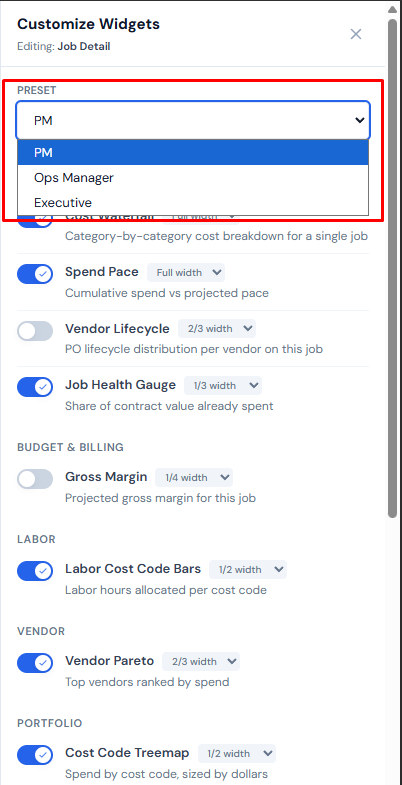
A preset is a starter layout — which widgets are on, in what order — for every surface that hosts widgets. The dashboard ships three presets: PM, Ops Manager, and Executive. Your role in the PM directory decides which one you start with.
You can't save a custom layout as a named preset. The good news: you don't have to. Once you customize, your changes persist across sign-outs and devices automatically. Your label simply reads "Custom."
Which preset you start with
When you sign in for the first time, the dashboard checks your role in the PM directory and seeds every surface with that role's preset.
- PM in the directory → PM preset on every surface.
- Ops Manager → Ops preset.
- Executive → Executive preset.
If your role isn't recognized, the dashboard treats you as a PM. Talk to whoever maintains the PM directory if your starting layout doesn't match your job. See Companies and Access.
What the three presets emphasize
Without listing every widget by name (the per-surface tables below do that):
- PM — focused on day-to-day cost work and your own jobs. Job Detail leans on the cost trio (Waterfall, Treemap, Labor bars) plus a job-health gauge and spend pace.
- Ops Manager — leans on field operations and portfolio visibility. Includes the equipment matrix, daily report calendar, and worker heatmap; lighter on per-job cost detail.
- Executive — portfolio-wide. Portfolio Bee Swarm, Company Radar, Spend Trend Multiples, PM Leaderboard. Job Detail is intentionally empty by default — an exec doesn't need to dive into one job's PO list.
What's in each preset, surface by surface
The tables below list the exact contents of each role's preset on each surface as of the last verified date in the footnote. The live customize panel is the source of truth if you ever notice drift.
All Jobs
| Role | Widgets (in order) |
|---|---|
| PM | Spend Sparklines · Morning Briefing · Pipeline Funnel · Vendor Pareto · PM Leaderboard |
| Ops Manager | Spend Sparklines · Morning Briefing · Pipeline Funnel · Category Spend Heatmap · Equipment Utilization Matrix |
| Executive | Spend Sparklines · Pipeline Funnel · Company Radar · Spend Trend Multiples |
Analytics
| Role | Widgets (in order) |
|---|---|
| PM | Pipeline Funnel |
| Ops Manager | Pipeline Funnel · PM Leaderboard · Company Radar · Daily Report Calendar · Equipment Utilization Matrix |
| Executive | Pipeline Funnel · Company Radar · Portfolio Bee Swarm · PM Leaderboard · Spend Trend Multiples |
Action Queue
| Role | Widgets (in order) |
|---|---|
| PM | Stale PO Strip |
| Ops Manager | Anomaly Alert Feed · Stale PO Strip |
| Executive | Anomaly Alert Feed |
Job Detail (main tab)
| Role | Widgets (in order) |
|---|---|
| PM | Job Health Gauge · Spend Pace · Cost Waterfall · Cost Code Treemap · Vendor Pareto · Labor Cost Code Bars |
| Ops Manager | Job Health Gauge · Cost Waterfall · Vendor Pareto |
| Executive | (empty by default) |
Job Detail › Field Data
| Role | Widgets (in order) |
|---|---|
| PM | Overtime KPIs · Crew Size Timeline · Daily Report Calendar |
| Ops Manager | Overtime KPIs · Crew Size Timeline · Worker Utilization Heatmap |
| Executive | (empty by default) |
Job Detail › Budget
| Role | Widgets (in order) |
|---|---|
| PM | Budget vs Actual · Cost-to-Complete Projection · Billing Waterfall |
| Ops Manager | (empty by default) |
| Executive | (empty by default) |
An Executive on Job Detail sees no widget section at all — the section header itself is suppressed when no widgets are enabled. The same is true for Ops on Job Detail › Budget. This is intentional, not a bug. See Collapsing Widget Sections.
Last verified: 2026-04-27. Widget contents may change with new releases. The live customize panel is the source of truth — if you notice the table above doesn't match what you see in your panel, the panel wins.
The "Custom" label
The moment you toggle a widget on or off, reorder a card, or apply a different preset, your layout label automatically becomes Custom.
Custom is not something you choose. It's a status that describes your current layout. The "Custom" entry in the preset dropdown is greyed out and disabled — you can't pick it; it just shows you that you're off-preset.
Switching presets
To switch:
- Open any page's customize panel by clicking the gear in the page header.
- Choose a different preset from the dropdown at the top.
The change applies on every surface, not just the page you're editing. Your widget order and on/off state on every surface snap to the chosen preset's layout. The Custom label switches off.
A preset change replaces which widgets are on and the order on every page. Width, per-widget collapse, and pinned controls survive — they live with the widget itself.
What survives, what gets wiped
| When you switch presets… | …this is wiped | …this survives |
|---|---|---|
| Show/hide on each surface | Width of each widget | |
| Order on each surface | Per-widget collapse state | |
| (The "Custom" label clears) | Pinned controls inside widgets | |
| Help-panel "I've seen this" status per widget |
See Widget Settings Panel for what each setting means, and Reordering and Pinning for what "order" and "pinned" mean.
Reset to Default
The Reset to Default button at the bottom of the customize panel reverts every surface to the preset matching your role in the PM directory — not the preset you most recently picked from the dropdown.
So if you're a PM who applied the Exec preset and customized from there, Reset to Default takes you all the way back to the PM preset.
Reset to Default reverts every page's layout to your role's preset, not the preset you most recently chose. A PM who picks the Exec preset, then clicks Reset to Default, lands back on PM — not Exec.
No "save my preset" feature
The dashboard does not let you save a custom layout as a named preset for yourself or share one with the team. If you want a layout you'll keep, just customize it — your customizations persist across sign-outs and devices, and your label simply reads "Custom."
Preset choice is global
Switching from PM to Executive changes the layout on every surface at once. There is no per-surface preset — you can't pick "PM on All Jobs but Exec on Analytics." If you want a custom mix, customize from one role's preset until your layout looks the way you want; everything you change persists, and the label reads Custom.
Related
- Widget Settings Panel — the gear that hosts the dropdown, plus the full widget list.
- Showing and Hiding — what gets wiped on a preset change.
- Reordering and Pinning — what "order" and "pinned controls" mean.
- Collapsing Widget Sections — what an empty preset-page combination looks like.
- Companies and Access — explains roles and the PM directory.
- My Jobs vs. All Jobs — the page-level scoping toggle that complements your role.