Generating a Weekly Report
What this is for
The Weekly Report is how the office closes out each pay week. You pick the week, review how many hours each worker logged, send the report out to the foremen by text message, and track who has approved their numbers before payroll runs.
Before you start
- The pay period ends on Sunday. Wait until Monday morning (after all clock-outs are in) to run the final report.
- Every team foreman who needs to approve must have a mobile phone number saved on their profile. Missing numbers cannot receive text messages.
- You have the "View weekly reports" permission. If the Reports tab does not show a "Weekly" option, ask an admin.
- Any known time corrections for the week should already be entered and approved — see Correcting a Time Entry.
Steps
-
Click the Reports tab at the top of the page, then choose Weekly.

-
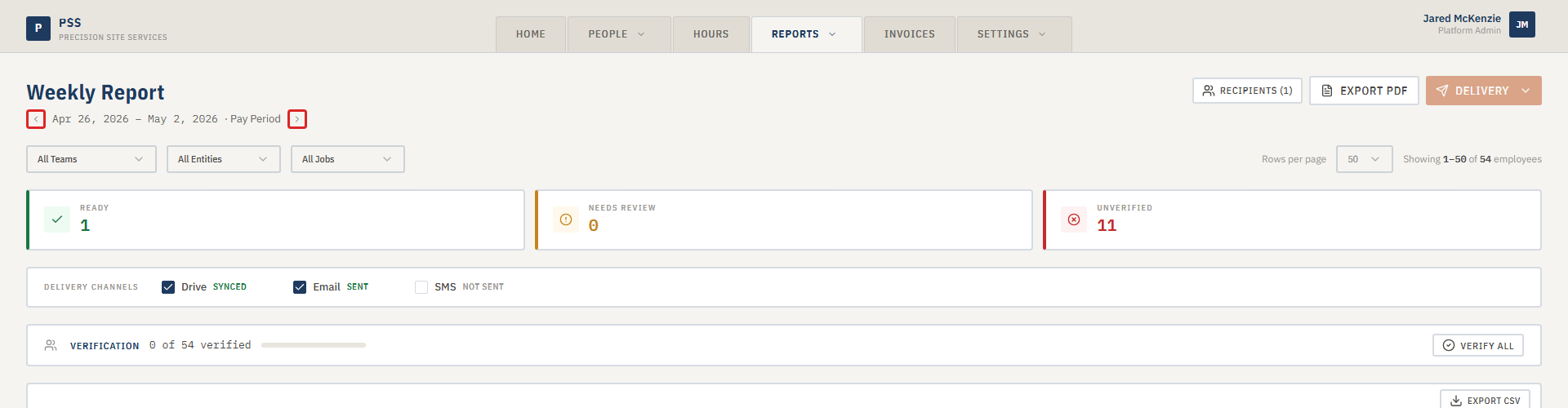
Use the date picker to pick the week ending Sunday you are closing out. The page rebuilds with that week's hours.
-
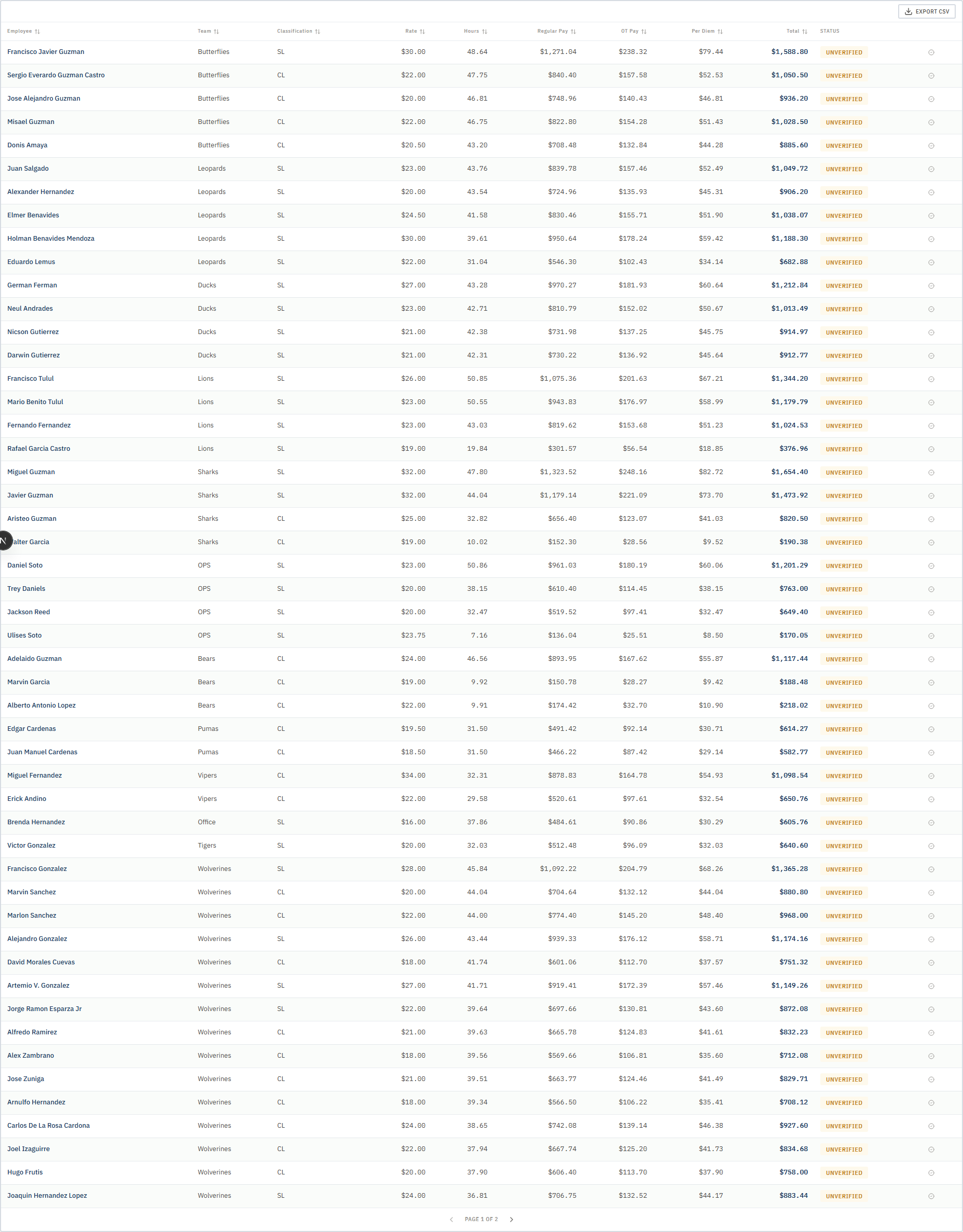
Scan the table. Each row is one worker. Check the total hours, the job they were on, and their team. If something looks wrong (missing hours, wrong job), go fix the time entry first and come back.
-
When the numbers are right, click Deliver Report at the top. A dialog asks how you want to send it — confirm SMS is turned on so foremen get a text. Click send.
Screenshot pendingDeliver Report button and delivery dialog with SMS toggle.
This screenshot will be added in a future docs update once the underlying state is reproducible in dev.
-
Each foreman receives a text message listing the hours for their team. They reply "approve" to confirm, or "reject" with a short reason. Spanish replies ("aprobar", "rechazar") work too.
-
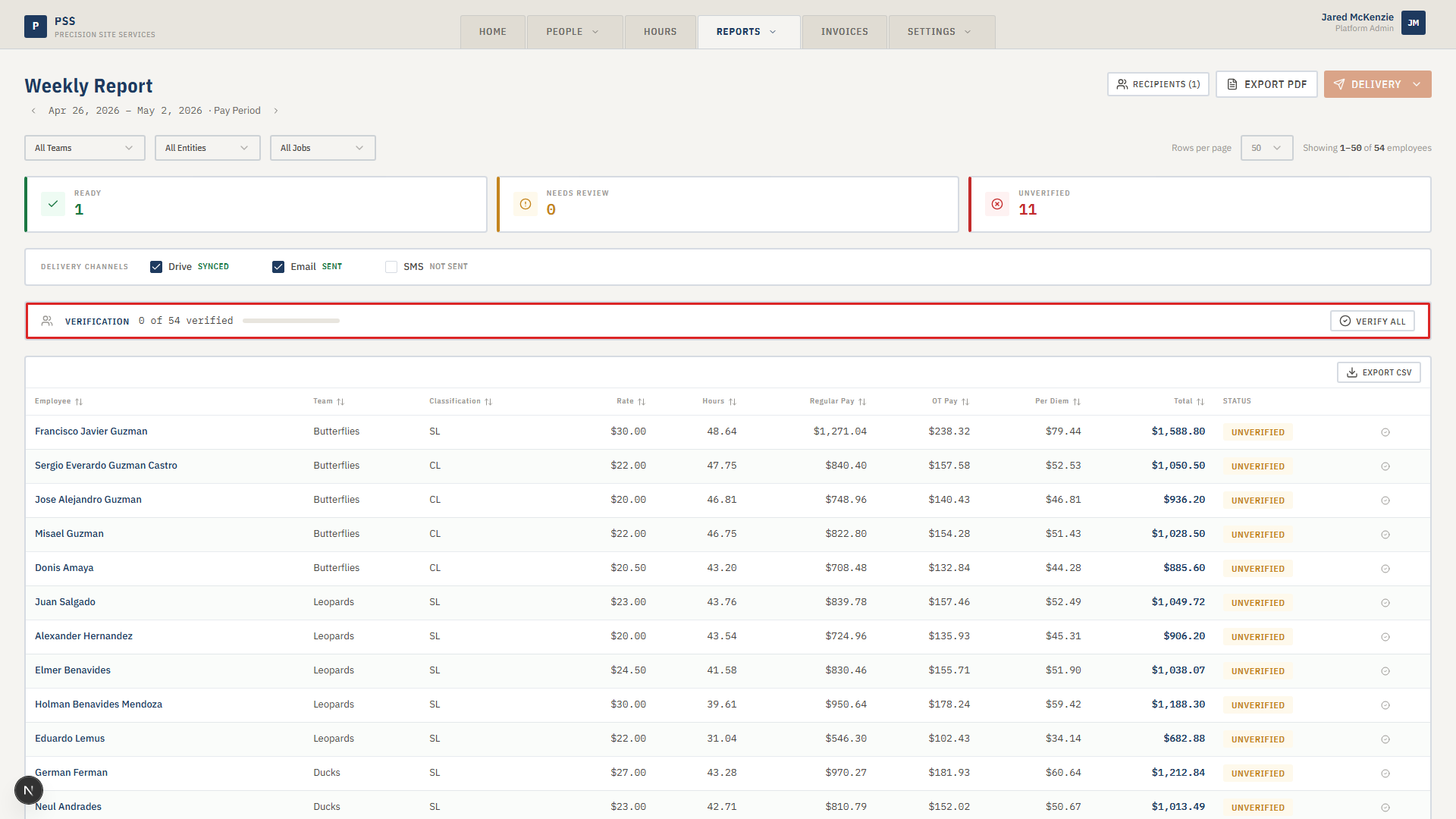
Come back to the Weekly Report page every few minutes. The verification bar at the top shows how many workers are still waiting, how many are approved (green), and how many were rejected. The badges next to each row update as replies come in.
-
If a foreman has not answered within an hour or two, click Send Reminders. That fires off a second text only to the people who haven't responded — it will not re-message anyone already approved.
Common mistakes
- Picking the wrong week. The date picker defaults to the current week. If you are closing out last week, move it back. Reports for future weeks will be empty.
- Running the report before Monday. Workers who clocked out late on Sunday may not be included if you run it Sunday afternoon.
- Missing phone numbers. If a foreman has no mobile number on their worker profile, they will not receive the SMS and will show as "not delivered" forever. Add the number on their worker page and re-deliver.
- Expecting instant replies. Foremen are in the field. Give them at least an hour before assuming something is broken.
- Re-delivering to everyone instead of just reminding. Use Send Reminders, not Deliver Report, for follow-ups — otherwise people who already approved get a second text and get annoyed.
What to do if it goes wrong
- No foremen got the text. Check the Audit Log (Settings → Audit Log) for the delivery attempt. If every row says "failed," the SMS service is probably down — contact your admin.
- One specific foreman did not get the text. Open their worker profile and confirm the mobile phone number is correct and includes the area code. Re-deliver the report.
- A foreman says they replied but the page still shows "pending." Ask them to forward you the message they sent. If it contains the word "approve" or "aprobar", there may be a processing delay — wait five minutes and refresh. If it still does not update, an admin can check the Twilio console for the message.
- You delivered the wrong week. You can simply deliver again with the correct week picked. The system tracks approvals per week, so the old report's replies do not carry over.
- A foreman rejects the report. Read the rejection reason in the verification bar. Fix the underlying time entry, then deliver that worker's row again.