Creating a Job
What this is for
Creating a job records a new project in the system so field workers can clock into it, the office can track its hours, and it shows up on labor, weekly, and contractor-insurance reports. Every job belongs to one company.
Before you start
- The job number assigned by operations.
- The company the job is for — it must already exist in the system. If it does not, have an admin add it first.
- The job name or project description.
- The job code (optional) and any other identifying details such as location, general contractor (GC), or job type.
- Whether the job falls under a Contractor Insurance Program (CCIP) — if so, check the CCIP flag when you create it.
- Whether the job requires Certified Payroll (CPR) reporting, includes per-diem, or has retainage — there are checkboxes for all four flags.
- Sign-in access with the Manage master data permission.
Steps
1. Open the Jobs page
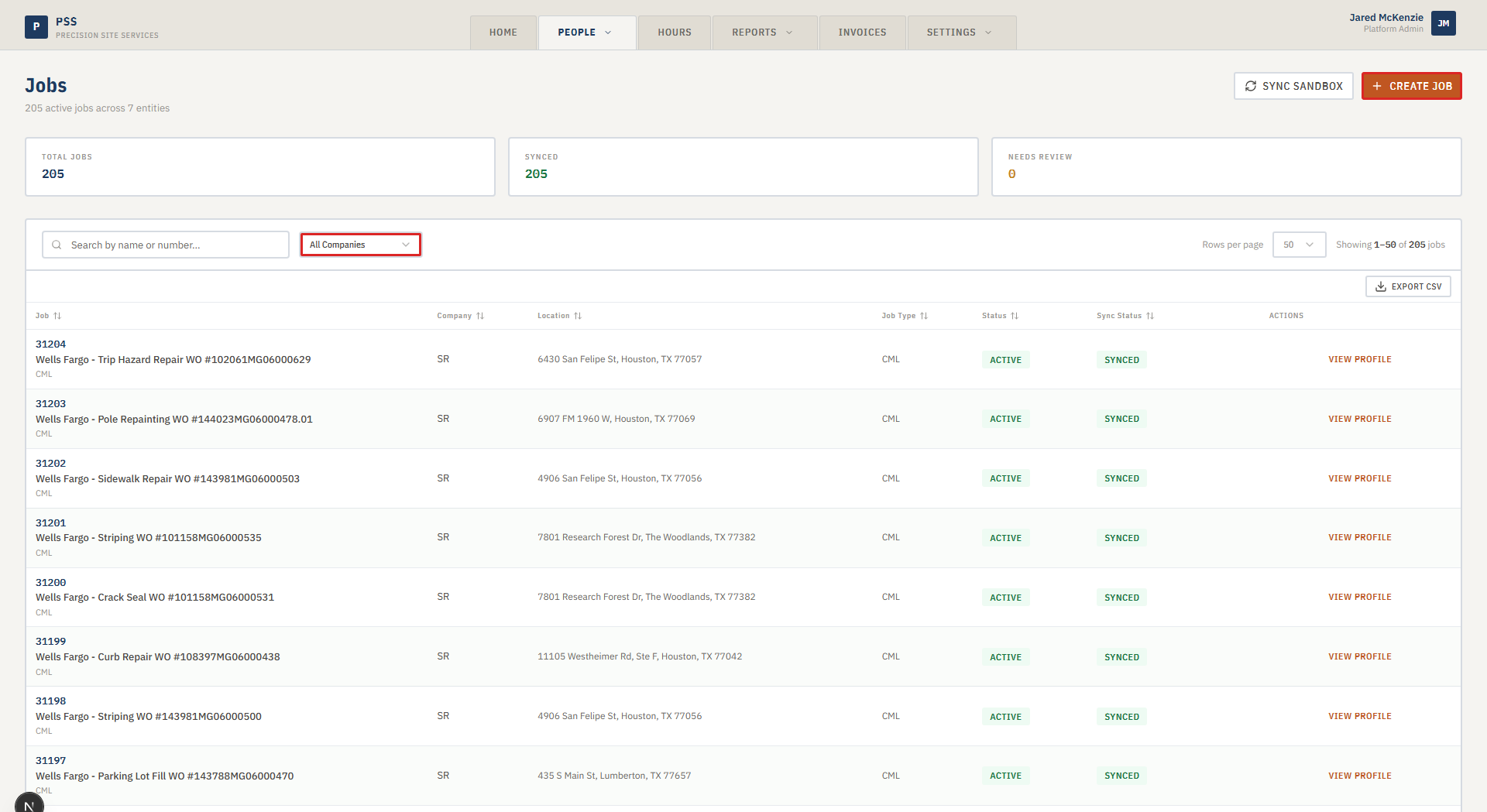
From the top navigation, go to People → Jobs. You will see the list of existing jobs with columns for job number, name, company, and sync status.
2. Click "Create Job"
In the top-right corner of the Jobs page, click Create Job. A form panel opens below the page header.

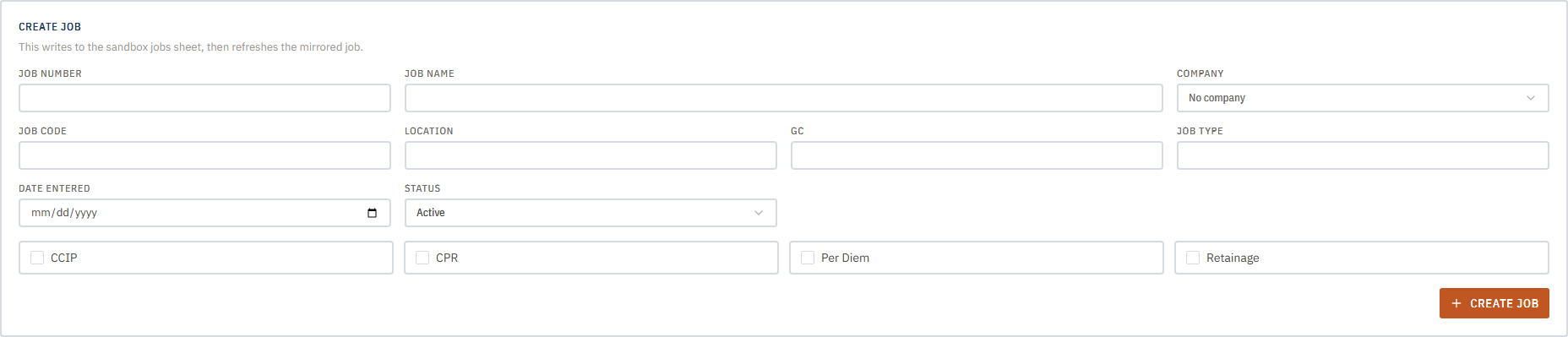
3. Fill in the required fields
Enter the following:
- Job Number — the official number from operations. Must be unique.
- Job Name — a short description (for example, "Main St. Slab Pour").
- Company — pick from the dropdown. Start typing to filter the list.
- Job Code — an internal code for billing or cost tracking (optional).
- Location — site address or short location name (optional, helps crews find the site).
- GC — the general contractor name if applicable (optional).
- Job Type — category or trade type (optional).
- Date Entered — defaults to today, but you can set a specific date.
- Status — leave as "Active" for a new job.
4. Set the job flags
Four checkboxes at the bottom of the form control which programs and rules apply to this job:
- CCIP — check this if the job is under a Contractor Insurance Program. The job will appear on the Contractor Insurance report.
- CPR — check this if the job requires Certified Payroll reporting (public or prevailing-wage work).
- Per Diem — check this if workers on this job earn a per-diem allowance.
- Retainage — check this if the contract includes retainage.
You can update these flags later on the job detail page.

5. Click "Create Job"
Click the orange Create Job button. The app writes the new job to the sandbox sheet, then mirrors it back. The job now appears in the list and can be selected by field workers clocking in.
Common mistakes
- Wrong company linked. This causes hours and invoices to roll up to the wrong customer. Always double-check the company before saving.
- Reusing a job number. Job numbers must be unique. If the app rejects the number, search the Jobs list — the number may already exist on an older or archived job.
- Forgetting the CCIP flag. If the job falls under a Contractor Insurance Program and you skip the checkbox, it will not appear on the Contractor Insurance report and the deadline could be missed.
- Typos in the job number. Field workers will not find the job at clock-in if the number is off by one character.
- Leaving Status as "Inactive." An inactive job does not show up at clock-in. Leave it as "Active" unless you specifically want to prevent workers from clocking into it.
What to do if it goes wrong
- "Company not found" — no matching options in the dropdown. The company has not been added yet. Ask an admin to add it or trigger a company sync from the spreadsheet.
- Job number is rejected as a duplicate. Search the Jobs list for that number — there may be an older job using it. Either reuse it, deactivate the old one, or pick a different number.
- Create Job button is greyed out. A required field is missing. Check that Job Number, Job Name, and Company are all filled in.
- Workers cannot find the job at clock-in. Confirm the job status is "Active." Sometimes the field app needs a moment to refresh — have workers close and reopen it.
- Wrong flag set. Open the job detail page at any time to change the flags. Each change is logged in the audit trail.