Correcting a Time Entry
What this is for
Fixing a clock-in record when a worker clocked in late, forgot to clock out, or was assigned the wrong job or shift team. A time change is a formal request — a reviewer approves it in the same queue, and once approved the fix is synced back to the office Google Sheet automatically.
Before you start
- The worker's name and the date of the entry you need to fix.
- The correct values — the right clock-in time, clock-out time, job, or shift team.
- Sign-in access with permission to edit time records. If you cannot see People → Time Corrections, ask an admin.
- A short note explaining the reason for the change (for the audit log and the reviewer).
Steps
1. Open the Time Corrections page
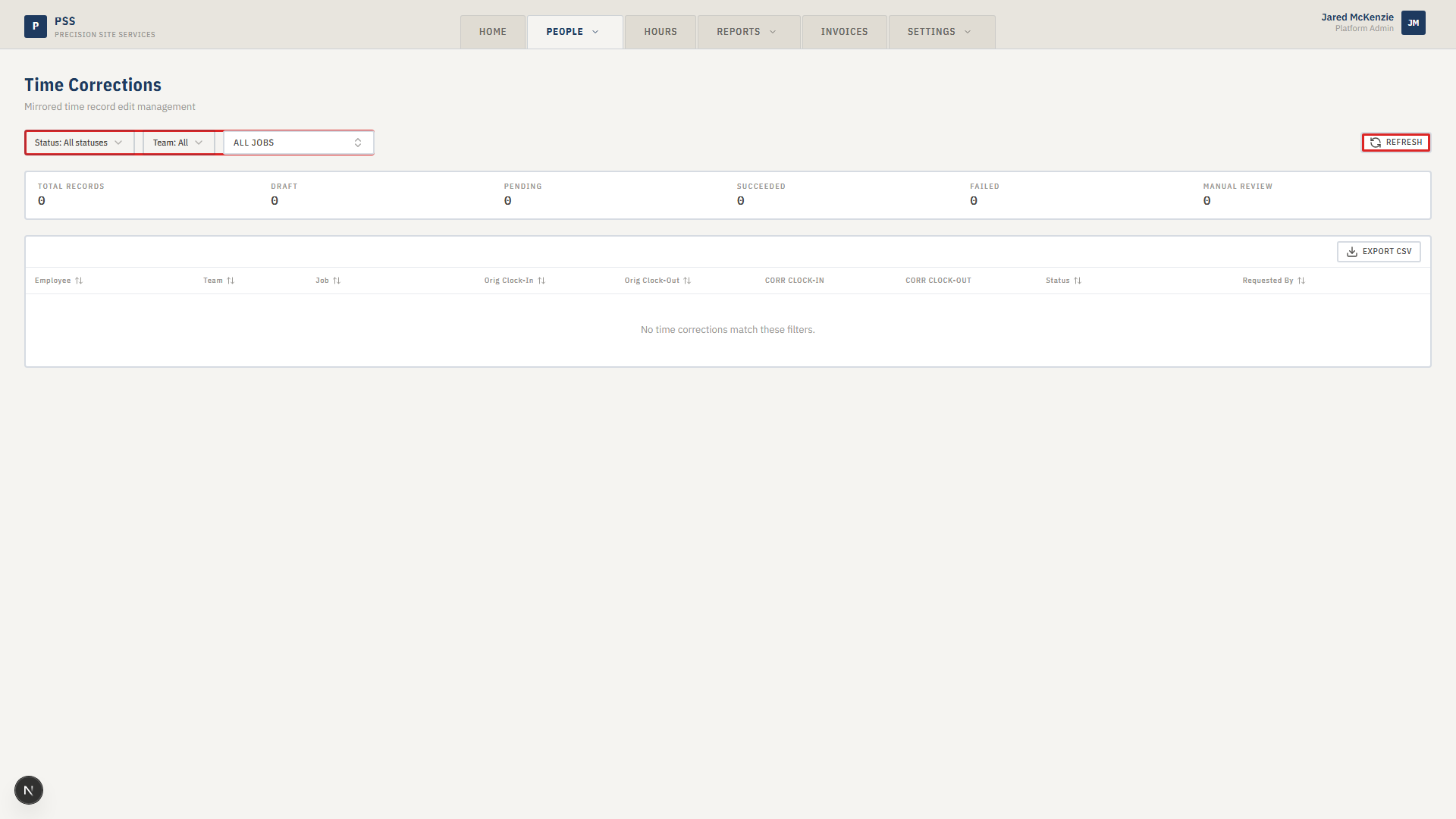
From the top navigation, go to People → Time Corrections. This is the single page for both submitting and reviewing time changes. Every clock-in record appears here as a queue row.
2. Find the entry
Use the filter bar at the top to narrow the list:
- Status — filter to "Draft" or "All" to find records that haven't been changed yet
- Team — limit to one shift team
- Job — limit to one job number
Click the row for the entry you want to fix.
3. The "Create Time Change" dialog opens
Clicking a row opens the Create Time Change dialog. The current record values are shown on the left. On the right, you can edit:
- Clock in — the correct clock-in date and time
- Clock out — the correct clock-out date and time
- Job — pick a different job from the dropdown
- Team — pick a different shift team
- Mark as void — use this checkbox to void the record entirely (for example, a duplicate entry)
Only these four fields (plus the void flag) can be synced back to the spreadsheet. If you need to change anything else, that must be handled directly in the Google Sheet.
Create Time Change dialog showing before values on the left and editable fields on the right.
This screenshot will be added in a future docs update once the underlying state is reproducible in dev.
4. Add a reason and save
Fill in the Requested by field with your name. Type a short explanation in the Note field (for example, "Worker forgot to clock out — confirmed with foreman"). Click Save Time Change.
The entry now shows in the queue with status "Pending."
5. Wait for approval
A reviewer opens People → Time Corrections, clicks the row to expand it, and sees the before-and-after comparison. They add an optional note and click Approve or Reject.
- Approved: the app writes the fix back to the office Google Sheet automatically. The status turns to "Succeeded."
- Rejected: the reviewer adds a note explaining why. The original record is unchanged — submit a new time change if the fix is still needed.
Expanded correction row showing Before and After panels with Approve and Reject buttons.
This screenshot will be added in a future docs update once the underlying state is reproducible in dev.
Common mistakes
- Changing a field outside the supported four. Only clock-in, clock-out, job, and team sync back to the spreadsheet. Any other change drops into "Manual Review" — those must be fixed directly in the Google Sheet.
- Submitting a second change before the first is resolved. If a correction is still "Pending," wait for approval or rejection before submitting another one for the same record.
- Wrong time zone. The app stores times in the office local time zone. Confirm the time before saving, especially if the worker was on a remote site.
- Fixing the wrong row. Workers often have two clock-ins on the same day for split shifts. Double-check the timestamp matches the shift you mean to fix.
- Leaving the note blank. Reviewers rely on the reason to approve quickly. An empty note usually means a slower turnaround or a rejection.
What to do if it goes wrong
- Change is stuck on "Pending" for a long time. The reviewer hasn't looked at it yet. Message them directly, or ask an admin to check the queue.
- Change is "Rejected." Read the reviewer's note in the expanded row. Fix the issue and submit a new time change.
- Status shows "Manual Review." The change touched a field that can't be synced automatically. Handle the fix directly in the Google Sheet and ask an admin to mark the item resolved.
- Status shows "Failed." The sync to the spreadsheet hit an error. Common causes are a locked row or a renamed sheet tab. Note the error message and contact IT.
- Saved a change by mistake. Ask the reviewer to reject it with a note, then submit the correct one.