Creating an Invoice from a Job
What this is for
Once a pay period is closed, accounting turns approved field hours into invoices for each company (the customer the crew worked for). This flow walks through building an invoice from those billable hours — either one company at a time or a whole batch in one click — and getting the PDF ready to send.
Before you start
- The pay period is closed and hours are approved in the Weekly Report — see Generating a Weekly Report.
- You know which company (the customer) you are billing. Inside the app, each job is tied to one company.
- Any per-diem rates the workers qualify for are set on their worker profiles.
- You have the "Generate invoices" permission. If you don't see the Invoices tab, ask an admin.
Steps
-
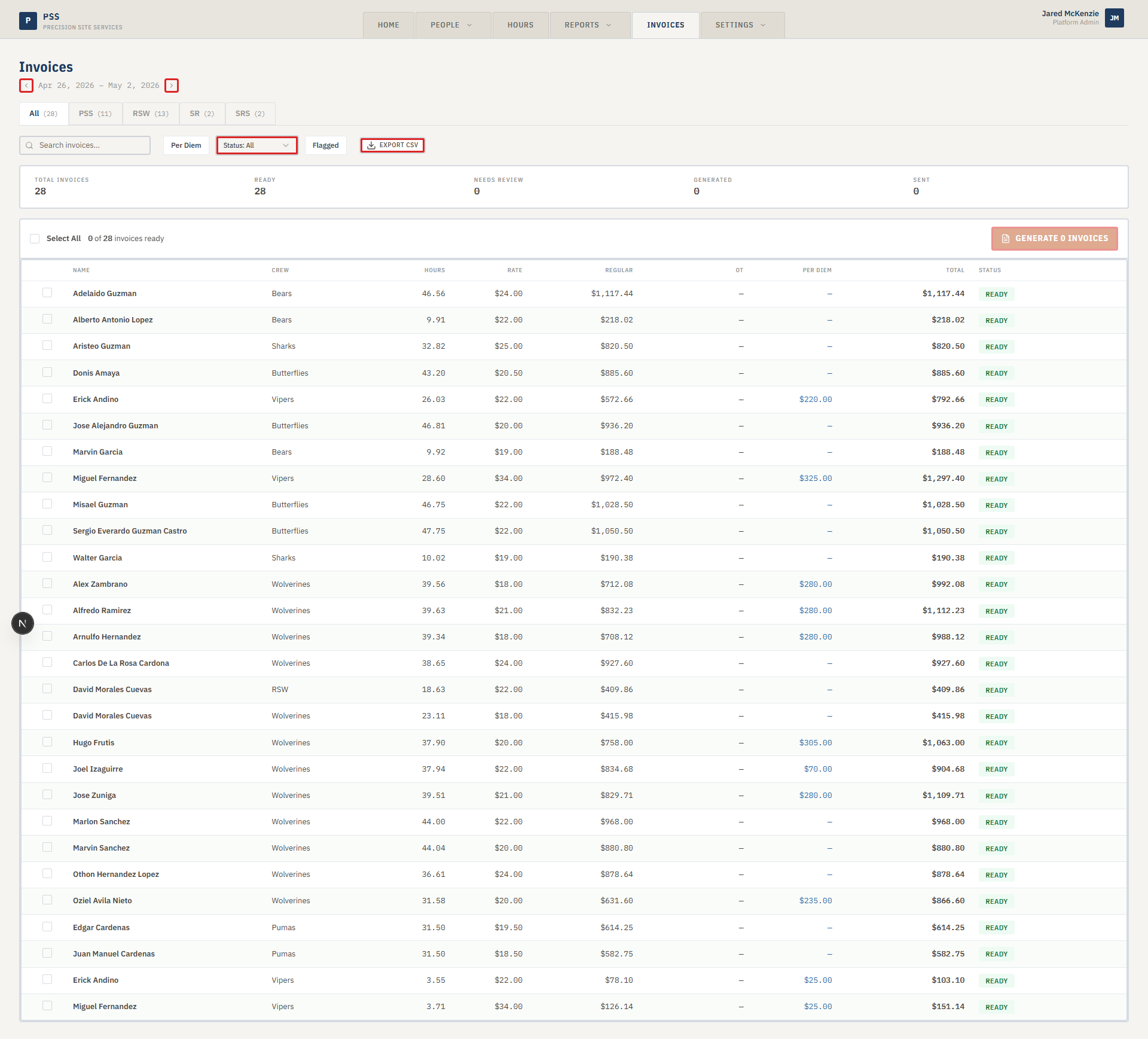
Click the Invoices tab at the top of the page. The page shows every company that has billable hours for the current pay period, one row per company.
-
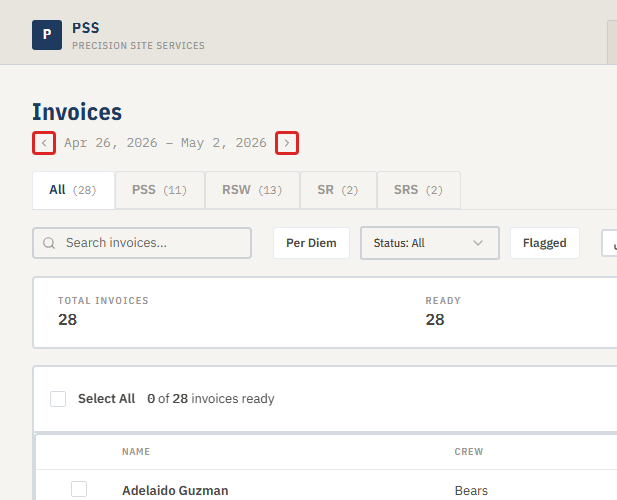
Confirm the period dates shown at the top match the week you're billing. If they don't, use the period selector to jump to the right one.
-
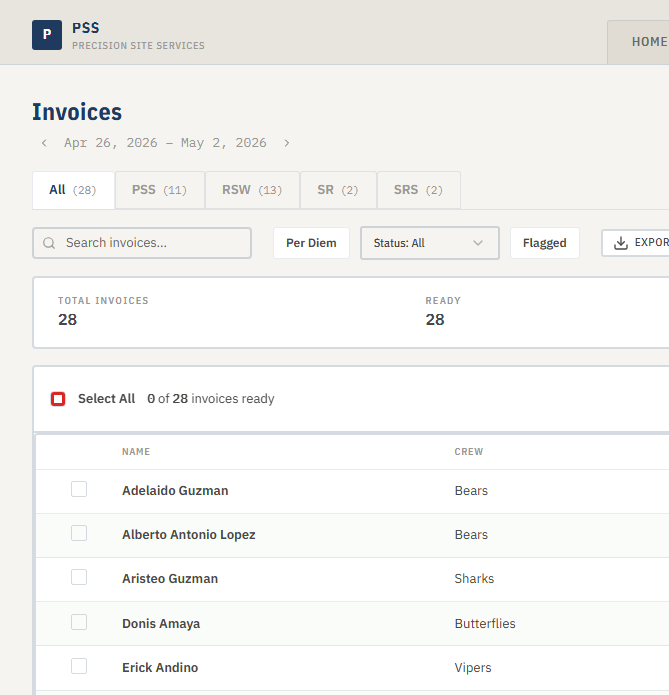
Decide how you want to run it:
- Single invoice — click the row for one company. A preview panel opens on the right showing the line items.
- Batch — use the checkboxes on the left of each row to pick several companies, then use the big Generate N Invoices button at the top of the table.
-
The system builds the line items automatically from the approved hours plus any per-diem that applies. Review them:
- Worker name, job, hours, hourly rate
- Per-diem lines (if any)
- Subtotal and total
Screenshot pendingInvoice preview panel listing line items for a single company.
This screenshot will be added in a future docs update once the underlying state is reproducible in dev.
-
If a line looks wrong (hours off, per-diem missing), close the preview and fix the source. Fix the time entry, or update the worker's per-diem on their profile, then come back and re-open the preview. Do not try to manually edit the invoice numbers — the app rebuilds them from source data.
-
When everything looks right, click Generate. The app produces the PDF. From there you can download it to send via email, or mark it as exported so it disappears from the queue and doesn't get generated again by accident.
Screenshot pendingGenerated invoice PDF download dialog.
This screenshot will be added in a future docs update once the underlying state is reproducible in dev.
Common mistakes
- Wrong pay period selected. The invoice will have zero or wrong hours. Double-check the period dates at the top before generating.
- Missing per-diem rate on a worker. If a worker's per-diem isn't set on their profile before you generate, it won't appear on the invoice. Fix the rate on the worker page, then regenerate.
- Duplicate generation. Running Generate twice for the same company in the same period can create two invoice files. Mark the first one as exported after you send it so the row drops off the queue.
- Generating before hours are approved. If the Weekly Report isn't approved yet, the hours might still change. Always close out the Weekly Report first.
- Editing the PDF by hand. The PDF is regenerated from the app's data. Handwritten edits will be lost if you regenerate. Fix the data, not the PDF.
What to do if it goes wrong
- Invoice is blank or totals are zero. The selected pay period probably has no approved hours. Check the Weekly Report for that period.
- The company isn't in the queue. That means no workers logged billable hours for any of that company's jobs during the period. Confirm the job is attached to the right company on the Job page.
- Generate button is greyed out. You haven't selected anything yet — either click a row or tick some checkboxes.
- Download gives an error. Try again after refreshing the page. If it keeps failing, the PDF generator may be offline — contact your admin.
- Wrong numbers on a generated PDF. Fix the underlying time entry or per-diem, then regenerate. The new PDF overwrites the old one for that company + period.