Email Report
Email a PDF snapshot of a job to anyone with an email address. Useful for sending status to accounting, an estimator, or a client who doesn't sign in to the dashboard.
Email Report is live. Open the modal, type a recipient address, optionally add a message, click Send. The dashboard generates the same PDF as PDF Export and the server emails it as an attachment.
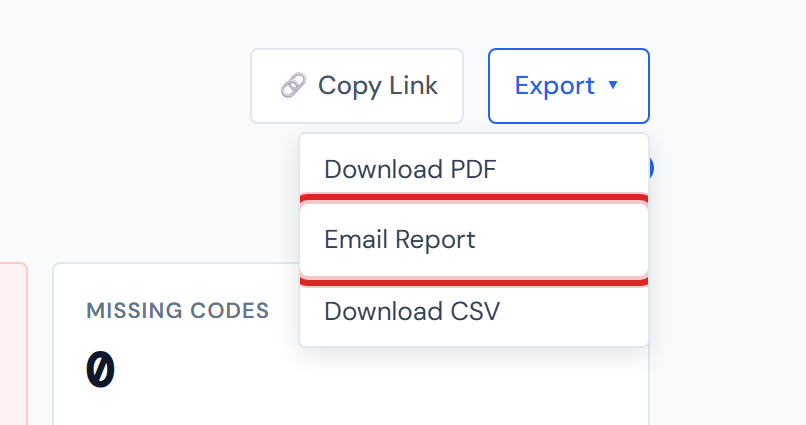
Where to find it
Job Detail page → action bar at the top of any tab → Export ▾ → Email Report.
The modal opens centered on the screen.
Filling out the form
The modal has two fields and two buttons.
| Field | Required | What it accepts |
|---|---|---|
| Recipient email | Yes | A single email address |
| Message | No | Up to a few lines of free text — appears in the email body |
| Cancel | — | Closes the modal without sending |
| Send | — | Disabled until the email address is valid |
While you're typing the recipient address, the field shows
"Enter a valid email address" until the format is recognizable as an
email (name@domain.tld). Send stays disabled until the address
validates.
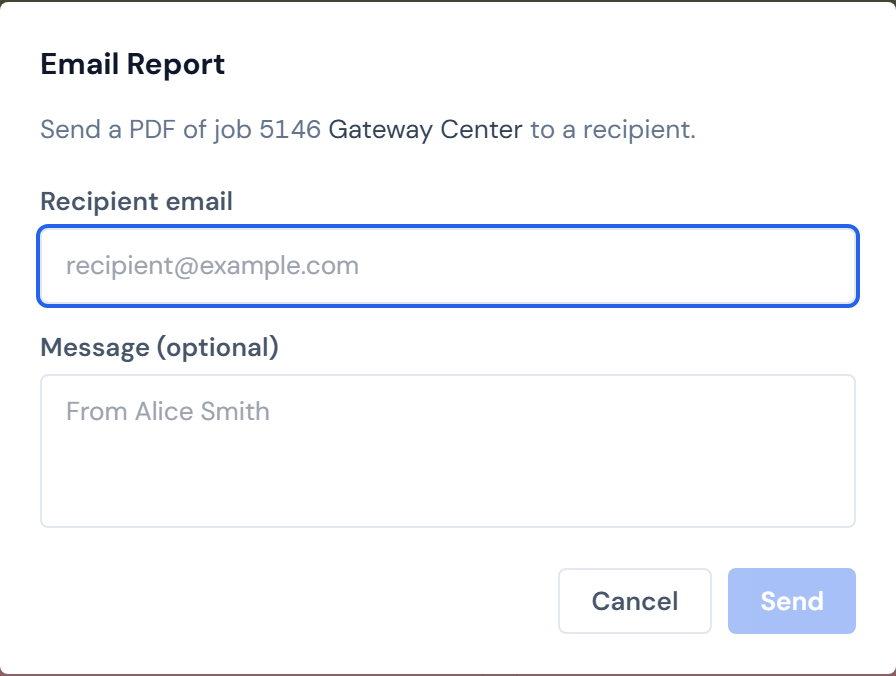
The optional message field's placeholder uses your name to suggest you might want to add a personal note (e.g., "From Jared McKenzie, here's the latest cost report for…"). If you leave the field blank, the email body uses a default.
What gets sent
| Part | What's in it |
|---|---|
| Subject | JCI Report — Job <jobNumber>: <jobName> |
| From | JCI Reports <noreply@precisionsiteservices.com> |
| To | The address you typed |
| Body | Your optional message, or a default if you left it blank |
| Attachment | JCI_<jobNumber>_Report.pdf — the same PDF as Download PDF |
Because the attachment is the PDF, the same constraints apply: the file includes the job header, KPI scorecards, the confirmation pipeline, the category breakdown, and at most 100 PO rows. See PDF Export for the full PDF contents and the 100-row cap.
Sending and confirmation
Click Send. The button changes to Sending… and the modal disables its inputs and the Cancel button while the dashboard builds the PDF and the server sends the email.
When the email is on its way, the form is replaced with ✓ Email sent — Check the recipient's inbox. Close the modal manually when you're done.
If the send fails, a red error message appears under the form with the reason — typically a network problem, a rate limit, or a server-side configuration issue. The modal stays open so you can adjust and retry.
The PDF reflects your filters
Whatever filters you have set on the PO Detail tab apply to the attached PDF — same as Download PDF. So if you've narrowed to one category, the recipient sees only that category in the PDF they open.
If you only want the recipient to see specific POs, set your Category and Status filters on the PO Detail tab before opening Email Report. The attached PDF will reflect them.
See Category filter and Status filter for how the chips work, and PO Detail tab for the full list of filters that scope the PDF.
A few things to know
Replies don't come back to you
The email is sent from noreply@precisionsiteservices.com. The
recipient's email client will show that as the sender. Replies to that
address don't reach anyone.
If you want the recipient to be able to reply, mention your real email in the optional message field. Something like "Reply to me at firstname.lastname@yourcompany.com" works.
One recipient per send
The form takes a single email address. There's no CC, BCC, or comma-separated multi-recipient support today.
To send to multiple people, send the email separately for each, or download the PDF and forward it from your own email client (where you control the sender and recipient list).
The 100-row PO cap
The attached PDF inherits the 100-row PO cap from PDF Export. If your job has more than 100 POs matching your current filters, only the first 100 appear in the PDF the recipient opens. To get a specific subset to the recipient, narrow your filters first. To send the full PO list, send a CSV Export separately — the CSV has no row cap.
Pump rows render at $0
Pump-category rows render at $0.00 in the attached PDF — same as
Download PDF. See the Pump entry in the Glossary.
File size cap
There's an attachment size cap on the server side. With the 100-row PDF in place, normal jobs produce a PDF well under 1 MB and you'll never hit the cap. It's worth knowing about only because it's the one thing that could fail on the server side that you can't see at click time.
For typical jobs, the attached PDF is small enough that the size cap doesn't matter. If a send ever fails citing attachment size, that's a sign the PDF is unusually large — narrow your filters and try again.
Best-effort delivery
A successful "Email sent" confirmation means the email service accepted the message — not that the recipient's inbox successfully received it. If a recipient says they didn't get the email, ask them to check spam. If it's still missing, send it again, or download the PDF and forward it manually.
Numbers can be a few hours behind
The PDF is a snapshot at the moment you click Send. The dashboard's underlying numbers refresh on a schedule, so a PO that gets confirmed right after you sent the email won't be in the file the recipient opens. See Data refresh rates for how often the numbers update.
If Email Report ever stops working
In the rare case the Send button fails immediately with a "service unavailable" or "503" error, that means the email service configuration on the server side has lapsed. Email delivery is configured server-side, not by individual users — contact whoever maintains the dashboard for your team.
This shouldn't happen in normal operation. It's worth knowing only so you don't spend time troubleshooting a configuration problem that lives on the server.
Related
- PDF Export — sibling, same dropdown; the email attaches this exact PDF
- CSV Export — sibling, same dropdown
- Copy Link — sibling, lives in the same action bar
- PO Detail tab — the table the PDF includes
- Data refresh rates — for the snapshot timing note