PDF Export
Generate a PDF snapshot of a job — useful for sharing a status update with someone who doesn't sign in to the dashboard. The PDF includes the job's header, KPI scorecards, the confirmation pipeline, the category breakdown, and the purchase orders table.
PDF export is a single button on the Job Detail page. There is no PDF export from All Jobs, Action Queue, or Analytics. Browser print isn't a supported workflow — the page layouts aren't designed for print and the result is unreliable.
Where to find it
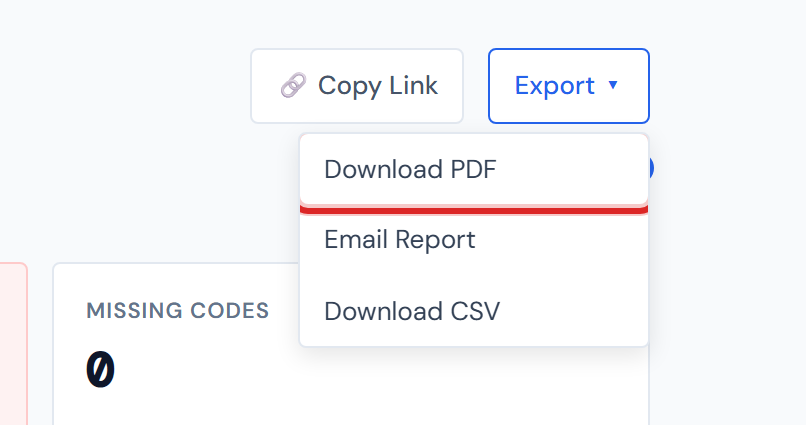
Job Detail page → action bar at the top of any tab → Export ▾ → Download PDF.
The Export dropdown is the same on every Job Detail tab (Analytics, Categories, POs, Field Data, Budget). Wherever you are on the job, the PDF generates from the same source.
What the PDF contains
In order, top to bottom:
- Header — job number, job name, company, PM, and the date and time the PDF was generated.
- KPI scorecards — Total Cost, % Costed, Uncosted, Missing Codes.
- Confirmation pipeline status bar — the four-segment bar showing Costed, PM Confirmed, Pending PM, and Missing Ticket counts.
- Category breakdown table — each category with PO count, total cost, and percent of total.
- Purchase orders table — Order ID, Date, Category, Vendor, Status, and Amount, sorted by your current PO Detail sort.
The filename follows the pattern JCI_<jobNumber>_Report_<date>.pdf —
e.g., JCI_5164_Report_2026-04-24.pdf.
The 100-row PO cap
The PDF includes at most 100 PO rows. This is the most surprising thing about the export, so it's worth knowing up front.
If your job has more than 100 POs matching your current filters, only the
first 100 appear in the PDF. The Purchase Orders section header reads
Purchase Orders (showing 100 of 287) and a note at the bottom of the
table calls out how many were omitted.
To get all the rows you care about into the PDF, narrow your filters on the PO Detail tab first — pick the Category and Status you want, then generate. If you need every row regardless, use CSV Export instead — CSV has no row cap.
The cap exists to keep the file size sane. A PDF of 500 PO rows with ticket image references runs into multi-megabyte territory; 100 rows is a sensible ceiling for an emailable snapshot.
Filters apply
Whatever filters you have set on the PO Detail tab apply to the PDF.
- Unfiltered → first 100 of all POs on the job.
- Filtered to "Concrete + Pending PM" with 38 matching rows → all 38 appear, plus the rest of the report.
- Filtered to a category that returns 200 rows → first 100 of that category appear, with the truncation note.
If the job has a lot of POs, narrow your filters on the PO Detail tab before clicking Download PDF. The PDF reflects your filters — same as CSV Export and Email Report.
The Category and Status filter chips are the most common ones to set before exporting. See Category filter and Status filter for how the chips work.
What happens when you click Download PDF
The button briefly switches to a "Generating…" state with a spinner — the dashboard fetches all matching PO rows, then composes the PDF in your browser. For most jobs this is under a second. For very large jobs with hundreds of matching POs, it can take a couple of seconds.
The PDF generates in your browser, so the spinner can hang for a moment on large jobs. Don't click again — wait for the file to download.
When the file is ready, your browser downloads it to wherever your default download folder is.
What's not in the PDF
The PDF is a PO snapshot, not a full project report. These are explicitly out of scope:
- Field Data — daily reports, equipment, photos, subcontractor reports. None of it is in the PDF.
- Budget vs. actual — the breakdowns from the Budget tab are not in the PDF.
- Spend Analytics charts — weekly/monthly trends, the category heatmap, and any of the analytics widgets are not in the PDF.
- Change order line-item details beyond what's already in the PO table.
If you need any of those in a shareable artifact, take a screenshot of the relevant page or share a Copy Link so the recipient can sign in and look directly.
Where you can't export to PDF
| Surface | PDF available? |
|---|---|
| Job Detail (any tab) | Yes — single Download PDF button described above |
| All Jobs page | No |
| Action Queue | No |
| Analytics charts and widgets | No |
The PDF only covers one job at a time. There is no portfolio-wide PDF.
A note about Pump rows and freshness
Pump rows render at $0.00 in the PDF Amount column. Pump cost isn't
populated in the source data, so this is expected — see the
Pump entry in the Glossary if you want the
full explanation.
The PDF is a snapshot at generation time. The header timestamps when it was built; the dashboard's underlying numbers refresh on a schedule, so recently-confirmed POs may not be in the file you just generated. See Data refresh rates for how often the numbers update.
Related
The PDF Download button and Email Report build the same file. If you're sending it to one person, Email Report is one click shorter — same contents, sent directly.
- Email Report — sibling, same dropdown; attaches this exact PDF
- CSV Export — sibling, raw rows instead of a formatted snapshot
- Copy Link — sibling, lives in the same action bar
- PO Detail tab — the table that gets included
- Header and scorecards — the scorecards in the header