PO Detail Tab
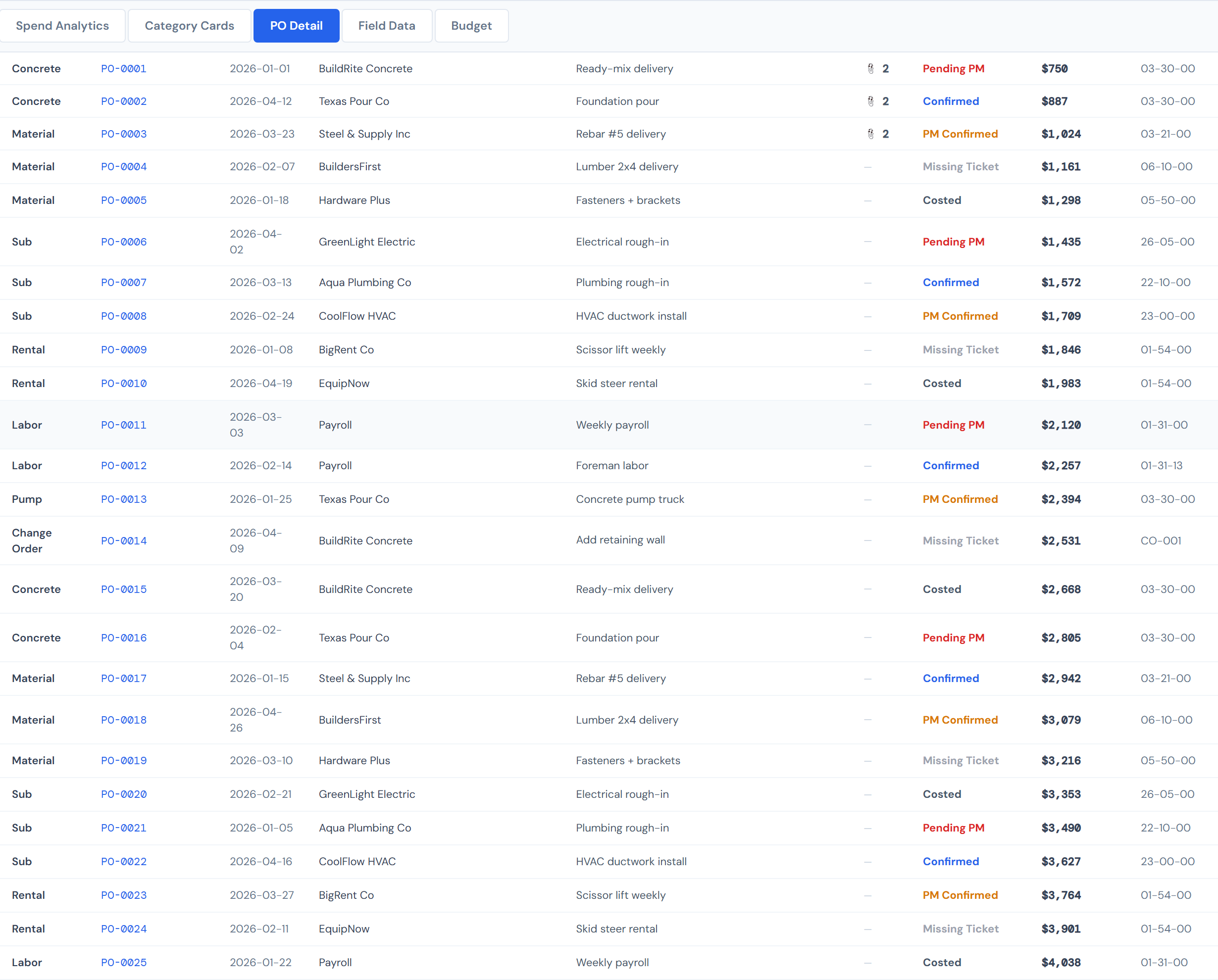
PO Detail is where you actually look at every purchase order on a job. It's a paginated, sortable, multi-filterable table with expandable rows that show the uploaded ticket images. This is the most-used tab on Job Detail — most of the day-to-day PM work happens here.
The page below covers the columns, the two filter chip rows, expand-and-lightbox behavior, sort, pagination, CSV export, and how the lifecycle-color legend ties back to the dedicated PO Lifecycle Colors reference page.
Filter chips — two rows, both multi-select
Two rows of chips sit above the table.
Top row — Category
Seven chips, one per category:
- Change Order
- Concrete
- Labor
- Material
- Pump
- Rental
- Sub
Click a chip to add it to the filter; click it again to remove it. Empty selection means "show all categories." Multiple selected means "any of these."
Bottom row — Status
Six chips, one per PO lifecycle status:
- Confirmed
- Accounting Costed
- PM Confirmed
- Pending PM
- Missing Ticket
- Approved — the status Change Orders carry, so this chip isolates them
Same multi-select behavior.
If you got here by clicking a slice on the Spend Analytics pie or a card on Category Cards, the matching category chip is already selected for you.
Any chip change drops you back to page 1. So if you're on page 4 of a wide search and you click another chip to narrow, you'll find yourself back at page 1 of the new result set. That's by design.
The capture above predates the Approved chip (added for Change Orders) — the live status row now shows six chips.
The columns
Nine columns, in screen order:
| Column | What it shows |
|---|---|
| Category | The category bucket the PO falls into. |
| Order ID | The PO's identifier, in monospace and brand blue. |
| Date | The order creation date, sliced to year-month-day. |
| Vendor | The vendor name. Hover for the full string. |
| Description | A short description. Change Order rows wrap and show the full text; non-CO rows ellipsis-truncate with the full text on hover. |
| Files | A paperclip icon and a count of attached ticket images. Em-dash if zero. |
| Status | The lifecycle status badge, colored per the five-color legend. |
| Amount | The resolved cost. |
| Cost Code | The assigned cost code. Em-dash if missing. |
Sort
Click any sortable column header (Category, Order ID, Date, Vendor, Status, Amount, Cost Code) to sort by that column. Click again to flip direction. The default sort is Date descending — most recent on top.
Expand a row
Click anywhere on a row to expand it. The expansion shows two side-by-side panels under the row.
Left — PO Details
A clean key-value list:
- Order ID
- Category
- Vendor
- Description (full, no truncation)
- Cost Code
- Quantity (with unit if one is on file)
- Amount
- Status
Right — Ticket Images
A horizontal strip of thumbnails for the ticket images attached to this PO. Each thumbnail shows the image, the upload date, and the per-image confirmed cost when there is one. If the PO has no ticket images, the panel reads No ticket images.
The image lightbox
Click any thumbnail to open the full-size viewer in a modal.
Esc closes the lightbox. ← and → step between images when there's more than one.
Pagination
The table loads 25 rows per page by default. Use the page selector at the bottom to move through pages, or change the rows-per-page setting if you'd rather see more or fewer at once.
Filter changes reset to page 1 (see above).
CSV export
There's an Export CSV button at the table.
The download includes all rows that match the filters and sort you have set right now — not just the visible page. If you have only red rows visible and click Export CSV, the file has only red rows. If you want everything on the job, clear the filters first.
The filename follows job-<jobNumber>-po-detail-<date>.csv.
For more on exports across the dashboard, see CSV Export.
Empty states
Two flavors, depending on whether filters are on:
- With filters active — No POs match the selected filters. Try clearing some filters.
- Without filters — No purchase orders found for this job.
Status colors and what they mean
Five colors. The full legend (with what each status means and what action it expects from you) lives on PO Lifecycle Colors. On this page the only thing worth remembering is:
- Red = Pending PM = your turn. That's the row your Action Queue is also surfacing.
- Blue, Green, and Amber are all "no action needed by you."
- Gray (Missing Ticket) is waiting on a ticket upload from the field team.
Roughly 86% of all PO rows in the system are auto-confirmed labor lines. So a sea of blue Confirmed badges on the table isn't a sign that filters broke — it's the baseline. The interesting rows are the red, gray, and amber ones.
Things readers commonly conflate
Missing Ticket vs. Missing Cost Code
These are completely different things.
Missing Ticket is a PO lifecycle status (gray) — it means no ticket image has been uploaded for that PO. Missing cost code is a labor condition — a labor line in source data that doesn't have a cost code on it. The page-level Missing Codes scorecard counts the latter, not the former. The two surface in different places: tickets via this PO Detail tab and the Action Queue Pending My Action tab; missing codes via the Missing Cost Codes tab.
Change Order rows look different
Change Order rows wrap their full description text instead of ellipsis-truncating like other categories. That's intentional — CO descriptions are typically long, contextual notes (the kind you actually need to read) so the column doesn't clip them. Other categories have shorter descriptions where ellipsis is fine.
Pump rows always read $0
Pump rows resolve to $0 in the Amount column. That's not missing data — Pump dollars are never populated. See Pump in the Glossary.
Some POs have zero ticket images
Older POs that were imported before ticket capture rolled out, and any PO whose status is Missing Ticket, will show no thumbnails when expanded. The "No ticket images" empty state is the expected display in that case.
Numbers can be a few hours stale
Same 4-hour refresh as the rest of Job Detail. See Data Refresh Rates.
Related reading
- Job Detail Overview — the page-level tour
- Spend Analytics Tab — pie slices land here pre-filtered
- Category Cards Tab — card clicks land here pre-filtered
- Change Orders — for the dedicated CO story
- PO Lifecycle Colors — the authoritative five-color legend and state machine
- Missing Cost Codes (Action Queue) — different from Missing Ticket
- Pending My Action (Action Queue) — where red rows are surfaced org-wide
- Confirming a PO (workflow) — the full action path on a Pending PM row
- CSV Export — how the export behaves across the dashboard
- Data Refresh Rates — why numbers can be a few hours behind
- Pump in the Glossary — for the always-$0 caveat