Switching Jobs
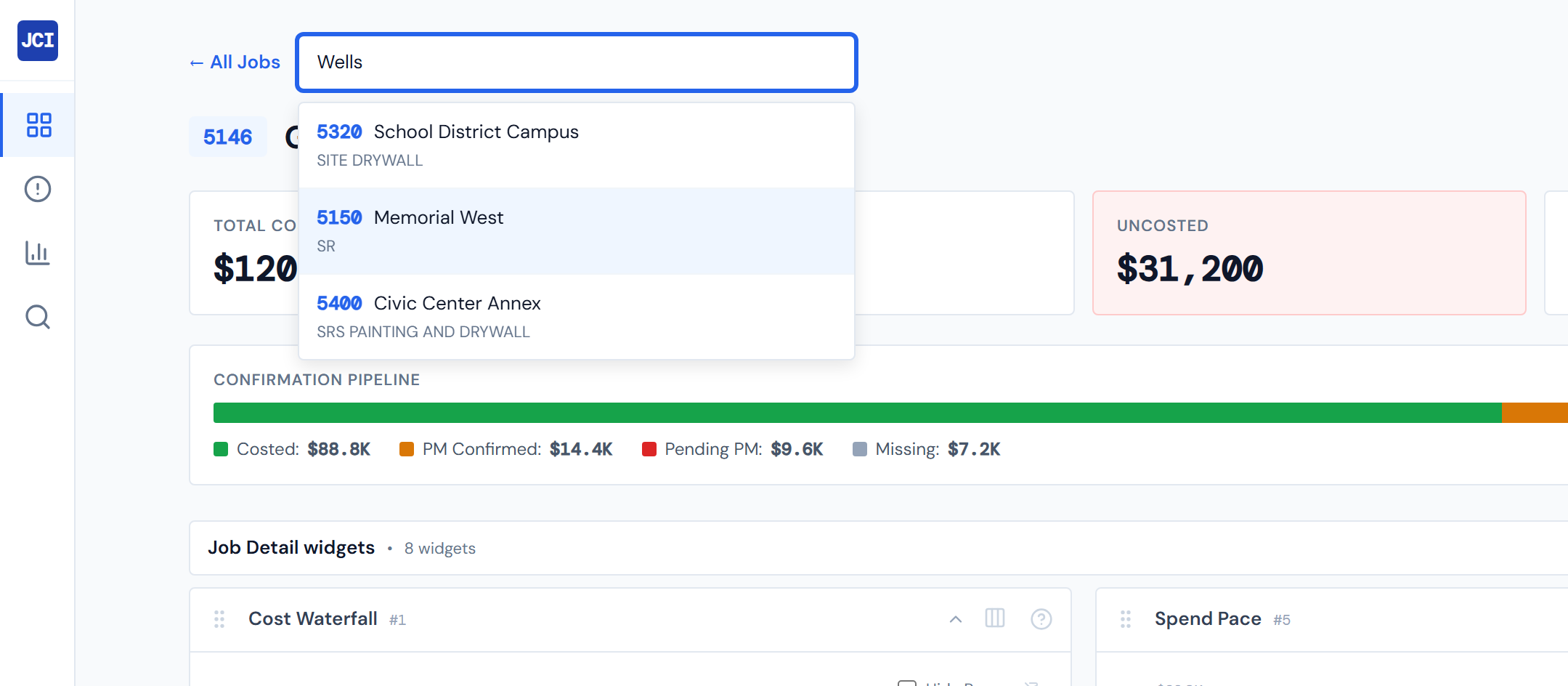
When you're inside a job and want to look at a different one, you do not need to bounce back to All Jobs first. The Job Selector at the top of every Job Detail page lets you type a few characters and pick a different job. The selected job's data reloads in place and you stay on the same tab.
This is a small, focused control. The page below covers where it lives, the three fields it searches, the keyboard shortcuts, and a few limits that catch people.
Where the selector lives
In the action bar at the very top of Job Detail, between the ← All Jobs link on the left and the Copy Link / Export buttons on the right.
By default it shows the current job's number and name with a small Switch ▾ affordance on the far right. Click anywhere on the closed selector to open the search input.
How to use it
Three ways to drive the selector — most PMs end up using the keyboard for speed.
- Click the closed selector. The search input appears and the cursor focuses inside it. The previous query is cleared automatically.
- Type any combination of job number, job name, or company. The search is fuzzy — typos and partial matches are forgiving.
- Pick a result — click it with the mouse, or use the keyboard (next section).
The selector won't return matches until you've typed two characters. So if you type 5 and see nothing, just keep typing.
Keyboard shortcuts
↓ and ↑ move the highlight up and down through the result list. Enter picks the currently highlighted job. Esc closes the selector without changing jobs.
What you can search for — and what you can't
The selector searches three fields: job number, job name, and company. Those are the only three.
| Type | What it finds |
|---|---|
5164 | Job 5164 (and any other number containing those digits). |
Wells | Any job whose name contains "Wells." |
PSW | Any job at the PSW company. |
The selector does not search by PM name. Typing a teammate's name will not surface their jobs. If you want to scope the dashboard to a specific PM's work, use the My Jobs toggle on All Jobs instead. See My Jobs vs. All Jobs.
The fuzzy match is mid-strict — typos and partial matches work, but unrelated terms won't slip in.
Result list — capped at 12
The dropdown shows up to 12 matches. If your query is broad (e.g. just "5"), only the top 12 by relevance appear. Be more specific to narrow.
If your query has no matches at all, the dropdown shows:
No jobs found for "<your query>".
What happens when you pick a job
Picking a result is a navigation, not a filter. The page URL changes to /jobs/<the new job number> and the new job's data loads. A few specifics:
- The active main tab carries over. If you were on PO Detail of the old job, you land on PO Detail of the new one.
- The Field Data sub-tab and Daily Reports date are dropped. Those are job-specific context — the new job has its own field activity and own report dates, so the URL resets to that job's defaults.
- The browser back button works. Click back and you return to the previous job (still on the tab you came from).
A few caveats worth knowing
The selector shows every job in the org
The selector surfaces jobs from every operating company — there is no per-company access control in the dashboard. The My Jobs toggle on All Jobs is the only scoping mechanism, and it does not apply to the selector. If you expected the selector to show only your own jobs, that expectation is wrong; the selector is intentionally org-wide. See Companies and Access.
Outside-click closes the dropdown
Clicking anywhere outside the selector dropdown collapses it without picking a job. Your typed query is cleared. If you want to come back to it, click the closed selector again.
Selecting a job is a hard navigation
Don't think of the selector as a filter — it's a navigation. The URL changes; the data reloads from the server. That's why the browser back button works as you'd expect.
When to use All Jobs instead
The selector is the right tool when you know roughly which job you want and want to get there fast. If you want to browse — survey the portfolio, compare jobs, sort by total, scope to your own jobs — go to All Jobs instead. The selector is point-A-to-point-B; All Jobs is the table view.
Related reading
- Job Detail Overview — where the action bar lives
- Header & Scorecards — what's right next to the selector
- My Jobs vs. All Jobs — the scoping toggle that does NOT apply to the selector
- Companies and Access — for the no-per-company-access caveat
- All Jobs — the browse view, when the selector isn't enough
- Job Number in the Glossary