Budget Entry
Type a dollar estimate for each of the nine PM Sheet categories, then save. That is the budget.
Type a number, hit Tab, repeat. Most budgets land in under a minute.
Where it lives
Open a job, click the Budget tab, and you land on Entry by default. Entry is the first of three sub-tabs (Entry, vs Actual, Billing) that share the Budget surface.
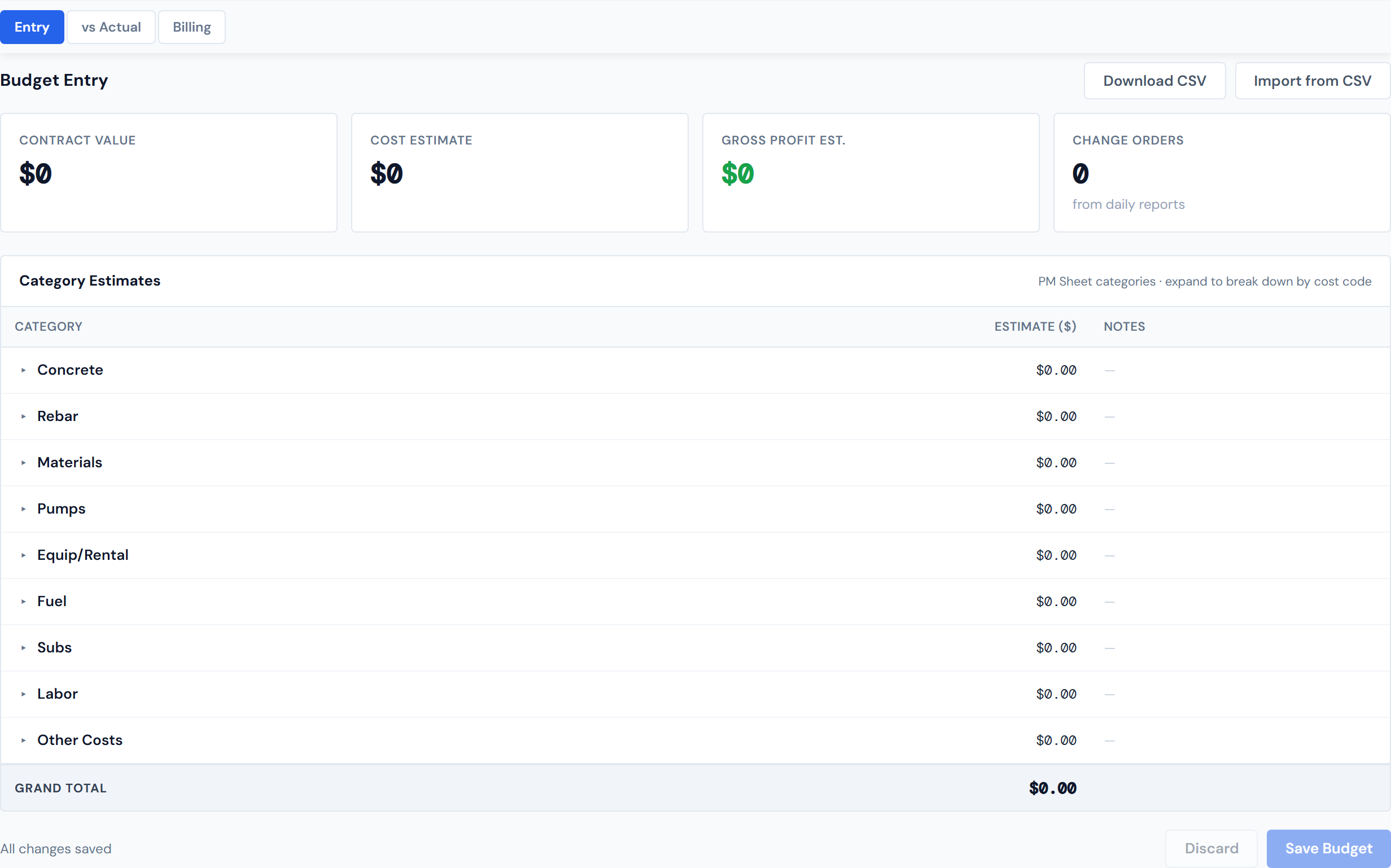
The nine categories
Every job shows the same nine PM Sheet categories, in this order:
- Concrete
- Rebar
- Materials
- Pumps
- Equip/Rental
- Fuel
- Subs
- Labor
- Other Costs
The category list is fixed. You cannot add a category, remove one, or rename it. These nine match the bid categories on the PM Sheet, and every job carries all nine even when several are at $0.
Entering category estimates — the 60-second flow
The fast path is five steps:
- Click a category's Estimate cell. It turns into a focused number input.
- Type the dollar amount. No
$sign, decimals are fine. - Press Tab to commit and jump to the next row, or Enter to commit and stay. Clicking outside the cell also commits. Escape cancels the edit.
- Optional — click the Notes cell on any row and type a short note. Same click-to-edit pattern.
- Click Save Budget when you have all nine in.
The Grand Total row at the bottom updates as you type, before you save, so you can sanity-check the sum against your bid.
A worked example: click Concrete, type 75000, press Tab. Click Rebar, type 50000, press Tab. Keep going through the nine rows. The Grand Total at the bottom climbs as you go.
The Contract Info card
Above the table sit four scorecards. They tell you the financial shape of the job at a glance.
Contract Value is what the customer is paying for the job. Click the value to edit it inline — same click-to-edit pattern as the category cells. An asterisk (*) appears next to the Contract Value label when you have an unsaved edit pending.
Cost Estimate is the sum of your nine category estimates. It updates in real time as you type, before you save, so you can see the running total reflected in the scorecard immediately.
Gross Profit Est. is Contract Value minus Cost Estimate. It shows green when positive and turns red when negative, so an over-budget job is impossible to miss.
Change Orders counts how many CO records have been logged against this job. Change orders are entered through the daily-report AppSheet app — not from JCI. This scorecard is read-only here. To work with the underlying CO records, see Change Orders.
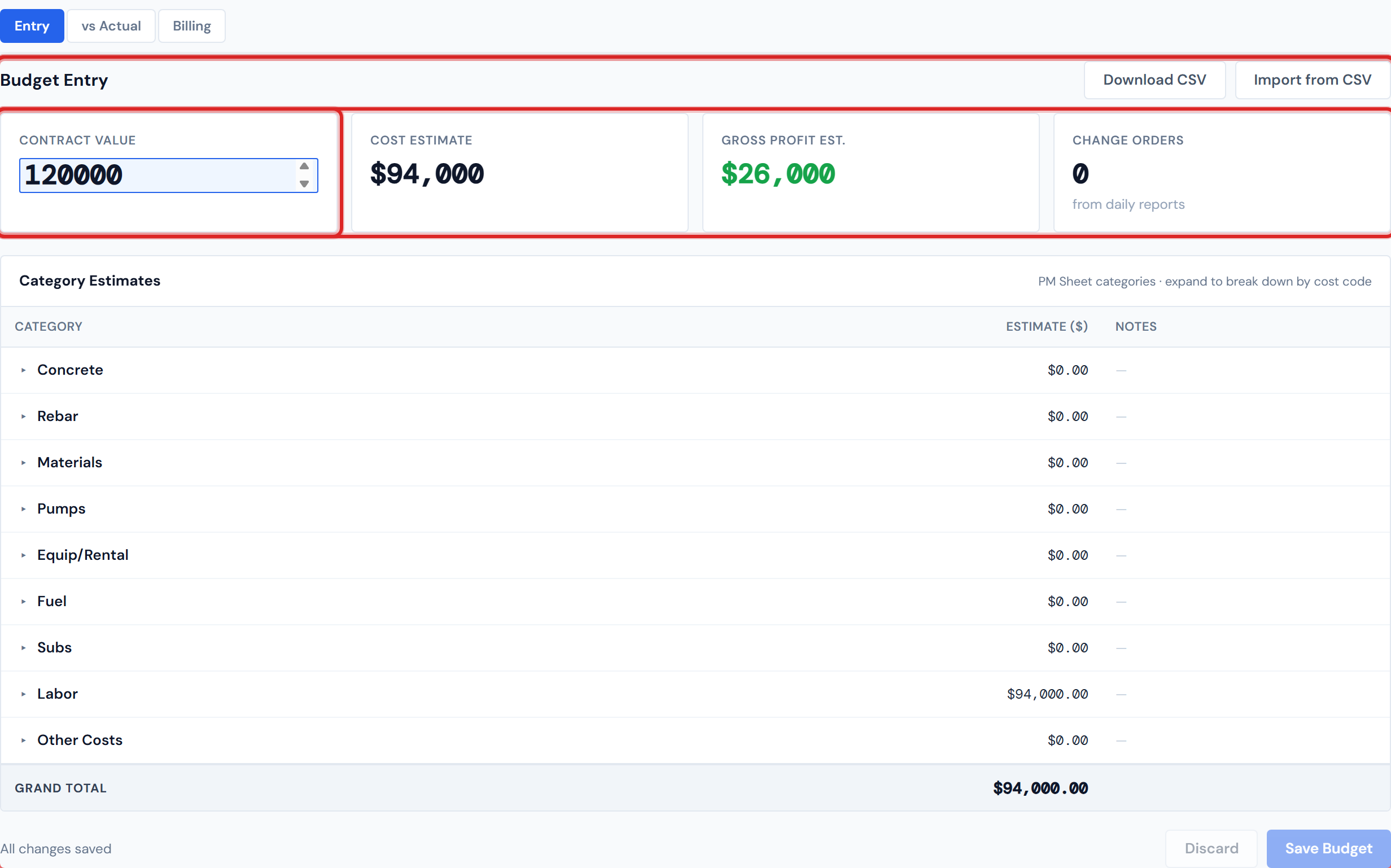
A note on how Save works for the card: editing the Contract Value and editing the category estimates save together. The Save button writes both in one shot. The asterisk on Contract Value is informational — it tells you "this is dirty," not "save just this."
Saving and discarding
The Save Budget button stays disabled until something changes. The moment you edit a cell or the contract value, the footer flips to an amber Unsaved changes label and the Save button becomes active.
Discard reverts every unsaved edit back to the last saved state in one click. It does not clear the saved budget — only the in-progress edits.
If you try to navigate away from the page while you have unsaved edits, your browser shows a confirm dialog asking whether to leave. This is browser-level, not a JCI modal — some browsers display it differently, and a quick click can dismiss it without reading. Save before navigating to be safe.
Optional — breaking down a category by cost code
You do not have to break down by cost code. Most PMs leave categories at the category level and ship in under a minute. The drill-down is for jobs where you want a tighter handle on where each dollar goes.
To break down a category:
- Click the small
▸arrow on a category row to expand it. - The first time you expand, you see a prompt: "Break down [Category] into individual cost codes?" with a Break down by cost code button.
- Click the button. The cost-code panel opens for that category.
- Click + Add Cost Code. The dropdown is pre-filtered to codes that belong to this category — so under Concrete you only see Concrete codes, under Rebar only Rebar codes, and so on.
- Type an estimate per code.
The panel shows a running Subtotal at the bottom. Once you have any cost-code breakdown on a category, the category-level Estimate cell becomes read-only and the Notes column shows from cost codes in italic — the category total is now driven by its children.
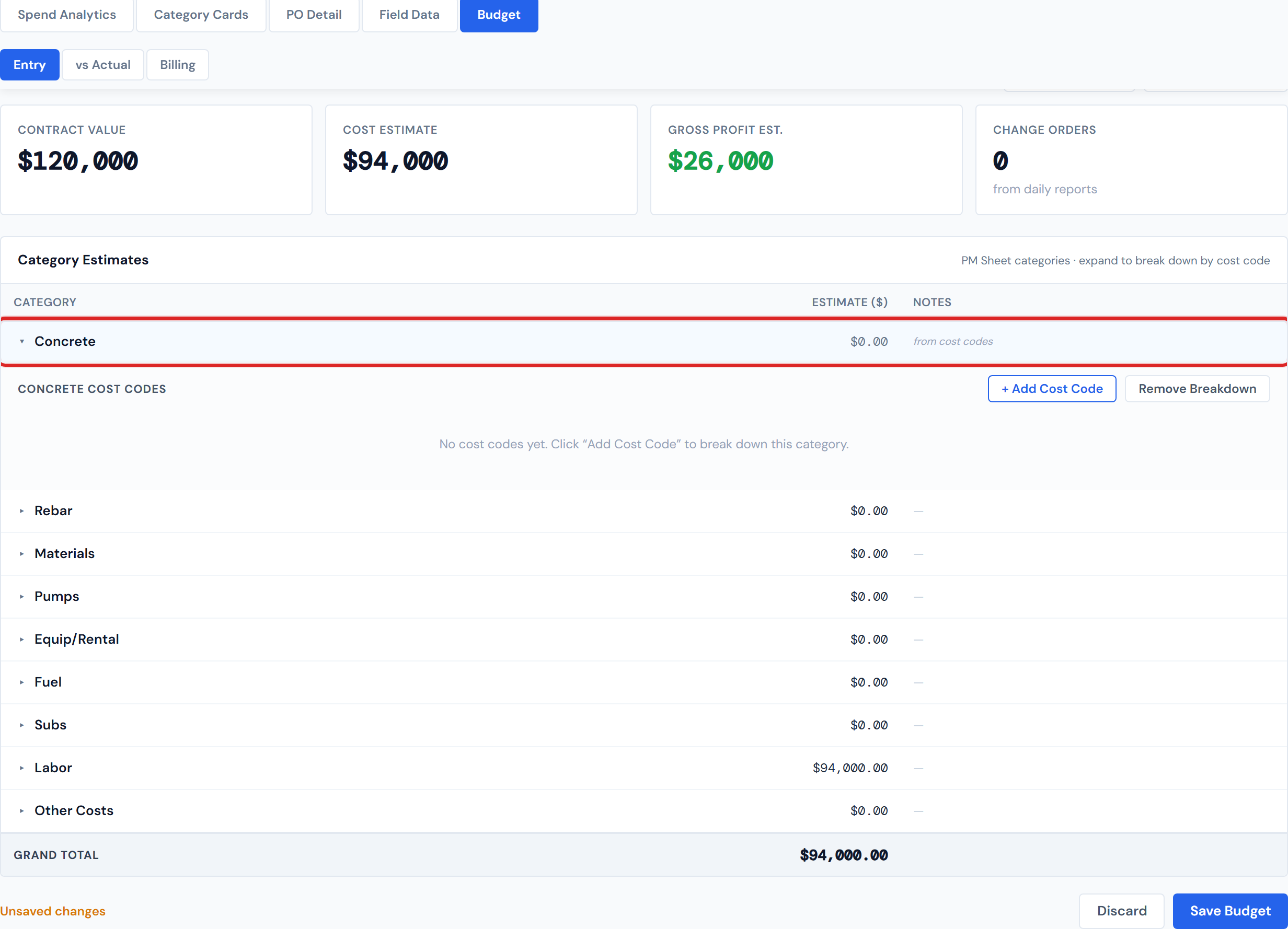
To turn a breakdown off, click Remove Breakdown. That deletes all cost-code rows for that category and returns the row to the simple typed-estimate flow.
The cost-code subtotal must equal the category estimate to the cent. This is exact, not approximate — the server compares integer cents. A $50,000.00 category against a $50,000.01 subtotal will fail. The reason is straightforward: when a category is broken down, the parent total is the sum of the children, so they have to add up.
When the subtotal does not match, the panel shows a red warning ≠ category estimate $X and Save is blocked until you reconcile.
The save-validation gotcha
If you toggle Break down by cost code on but never add any codes, Save is blocked. The footer shows: "Cannot save: [Category] has 'Break down by cost code' on but no cost codes added. Add a cost code or click 'Remove Breakdown'."
The blocking categories auto-expand so you can fix them in place — either add a code or click Remove Breakdown to go back to the simple flow.
CSV import and export
For bigger budgets, the top-right of the table has two buttons.
Download CSV pulls the current budget down as a CSV file. Use it to edit offline, hand a copy to a teammate, or keep a snapshot before a major rework.
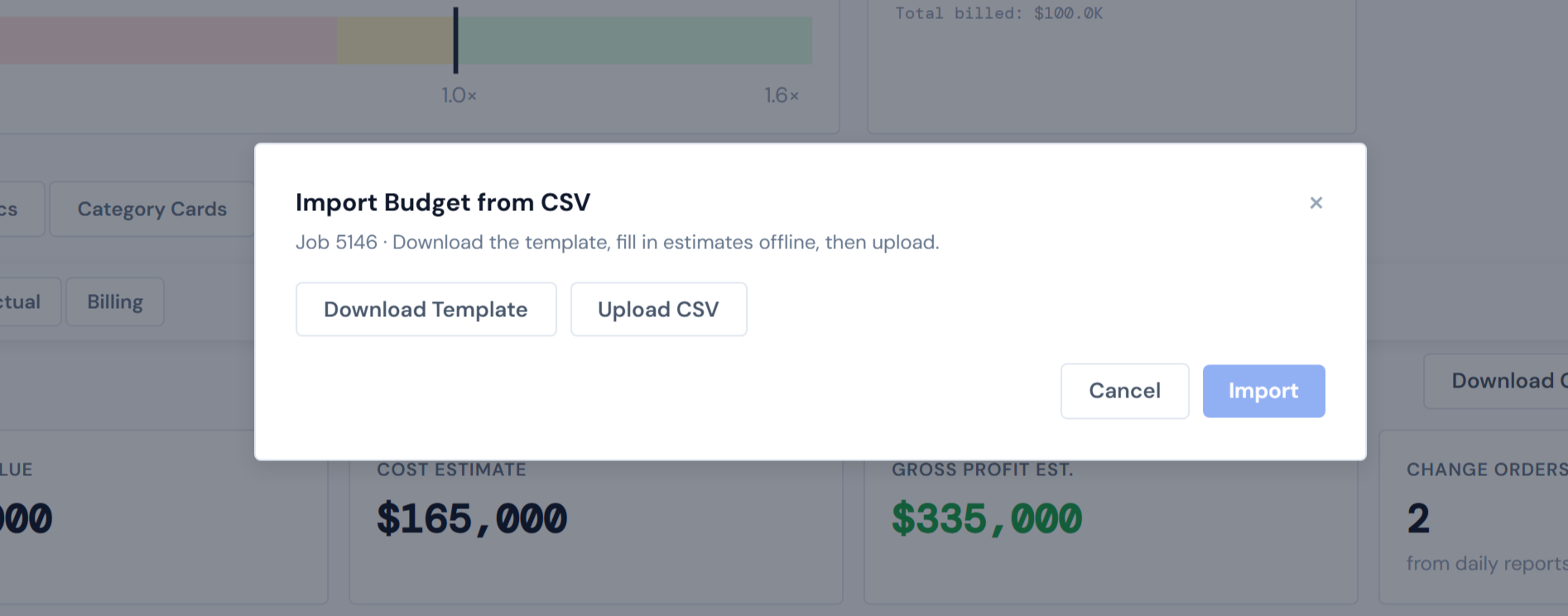
Import from CSV opens a modal with three steps:
- Download Template pulls a blank template that comes pre-filled with this job's allowed cost codes — so you know exactly which codes are valid for which category.
- Upload CSV parses your filled-in file and shows a preview of what will be imported.
- Import writes the valid rows.
A few things to know about import:
- Rows for other job numbers in the same CSV are flagged and skipped automatically. You cannot accidentally import another job's budget here.
- After a successful import, the Entry view refreshes with the imported values. Any unsaved manual edits you had are discarded — the import becomes the new baseline.
Partial success is normal. If your CSV has some valid rows and some invalid ones (bad cost code, negative amount, missing estimate), the import writes the valid rows and reports the invalid ones back with a downloadable error CSV. Import never "fails because of one bad row" — it imports what it can and tells you what it skipped.
Editing a closed job's budget
A job marked closed in the dashboard still allows budget edits. This is intentional — PMs legitimately need to true up closed-job budgets for retainage reconciliation and post-closeout cost true-ups. Edit the way you would on an active job: click, type, save.
What this page does NOT do
- It does not edit Change Orders. CO records are entered through the daily-report AppSheet app. The Change Orders scorecard here is read-only — it counts records, not dollars.
- It does not show actuals. That is the vs Actual sub-tab.
- It does not record billing. That is the Billing sub-tab.
- It does not promise real-time numbers across the board. Your edits land immediately, but the actuals you will compare against on vs Actual lag up to four hours behind. See Data refresh rates.
A small forward note on Pumps: budgeting Pumps is fine, but the Pumps actual on vs Actual is always $0 because that data does not flow into the dashboard. Not a bug — see Budget vs. Actual for why.
Related
- Budget vs. Actual — where the actuals show up and how variance is computed
- Billing — monthly payapps, retainage, and cumulative balance
- Change Orders — how CO records get logged and where you edit them
- Data refresh rates — the 4-hour lag on actuals
- Cost codes overview — what cost codes are and how they map to categories
- Categories — the nine PM Sheet categories in detail
- Glossary — definitions for Cost Code, Category, Contract Value, Gross Profit, Cost Estimate
- Troubleshooting — common entry questions
- Missing cost codes — different concept (POs without a cost code), worth disambiguating from the cost-code drill-down here