Change Order Terms
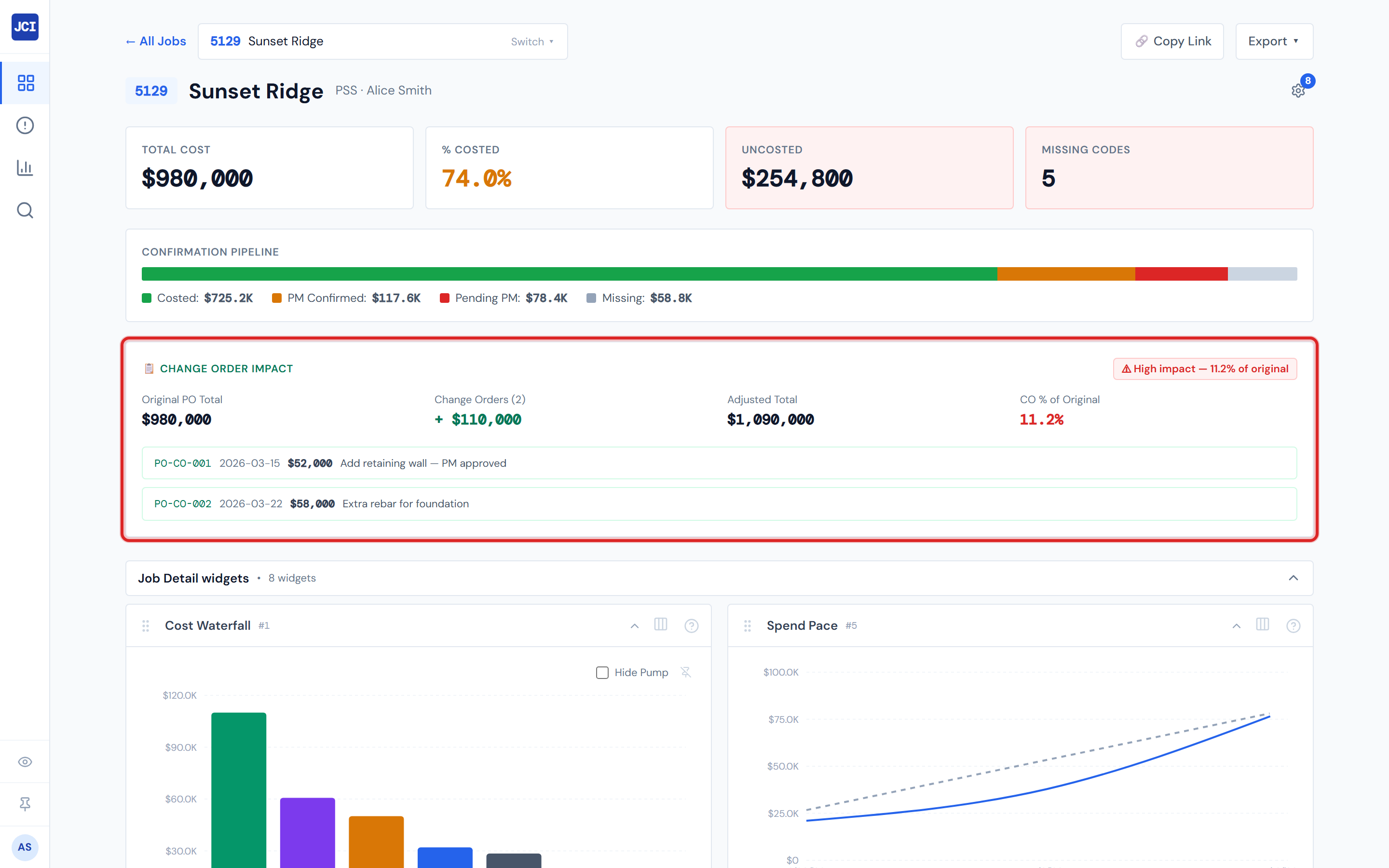
When you open a job that has Change Orders, the dashboard shows a Change Order Impact card with five labeled fields and a list of CO rows. This page is the glossary for what each of those labels means.
Change Orders are created and approved in the daily-report AppSheet app — the same tool used for daily field reports. JCI shows you the impact of approved COs but doesn't let you create, edit, approve, or reject them. To take action on a Change Order, use AppSheet, not JCI.
What's a Change Order?
A Change Order (often shortened to CO) is a signed adjustment to a job's contract value — typically because the scope expanded, or rework was required after the original contract was signed. Change Orders add to (or, less often, subtract from) the original contract amount. The dashboard shows you the financial effect of those adjustments on the job.
Where Change Orders surface in the dashboard
You'll see CO data in two places on a Job Detail page:
- The Change Order Impact card — a dedicated summary card showing the five impact fields (described below) and a list of the COs on this job.
- The PO Detail tab — each Change Order also appears as a PO row with category labeled "Change Order" and the green Approved lifecycle status.
The Impact card is the curated view; the PO Detail row is the same CO showing up in the unified ledger.
The five impact terms
| Term | What it means |
|---|---|
| Original PO Total | The sum of all non-CO costs on the job — the cost baseline before any change orders are layered on. |
| Change Orders (N) | The count of approved Change Orders on the job. The dollar figure beside the count is the total signed CO amount across those N orders. |
| Adjusted Total | Original PO Total + total CO amount. The revised cost view of the job once changes are factored in. |
| CO % of Original | Total CO amount divided by Original PO Total, expressed as a percent. A rough magnitude check on how much the scope has grown. |
| High Impact | A flag (red badge with a warning symbol) that appears when CO % of Original exceeds 10%. Meaning: scope has grown enough that it's worth a closer look. |
The High Impact threshold is 10%. When the total Change Order amount on a job is more than 10% of the original PO total, the card flips to red. That's the only threshold the dashboard uses for CO impact — there's no separate yellow zone or configurable cutoff.
The per-CO row
Below the summary fields, the card lists each Change Order as a row. Every row shows:
- Order ID — uses the same identifier format as any PO, so you can cross-reference if needed.
- Date — when the Change Order was logged.
- Resolved cost — the cost the dashboard treats as authoritative (more on this in the next section).
- Description — free-text entered upstream when the CO was logged.
Signed amount versus resolved amount
The dashboard shows the resolved cost of each CO — the amount accounting confirmed — not necessarily the originally signed amount. Usually the two match. When they don't, accounting is authoritative for what the dashboard displays.
If you're reconciling a CO to a paper trail and the dashboard's number disagrees with what you remember signing, that's the reason. Accounting may have adjusted the figure during coding.
Approved versus pending Change Orders
The dashboard surfaces only approved Change Orders. Pending or draft COs live upstream in the daily-report AppSheet app and don't appear in JCI until they're marked approved. So if you logged a CO this morning and don't see it in JCI yet, it's likely either still in draft, awaiting approval, or hasn't yet propagated through the data refresh — see Data Refresh Rates.
Category versus status — keeping them straight
"Change Order" is both a thing the dashboard calls a category (one of the 7 PO categories) and a lifecycle status (Approved, rendering green). These are orthogonal: every Change Order row has both — the row's category is "Change Order" and its status is "Approved." Don't conflate them. See Categories for the full category list and PO Lifecycle Colors for the full status list.
Change Orders are not a budget category
When you open the Budget Entry form, you won't find a "Change Orders" row. That's intentional. COs adjust the contract value of a job, not the cost budget. They flow through contract adjustments instead. If you're trying to budget for likely change orders, that work happens elsewhere — the Budget Entry form is for the original cost estimate, not for projected scope expansion.
Pump notes
Pump-related Change Orders, if any exist, would still render at $0 because the underlying pump-cost waterfall is always $0 in source data. Unlikely to come up in practice, but if it does, the cause is the same as the broader pump-cost gap. See Categories for the Pump note.
Related pages
- Change Orders (Job Detail) — the deeper Job Detail page on COs
- Reviewing a Change Order — step-by-step playbook
- PO Lifecycle Colors — for what "Approved" means in lifecycle terms
- Categories — for "Change Order" as a PO category
- Glossary — Change Order, Adjusted Total, Resolved Cost, Original PO Total