Change Orders
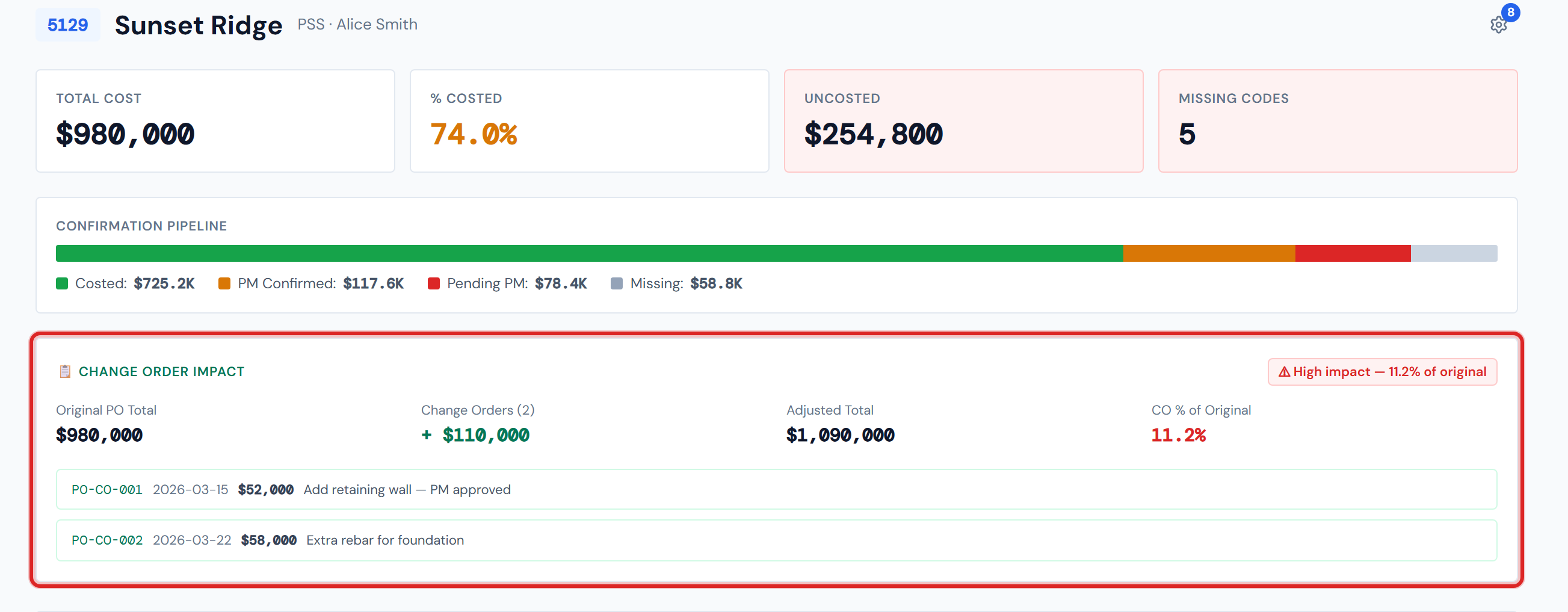
Change Orders (COs) are extra work added to a job after the original POs were issued. In the dashboard they show up in a few places — in the Spend Analytics charts, on the Category Cards grid, on the PO Detail table — but the most distinctive one is the green Change Order Impact banner that appears above the tab bar whenever a job has at least one CO.
This page explains the banner, the math behind its four headline numbers, the high-impact alert threshold, the other surfaces where COs surface, and one important limit: you cannot create or edit COs from JCI. They're logged in the daily report AppSheet app, not here.
How the math works
The banner reads four headline numbers. The diagram below maps how they relate.
Said in words: the Original PO Total plus the Change Orders Total equals the Adjusted Total. The CO % of Original is the CO Total divided by the Original Total, expressed as a percentage. When that percentage is over 10%, a red High Impact alert pill fires in the top-right of the banner.
The Change Order Impact banner
Visible above the widgets area whenever the job has any CO rows. The banner has a green-tinted background and is laid out top to bottom as:
- Header label —
📋 Change Order Impactin green. - Four headline numbers in a row:
- Original PO Total — what the job's PO ledger summed to before CO contributions.
- Change Orders — the count of CO rows and their summed dollar amount, prefixed with
+. - Adjusted Total — Original + CO Total. The current top-line for the job.
- CO % of Original — what fraction of the original PO total the COs add up to. Black by default; turns red when the high-impact alert fires.
- High-impact pill (top-right, conditional) — a small red
⚠ High impact — N.N% of originalpill that appears only when CO % exceeds 10%. - The list of CO rows — each CO renders as a single-line entry with its order ID, creation date, dollar amount, and description. Descriptions wrap freely (no ellipsis truncation).
The Change Order Impact banner only appears on jobs that have at least one CO row. Most jobs in the system have zero COs, so most of the time you'll never see this banner — that's expected, not missing.
At 10.0% the alert is not yet on; above 10% it fires. Get the threshold right — it's hardcoded in the dashboard and doesn't change job to job.
The Change Orders count number in the banner is clickable — and using the Change Order chip on PO Detail gets you the same filtered table.
You cannot create or edit COs from JCI
This is the most important non-obvious thing on this page.
Change Orders are logged in the daily report AppSheet app — the same tool the field team uses to file site daily reports. JCI is read-only for COs: you can see what's there and what it does to the dollar story, but you cannot add a new CO or change an existing one from this dashboard. If you're looking for an "edit CO" button, there isn't one. The edit happens in AppSheet.
Because COs are field-reported alongside daily activity rather than created as purchase orders, they often carry no cost amount at entry time. That's by design — not a data bug. The cost gets attached later in the workflow.
Where else COs surface
In Spend Analytics
Change Order is one of the six toggleable categories on the weekly area and monthly bar charts (it's the emerald-green band). It's also a slice on the Cost by Category pie. Click the pie slice to drill into PO Detail filtered to Change Order. See Spend Analytics Tab.
On Category Cards
If the job has any CO activity, a Change Order card appears in the grid with its own status bar and percent-costed pill. Click it to drill into PO Detail. See Category Cards Tab.
On the PO Detail table
Change Order is one of the seven Category filter chips. CO rows render with one visible difference from other categories:
On the PO Detail table, Change Order rows show their full multi-line description text wrapped, while other-category rows ellipsis-truncate with full text on hover. That's intentional — CO descriptions are typically long contextual notes ("Owner-requested overtime cleanup of unit 3B after sub damaged drywall…") that you actually need to read in line. Don't flag the wrap as a layout bug.
The lifecycle status on a CO row is usually Approved, which renders the same green as Accounting Costed because an approved CO needs no further PM action.
That's not a duplicate color — it's a separate status name that shares the green visual. See PO Lifecycle Colors for the full picture.

Adjusted Total is not the same as contract value
Worth pausing on. The banner's Adjusted Total is the original PO ledger plus CO dollars. The job's contract value is what you billed the customer for the job — captured separately on the Budget Entry sub-tab. They may or may not match depending on how the contract was structured.
Don't read Adjusted Total as the customer-facing contract value. They're related but separate numbers.
Numbers can be a few hours stale
Same 4-hour refresh as the rest of Job Detail. See Data Refresh Rates.
Related reading
- Job Detail Overview — the page-level tour
- Header & Scorecards — for the Total Cost vs. adjusted-total framing
- Spend Analytics Tab — the emerald CO band in charts
- Category Cards Tab — the Change Order card
- PO Detail Tab — the Change Order filter chip and row treatment
- Budget Tab — for the contract-value vs. adjusted-total distinction
- Reviewing a Change Order (workflow) — the end-to-end CO workflow
- PO Lifecycle Colors — for the Approved-reuses-green caveat
- Change Order Terms — Glossary entry for CO
- Data Refresh Rates — why numbers can be a few hours behind