Reviewing a Change Order
A Change Order shows up on one of your jobs — extra work that bumps the job's adjusted total above the original PO total. This page walks you through how to read the impact, what the 10% threshold means, and where to go when a CO needs an edit (which isn't here).
The full Change Orders reference, including the Mermaid diagram for the impact math, is at Change Orders. This page is the workflow narrative on top of it.
The dashboard surfaces CO impact on contract value and lists every CO that's been entered, but you cannot create, edit, or approve a CO from here. COs are logged in the daily-report AppSheet app — the same tool foremen use to file daily site reports. Plan accordingly: keep both tools open if you're working through a CO that needs a fix.
The seven-step flow
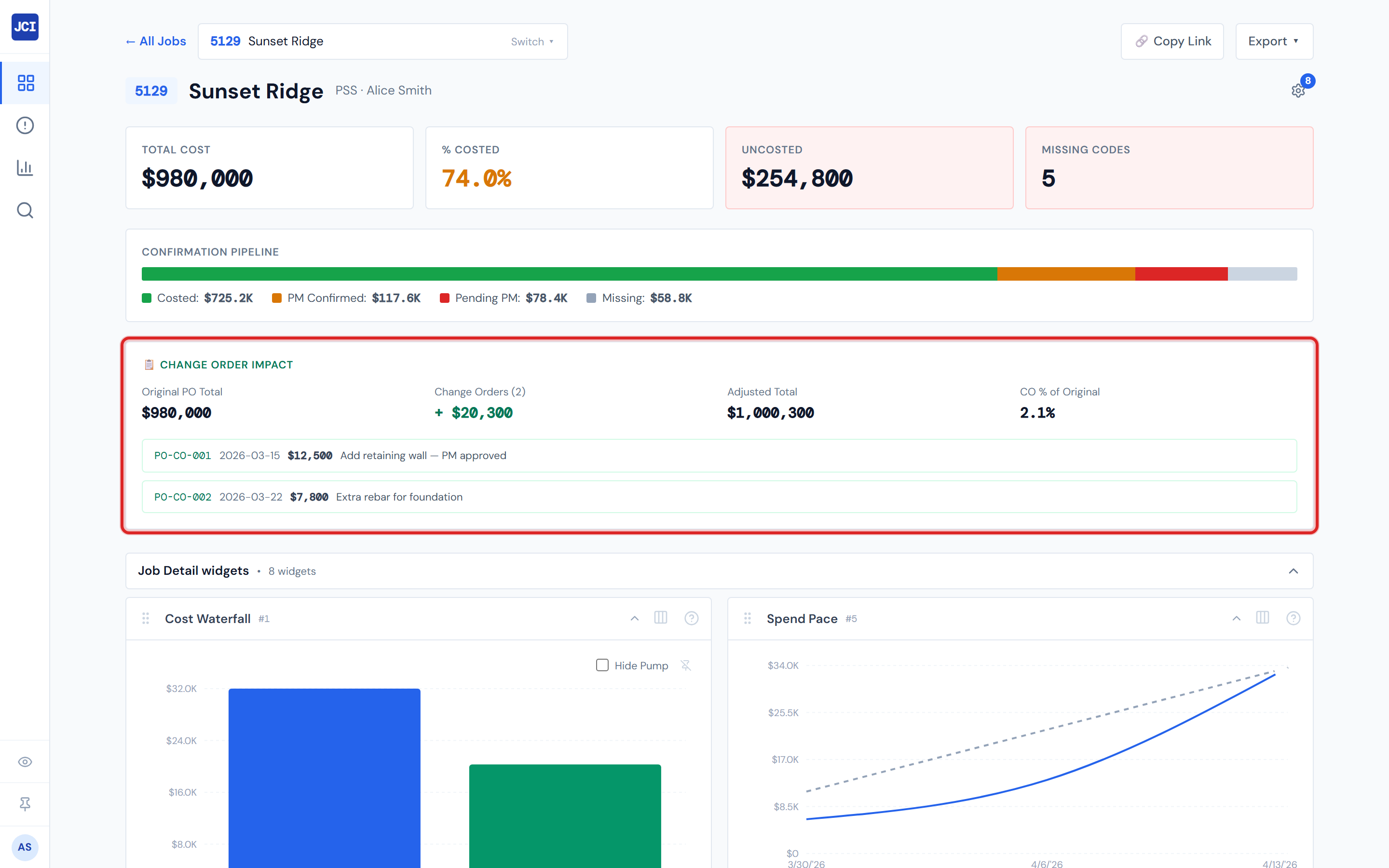
1. Open the job and look for the green Change Order Impact banner
It sits above the Job Detail tab bar — but only when the job has at least one CO. Jobs with no COs don't show the banner at all.
A job with zero COs shows no banner at all — not an empty banner saying "0 Change Orders." If you don't see the banner, the job has no COs (or the data hasn't refreshed yet).
2. Read the four headline numbers, left to right
| Number | What it means |
|---|---|
| Original PO Total | What the job's PO ledger summed to before COs. |
| Change Orders (count + dollars) | How many CO rows exist and their total dollar amount, prefixed with + because COs add to the original. |
| Adjusted Total | Original + CO Total. The current top-line. |
| CO % of Original | What fraction of the original the COs add up to. Black by default; red when the high-impact alert fires. |
3. Check whether the high-impact pill in the top-right is red
When CO % exceeds exactly 10% of the original PO total, a small red "⚠ High impact — N.N% of original" pill appears in the top-right of the banner.
This is the "this job's scope materially expanded" signal — worth a conversation with the customer or your operations lead.
Not "around 10%," not "approximately 10%" — the threshold is hardcoded. At 10.0% the pill is not yet on; above 10% it fires. And the percent is of the original PO total, not the adjusted total — so a $50K CO on a $500K original is 10%, not 9.09%.
4. Scan the per-CO list below the headline numbers
Each CO is a single-line row: order ID, creation date, dollar amount, and description. The description text wraps freely (no ellipsis truncation) so you can read the scope at a glance — long descriptions just make the row taller.
Look for:
- A CO that's missing a dollar amount (sometimes COs are entered as field reports before the cost is finalized — see step 5).
- A description that doesn't match work you authorized.
- A date that seems wrong.
5. Decide whether the CO record needs to be fixed
Common scenarios:
| What you see | What to do |
|---|---|
| CO is correct as-shown | Nothing to do. The banner already reflects the impact. |
| CO is missing a dollar amount (shows $0) | The CO was field-reported before the cost was finalized. May be a pending-cost record — see warning below. |
| CO is wrong (vendor, dollars, scope) | Note the order ID and the issue. The edit happens in the daily-report AppSheet app, not here. |
| CO shouldn't exist | Same as above — deletion happens in the daily-report app. |
COs are field-reported alongside daily activity. Sometimes the cost isn't known yet at entry time, so the CO ships at $0 with the expectation that the dollar gets filled in later. If you see a $0 CO, confirm with the foreman or the CO owner before assuming it's a data issue. The fix path for closing out $0 COs varies by team.
6. Follow the impact downstream if needed
A CO doesn't just bump the headline number — it shows up in three other places on Job Detail:
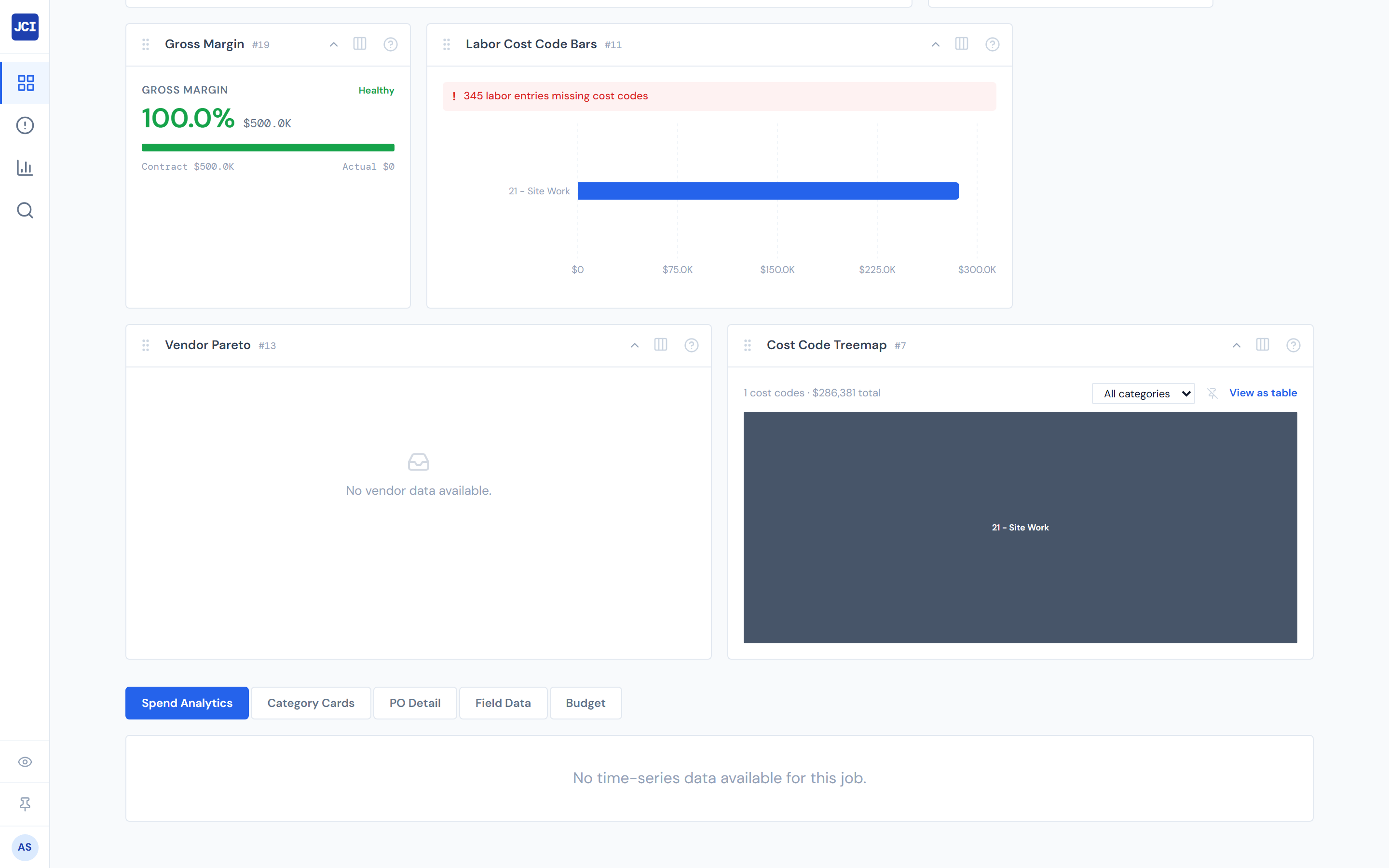
- Spend Analytics tab — Change Order is the emerald (green) slice on the pie, area, and bar charts.
- Category Cards tab — if the job has CO activity, a Change Order card appears with its own status bar.
- PO Detail tab — Change Order is one of the seven Category filter values; you can narrow the PO table to just CO rows.
7. Wait for the queue to update
A CO entered in the daily-report app this morning may not appear on the JCI banner immediately. CO data refreshes on the four-hour materialized cycle. Don't refresh and re-enter — wait one cycle. See Data Refresh Rates.
What "Approved" means on a CO row
COs carry a lifecycle status of "Approved" once the CO record is finalized. The Approved status renders with the same green color as Accounting Costed — because an approved CO needs no further PM action.
This is an intentional visual reuse, not a status reuse. The two states mean different things; they just share a color because they share the "no PM action needed" property. The full lifecycle reference is at PO Lifecycle Colors.
What the 10% threshold is for
Below 10%, COs are considered routine scope adjustments. At above 10%, the cumulative COs on a job are large enough to warrant a conversation about why the original bid undershot, or about whether the customer is aligned on the new total.
The threshold is the dashboard's nudge to start that conversation — it doesn't trigger any automated process. No emails go out, no record is created, no Action Queue item appears. It's a visual flag, and it's on you to act on it.
Why CO editing lives in the daily-report app
COs are field-reported alongside daily activity. A foreman writes "added two yards of concrete" on the same form they file the day's labor and weather. That's why the system of record is the daily-report AppSheet app and not Purchase Ordering — COs start as observations from the field, not as planned purchases.
JCI then reads CO records out of that app, joins them onto job costs, and shows you the impact. Editing the underlying CO in JCI would create a second source of truth for the same record, which is exactly the kind of split that breaks reconciliation.
A few things to know
- CO ≠ COR. A COR is the request or proposal stage; a CO is the approved or in-progress record. This page deals with COs. The full disambiguation is at Change Order Terms.
- The CO row description is not truncated. If the description is long, the banner row will be tall. That's intentional — readability matters more than alignment for COs.
- The 4-hour refresh applies to COs. A CO entered in the daily-report app at 9 AM may not appear on JCI's banner until early afternoon. Don't promise immediate appearance.
What's next
- Wrapping up the month and reviewing all the COs that closed in the period? See Month-End Review.
- The CO is one of several signals on a hot job? See Spotting Overruns.
- Need to set up the contract value the CO is being measured against? See Entering a Job Budget.
- Want the Mermaid impact diagram and the field-by-field banner reference? See Change Orders.