Field Data Tab
Field Data is the fourth main tab on Job Detail. It bundles seven thematic sub-tabs about what is happening on the physical job site: who clocked in, what equipment was on site, what the subs were doing, the daily reports the field team filed, and the weather. Pick a sub-tab to drill in.
This page is the landing tour. Each sub-tab has its own page — see the table below.
Where it lives
Fourth main tab on Job Detail, after PO Detail. When Field Data is the active tab, a sub-tab bar appears just below the main tab bar. Both bars are sticky — they pin to the top of the viewport when you scroll.
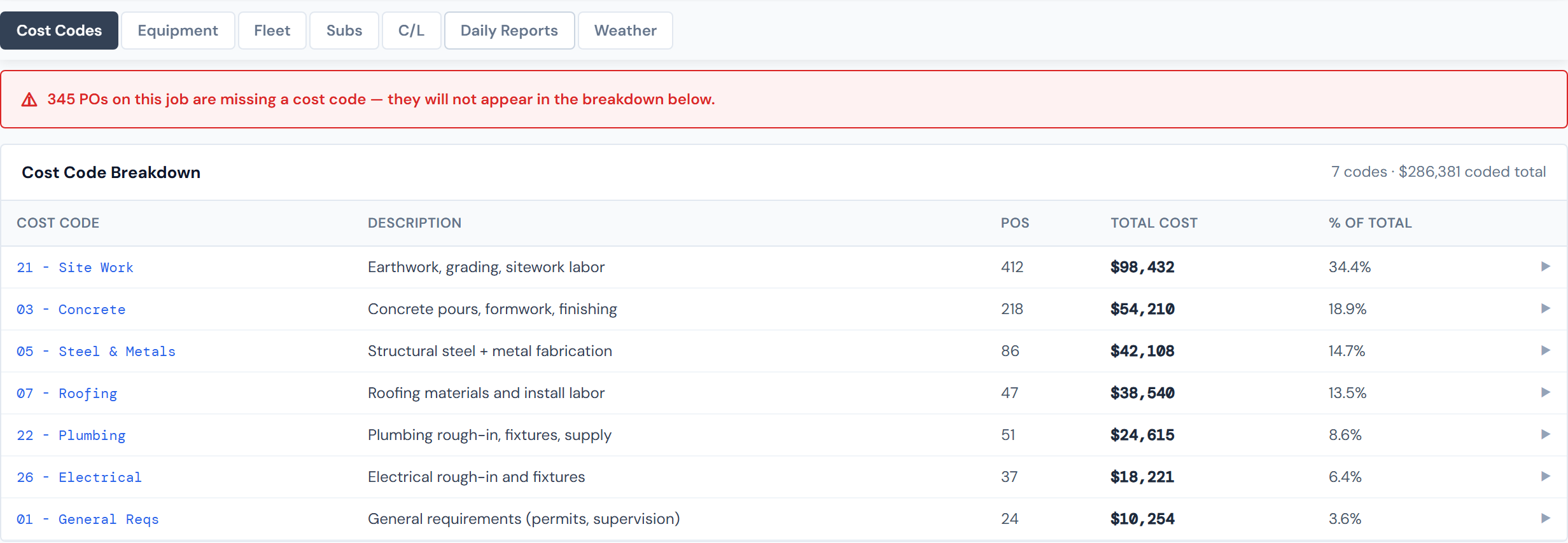
The seven sub-tabs
In screen order, with the on-screen label and a one-sentence purpose:
| Sub-tab | What it covers | Read more |
|---|---|---|
| Cost Codes | How labor and other costs distribute across cost codes for this job. | Cost Codes |
| Equipment | Equipment present on this job by daily report. | Equipment |
| Fleet | Fleet-vehicle activity for this job. | Fleet |
| Subs | Subcontractor activity logs from daily reports. | Subs |
| C/L | Crew and labor breakdown — clock-ins, hours, workers per day. | Crew/Labor |
| Daily Reports | The timeline of daily site reports filed for this job. | Daily Reports |
| Weather | Recorded weather conditions per daily report. | Weather |
The dashboard uses the abbreviation C/L for Crew / Labor — that's what you'll see on the sub-tab pill. The dedicated page spells it out, but the on-screen control is the short label so you can pattern-match.

The active sub-tab travels in the URL
The Field Data sub-tab is encoded as ?sub=... in the page URL. Sharing the URL puts the recipient on the same sub-tab.
The Daily Reports sub-tab also accepts a ?date=... parameter so widgets and links (like the Daily Report Calendar widget) can deep-link to a specific report.
Copying the URL captures both the main tab and the Field Data sub-tab, so the link you paste into Slack lands the recipient on the same sub-tab you were viewing.
Field Data has its own widget surface
When Field Data is the active main tab, the row of widgets above the tab bar swaps to a Field-Data-specific set. So if you switch from Spend Analytics to Field Data and the widgets up top look different, that's by design — they're scoped to whichever tab you're on. See the Widgets chapter.
When sub-tabs look thin
Equipment, Subs, Daily Reports, and Weather all draw from the daily site reports that the field team submits. If a job has no daily reports — common for short jobs or jobs that haven't started field work yet — those sub-tabs will be empty or partial. That's the explanation, not a data bug.
A job with rented equipment in the PO ledger but no daily reports filed will, for example, have an empty Equipment sub-tab — because Equipment counts the equipment recorded as on-site on a given day's report, not what's billed on a PO.
Numbers can be a few hours stale
Most of the data on Field Data refreshes overnight; some pieces refresh on the same 4-hour cadence as the rest of Job Detail. If a sub-tab looks behind, see Data Refresh Rates for the per-table breakdown.
Related reading
- Job Detail Overview — the page-level tour
- Cost Codes
- Equipment
- Fleet
- Subs
- Crew/Labor
- Daily Reports
- Weather
- Widgets — the per-tab widget surface
- Data Refresh Rates — refresh cadence per source