Billing
Track each monthly invoice (payapp), what was billed, what is held back as retainage, and how much of the contract has been billed to date.
Contract Value here is read-only. Edit it on the Entry tab.
Where it lives
Open a job, click the Budget tab, then click Billing. It is the third sub-tab, alongside Entry and vs Actual.
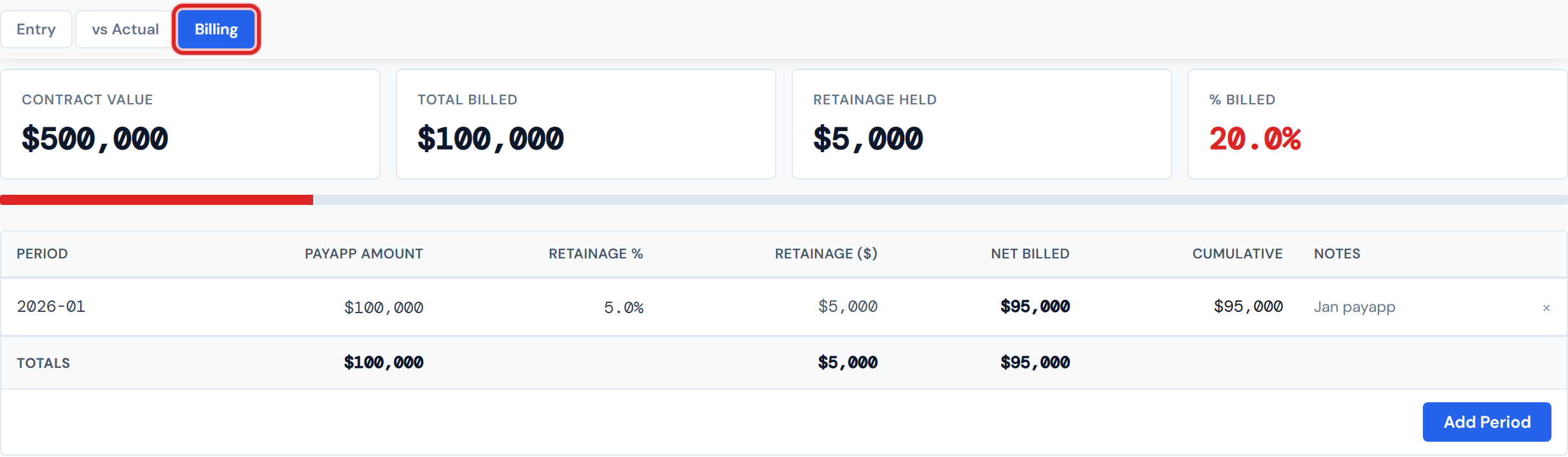
Four summary scorecards
Across the top of the page sit four scorecards that give you the running shape of billing on the job.
Contract Value is pulled from the Contract Info you set on Entry. It is read-only here. To change it, head to Entry.
Total Billed is the sum of the Payapp Amount column — the gross billed across all periods, before retainage is taken out.
Retainage Held is the sum of the Retainage $ column — the dollar amount the customer is holding back across all periods.
% Billed is Total Billed divided by Contract Value, as a percent. The number is color-coded by threshold: green at 80% or higher, amber at 40% or higher, red below 40%. The same threshold scheme is used elsewhere in the dashboard for "% costed" — the colors mean the same things across views, by design.
The 80% / 40% color thresholds are not user-configurable. They match the rest of the dashboard's "are we close to done" reading.
The % Billed progress bar
A horizontal progress bar sits directly under the four scorecards. It uses the same green / amber / red thresholds as the % Billed scorecard, so you can read your billing pace from across the room.
Visual quirk to know about: if Total Billed exceeds Contract Value (rare, but possible), the bar caps at 100% — it will not extend past the end of the track. The underlying percent in the scorecard, however, can read as e.g. 104.2%. So if a PM over-billed and is wondering why the bar looks pegged, the number on the scorecard tells the real story.
The billing periods table — eight columns
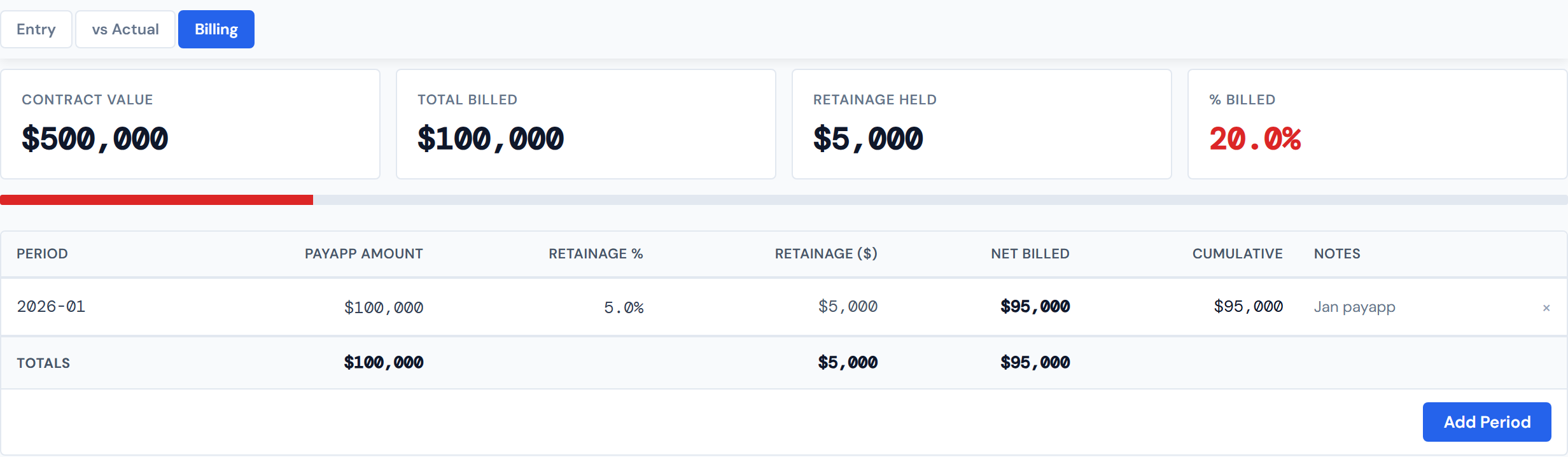
The body of the page is a table with one row per monthly period. The columns are:
| Column | What it shows |
|---|---|
| Period | The month, in YYYY-MM format (e.g. 2026-04) |
| Payapp Amount | Gross invoiced for the month. Click to edit |
| Retainage % | Percent withheld. Click to edit |
| Retainage $ | The dollar amount withheld; computed as Payapp × Retainage % / 100 |
| Net Billed | Payapp Amount minus Retainage $ |
| Cumulative | Running sum of Net Billed across all periods to date, chronological |
| Notes | Free text from the Add Period modal, truncated for compactness |
| (delete) | × icon at the row end, two-click confirm |
When the table has any periods, a Totals row sits below the last data row. It sums Payapp Amount, Retainage $, and Net Billed across all periods. The Cumulative column has no sum because it is already a running total.
When the table is empty
On a job with no billing periods yet, the table body shows:
No billing periods recorded yet. Click 'Add Period' to start tracking.
The four scorecards still render — Total Billed at $0, Retainage at $0, % Billed at 0% — so the layout stays stable while you populate it.
Adding a billing period
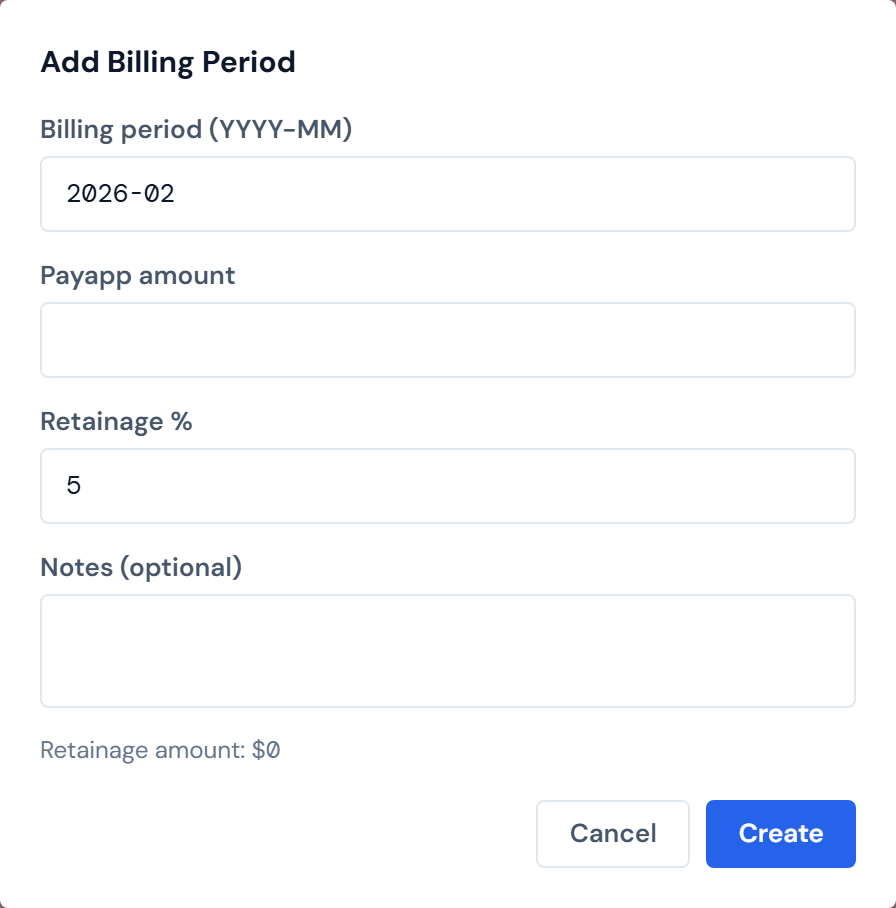
Click Add Period at the bottom-right of the table. A modal opens with four fields.
- Billing period — pre-fills to the month after your latest existing period (or the current month if there are none). Format is
YYYY-MM. - Payapp amount — the gross invoice total for the month.
- Retainage % — defaults to
5. Adjust if the contract specifies otherwise. - Notes — optional free text.
As you type the payapp amount and adjust the retainage percent, the modal shows a live Retainage amount preview underneath, so you can sanity-check the dollar figure before clicking Create. Click Create and the period is added; the table re-renders and the modal closes.
The new-period field pre-fills with the month after your latest period — adjust if you are catching up on a back-month or splitting an interim invoice into a different period.
A few rules block Create:
Period must be in YYYY-MM format. Examples that work: 2026-04, 2025-12. Examples that fail: 2026-4 (no zero pad), April 2026, 2026/04. The format is exact.
You cannot enter two payapps for the same month on the same job. Trying to add a second 2026-04 returns a conflict and the modal shows: "Period 2026-04 already exists for this job." If you need to correct an existing payapp, edit it inline in the table — do not add a duplicate.
Other validations that block save: payapp amount must be ≥ 0, and retainage percent must be between 0 and 100 inclusive.
Editing a period inline
Two cells in each row are click-to-edit: Payapp Amount and Retainage %. The other money columns (Retainage $, Net Billed, Cumulative) are computed — they recompute automatically when you commit an edit.
The pattern is the same as Budget Entry's inline cells: click the cell, type the new value, Enter or click out commits, Escape cancels. Negative values are silently rejected and the cell reverts to the prior value.
Inline edits on Billing commit immediately on blur or Enter — there is no buffer like Budget Entry. On Entry you can edit several cells, see the Unsaved changes label, and then click Save Budget to commit them all at once. On Billing each cell saves itself the moment you click out. Worth knowing if you have just come from Entry and were expecting the same pattern.
The Cumulative column is a running total, so editing an earlier period propagates forward. If you bump a March payapp from $50K to $60K, every Cumulative value from March onward shifts by the delta.
Periods are always sorted by YYYY-MM ascending when computing Cumulative. If you add a back-month — say you enter 2026-02 after already entering 2026-04 — the new February row slots in chronologically and the April Cumulative recomputes accordingly.
Deleting a period
Delete is a two-step confirm.
- Click the small
×at the right end of the row. The cell switches to show Confirm (red link) and Cancel (gray link). - Click Confirm to actually delete the period, or Cancel to back out.
Once Confirmed, the row is gone and Cumulative on every later row recomputes immediately.
The two-click Confirm is the only undo. Once you click Confirm, the period is gone — there is no soft-delete or audit trail today. If you delete by mistake, you re-enter the period using Add Period.
Composite — the three threshold colors
Contract Value, change orders, and the % Billed reading
Two facts about Contract Value that catch PMs out:
First, Contract Value here is read-only. It mirrors what you set on Entry. If you want to change it — for example, after the customer approves a change order that bumps the contract — make the change on Entry and it will reflect here.
Second, Contract Value does not auto-sync with CO records. The Change Orders count on the Entry tab is just a count of CO records logged against this job; it does not adjust Contract Value. Reflecting an approved CO in Contract Value is a manual PM update on Entry. See Change Orders for how COs are entered and tracked.
What this page does NOT do
- It does not generate or send invoices. Those live elsewhere — JCI tracks what was billed, it does not produce the billing.
- It does not pull billing data from accounting automatically. PMs type each period in.
- It does not apply CO impact to Contract Value. Contract Value here is whatever you set on Entry, regardless of CO history.
- It does not track payment status (paid vs. unpaid). Only what was billed and what was held back.
Related
- Budget Entry — where Contract Value (and the rest of the budget) is set
- Budget vs. Actual — variance between budget and resolved cost
- Change Orders — why an approved CO might mean adjusting Contract Value, which then affects the % Billed reading here
- Glossary — Payapp, Retainage, Billing Period, Cumulative Balance, Contract Value
- Troubleshooting — common Billing questions