Budget vs. Actual
How is the actual spend on this job tracking against the budget you entered? That is the one question this tab answers.
Your budget edits show up immediately. Your actual spend can be up to four hours behind. A PO you confirmed two minutes ago will not move Total Actual until the next data refresh. See Data refresh rates.
Where it lives
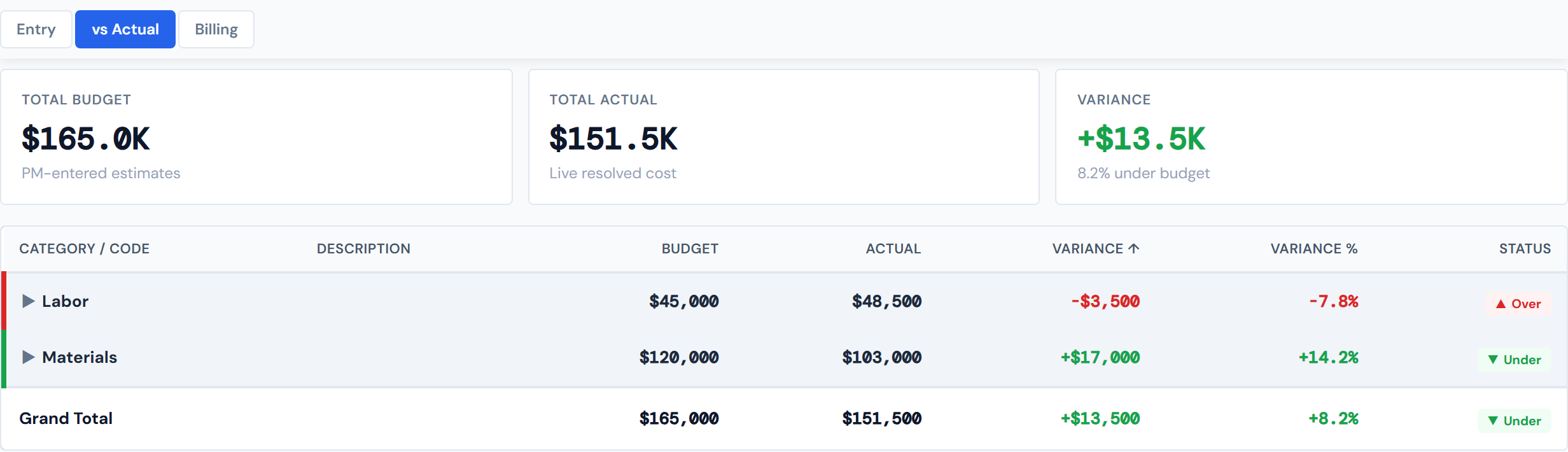
Open a job, click the Budget tab, then click vs Actual. It sits between the Entry sub-tab on the left and Billing on the right. Switching between sub-tabs preserves any unsaved edits on Entry — they stay buffered until you either save or discard.
When the page is empty
If a job has no budget entered AND no actual costs yet, the page renders a single message instead of an empty table:
No budget entered and no actual costs yet for this job. Enter a budget on the Entry tab to start tracking variance.
That is intentional. The page does not pretend to compare nothing against nothing. Head to Entry and put a budget in.
Three summary scorecards across the top
Total Budget is the sum of all nine category estimates you entered on Entry. The subtitle reads "PM-entered estimates" when there is a budget, or "No budget entered" when the total is zero.
Total Actual is the sum of resolved costs across all categories — what has actually hit the books. The subtitle is fixed: "Live resolved cost."
Variance is Total Budget minus Total Actual. A positive variance (under budget) is shown with a + prefix and a green color. A negative variance (over budget) is shown with a - prefix and a red color. Exactly zero is neutral. The subtitle gives you the percent context: "12.4% under budget," "3.1% over budget," "On budget," or "No budget entered."
The nine-row variance table
The table lists the same nine PM Sheet categories as Entry — Concrete, Rebar, Materials, Pumps, Equip/Rental, Fuel, Subs, Labor, Other Costs.
The columns are:
| Column | What it shows |
|---|---|
| Category / Code | The category name on the parent row, or a cost code on an expanded child row |
| Description | Short label for the category or cost code |
| Budget | What you entered on Entry for that category (or that cost code, if you broke it down) |
| Actual | Resolved cost from POs and labor that routed to this category |
| Variance | Budget minus Actual, signed |
| Variance % | Variance divided by Budget |
| Status | Pill showing one of four states (next section) |
Worst over-budget categories sit at the top by default — the table sorts by Variance ascending so the biggest negative number lands first. Click any column header to re-sort; click again to flip direction.
A small ▶ arrow on each category row expands it to show the cost codes that contributed to the actual.
The four variance statuses
Every row gets one of four status pills, and the row's left border picks up the same color so you can scan the table fast.
Over — red ▲ pill. Actual exceeds Budget. Red left border on the row.
Under — green ▼ pill. Budget exceeds Actual. Green left border.
On Budget — gray — pill. Budget equals Actual exactly to the cent. This is rare in practice; it does not mean "close enough."
No Estimate — gray pill, no arrow. There is real spend in this category but you never entered a budget for it. Gray left border. Treat this as a nudge to go back to Entry and put a number in.
On Budget is exact, not a tolerance. A $50,000.00 budget against $50,000.01 in actuals reads as Over. There is no "within a small margin" — the math is to the cent.
A clarifying point on No Estimate: it specifically means "real spend, no estimate." A category sitting at $0 budget AND $0 actual reads as On Budget, not No Estimate. The No Estimate badge is the page's way of pointing at categories you forgot to budget for that are now consuming spend.
Reading the variance numbers
The Variance amount is signed — +$5,000.00 means under budget, -$5,000.00 means over budget. Same convention as the Variance scorecard up top.
The Variance % column is the variance amount divided by the budget. When the Budget cell is $0 — the No Estimate case — Variance % shows an em dash (—) because percent-of-zero is undefined.
Both the Variance and Variance % columns inherit the row status color: red over, green under, muted gray for On Budget and No Estimate.
Drilling into a category
Click any category row to see which cost codes are driving the actual. The expand surfaces the cost-code-level detail without leaving the page.
When you click the ▶ arrow on a category row, the row expands and lazy-loads its cost-code breakdown. You will see a brief "Loading cost codes…" placeholder, then the data resolves.
Each cost code child row shows:
- Cost code and description
- Budget — an em dash by default (because the budget is at the category level, not per code), unless you broke down this category on Entry
- Actual — the resolved cost for that cost code
- PO summary — text like
4 POs · 1 costed
The PO summary tells you two things at once. 4 POs is the count of POs that rolled into this cost code. 1 costed is how many of those have made it to the Accounting Costed state — the green status in the PO lifecycle. The rest are still earlier in the lifecycle.
If a category has no cost-code activity yet, the expansion shows an italic placeholder: "No cost code activity in this category yet." If the lazy-load fails for any reason, the row turns into a "Failed to load cost codes" error with a short message.
The PO summary is informational, not a navigation target. Clicking the cost-code row does not jump you to the underlying POs. To open them, head over to the PO Detail tab.
Why your Rebar variance pulls in sub invoices
This is the most common reader question on this page. The short answer is: your budget categories match your bid; the actuals are routed to match.
You budget in nine PM Sheet categories. POs arrive tagged with their own categorization. A mapping routes each cost code to its PM Sheet category, so:
- Rebar actuals include both rebar-bar materials AND rebar-tying sub labor. Both roll up under Rebar — even though one came from a Material PO and one came from a Sub PO.
- Fuel pulls a single cost code out of Material POs.
- Labor actuals route to the Labor row regardless of what cost code was punched at the timeclock.
This is why your Materials variance does not include rebar bars (they went to Rebar), and your Subs variance does not include rebar-tying labor (also Rebar). It matches how you bid the job, not how the POs were tagged at entry.
The category mapping is fixed — you cannot reassign cost codes from this page. If you think a cost code is in the wrong PM Sheet category, that is an admin-side change to the routing rules, not something to fix from the dashboard.
The Grand Total row
At the bottom of the table sits a Grand Total row. It sums Budget, Actual, Variance, and Variance % across all nine categories, and it carries its own status pill driven by the same Over / Under / On Budget / No Estimate rules. Quick way to read the whole-job picture at a glance.
A note on Pumps
The Pumps category will almost always show $0 actual. Pump cost data is not populated in the source files JCI reads from — this is upstream of the dashboard, not a bug. The practical effect: Pumps reads as Under whenever you budgeted for it (the variance is always positive), or No Estimate if you did not. Not worth a support ticket.
Closed jobs
Variance is computed for closed jobs the same way as for active ones. Closed jobs typically have no new POs flowing in, so the variance is effectively final.
What this page does NOT do
- It does not let you edit the budget. That is Entry.
- It does not show billing. That is Billing.
- It does not give you a chart or trend view. Only the table.
Related
- Budget Entry — where the budget that drives this view comes from
- Billing — monthly payapps, retainage, and cumulative balance
- PO Detail — the POs underneath each cost code
- Change Orders — COs that may explain why a category is over
- PO lifecycle colors — what "1 costed" of "4 POs" means
- Data refresh rates — the four-hour lag on actuals
- Categories — the nine PM Sheet categories in detail
- Cost codes overview — how cost codes route to categories
- Glossary — Variance, Cost Code, Category, PO Count, Costed
- Troubleshooting — common questions about this view