Entering a Job Budget
Open a new job, type a dollar estimate for each of nine categories, save. That's a budget.
The whole flow takes less than a minute. The rest of this page is for the optional moves you'll reach for later — cost-code drill-down, contract value, CSV import, and saving discipline.
When this happens
Once per job, at the start. Some teams enter the budget the day the contract is signed; others wait until the kickoff meeting. Either is fine.
The dashboard treats a job with no saved budget as "no budget entered" everywhere downstream — vs Actual is empty, the Job Health Gauge stays neutral, and the Budget vs Actual widget on Spend Analytics has nothing to draw — until you save at least one category.
The 60-second flow
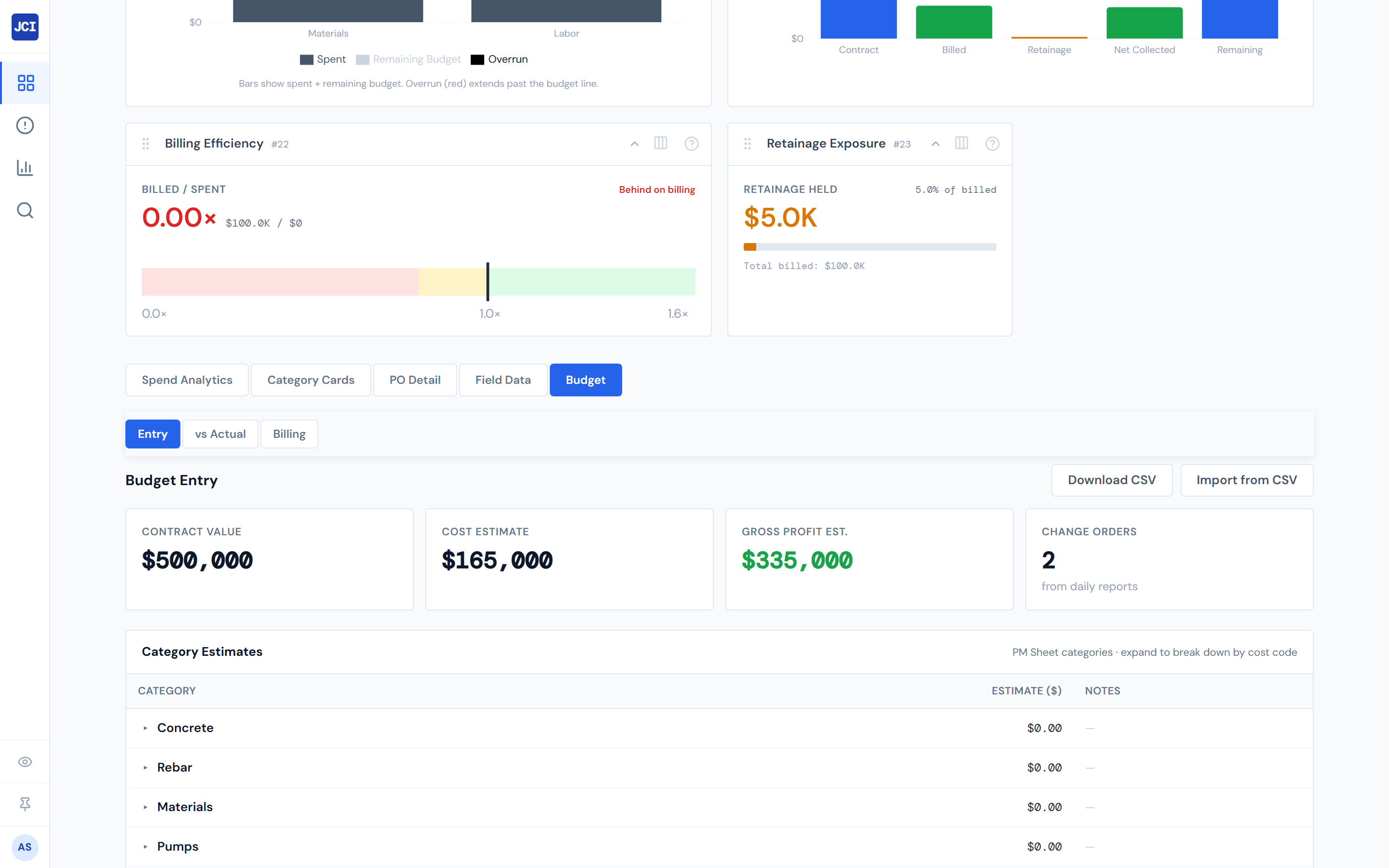
1. Open the job and switch to the Budget tab
It opens on the Entry sub-tab by default. The full Budget tab tour is at Budget Tab; the canonical Entry reference is at Budget Entry.
2. Set the Contract Value
Click the Contract Value scorecard at the top. It becomes editable. Type the dollar amount, press Enter. The Gross Profit Est. scorecard next to it updates as a function of (Contract − Cost Estimate).
You can skip this if you don't have the contract number yet — come back and add it later.
If your nine-category estimates sum to more than the contract value, the Gross Profit scorecard goes red. That's a real signal, not a styling glitch — the bid is upside-down. Use it as the "did I break the bid" check before you save.
3. Type an estimate into each of the nine category rows
The rows are fixed and always in this order:
- Concrete
- Rebar
- Materials
- Pumps
- Equip/Rental
- Fuel
- Subs
- Labor
- Other Costs
Click an Estimate cell, type the dollar amount (no $ sign needed, decimals OK), press Enter or Tab to commit. The Grand Total at the bottom updates as you go. The category definitions live at Categories.
The whole flow is keyboard-only if you want — Tab moves cell to cell, Enter commits.
4. (Optional) Add Notes per category
The Notes column is click-to-edit. Use it for assumptions ("excludes premium time"), scope notes, or vendor splits.
5. Click Save Budget
The button is disabled until you've changed something. Once you click it, the page persists and the four scorecards refresh against the saved values. That's it — the budget is in.
Optional: per-category cost-code breakdown
For categories where you want sub-line detail (commonly Labor and Subs), toggle "Break down by cost code" on the row. The Estimate cell becomes read-only — its value is now the SUM of the cost-code estimates you add below.
Add cost codes one at a time, each with its own dollar estimate. The subtotal at the bottom of the breakdown panel shows the running total.
The dashboard compares the cost-code subtotal and the category estimate as integer cents. 100.00 and 100.001 are treated the same (the inputs round to two decimals), but 100.00 and 100.01 are not — the warning fires and the Save Budget button is disabled. Fix the breakdown to match the category total, or change the category total to match the breakdown subtotal. You cannot save until they match.
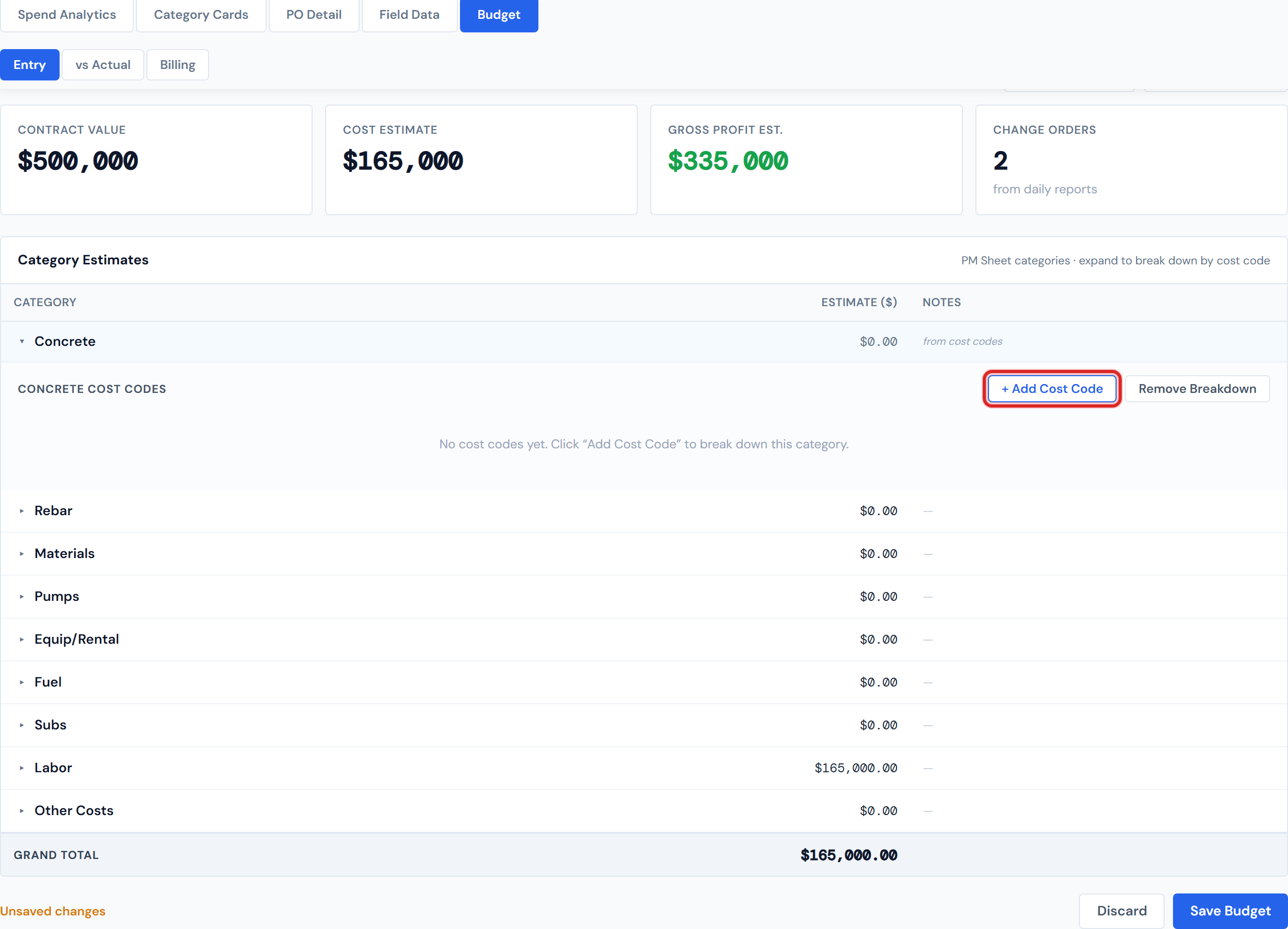
The full breakdown panel reference, including how the per-cost-code rows interact with vs Actual downstream, is at Budget Entry. Cost codes themselves are at Cost Codes Overview.
CSV import — the "I have a spreadsheet" flow
If you've got a budget already in a spreadsheet (a separate estimate, a hand-built worksheet), use the CSV import instead of typing it in.
Click Import from CSV on the Entry tab. A modal opens with three steps:
- Download the template. The CSV has the right column headers and the correct cost-code names. Don't hand-craft a CSV — start from the template.
- Fill it in and upload. The modal previews what will import.
- Click Import. The valid rows import; the invalid rows come back in a downloadable error report.
Cost-code names must match the reference list exactly. The template ships with the right names already in place — start there.
A 1,000-row upload with 50 invalid rows imports the 950 valid rows and returns the 50 invalid ones in an error report. An import with errors is not a "nothing happened" signal — it's a normal "950 in, 50 to fix" outcome.
The full import reference is at Budget Entry.
Saving discipline — what to know
- The Save Budget button is disabled until you've made a change.
- "Unsaved changes" appears in amber in the footer when you have edits.
- Leaving the page (clicking another tab in the sidebar, navigating away) while you have unsaved edits triggers a browser confirm so you don't lose work.
- Switching between Entry, vs Actual, and Billing sub-tabs is safe — Entry stays mounted and your in-progress edits survive the swap.
Moving between Entry, vs Actual, and Billing keeps your in-progress edits. Clicking out to All Jobs or Action Queue with unsaved edits triggers a browser confirm — don't promise auto-save, because there isn't any.
What happens once the budget is saved
The variance picture lights up:
- vs Actual populates with one row per category, sorted worst-over-budget first. See Budget vs Actual.
- The Cost to Complete and Job Health Gauge widgets calculate. See the Budget & Billing widgets.
- The Budget vs Actual widget on the Spend Analytics tab gets real data to draw.
None of this happens before you save.
The budget you save right now appears on vs Actual immediately. The Actual numbers next to it lag the four-hour cycle. So the variance you see on a brand-new job's vs Actual right after saving may be misleading — there isn't much actual cost to compare against yet. See Data Refresh Rates.
A few things to know
- The nine categories are fixed. You can't add or remove them. Pump estimates are still allowed even though pump actuals are always $0 — most jobs leave Pumps at $0 too.
- Notes are not searchable across jobs. Each Notes value lives on the job. There's no global "find all jobs with Notes containing 'premium time'" feature.
- Contract Value is owned here. The Billing sub-tab's Contract Value scorecard is read-only. To change the contract value, come back to Entry.
- Closed jobs allow budget edits — that's intentional, not a bug. True-ups happen after a job closes; the dashboard supports them.
What's next
- Once the budget is in, the next monthly action is billing. See Tracking Billing and Retainage.
- vs Actual showing red rows? See Spotting Overruns for the variance investigation flow.
- Wrapping up the month? See Month-End Review.
- Curious about Change Orders against this contract? See Reviewing a Change Order.