Fixing a Missing Cost Code
A labor entry on one of your jobs clocked in without a cost code. This page tells you what that means, why it matters, and how to get it fixed — which is upstream of JCI.
This tab and this workflow are labor-only. Concrete, materials, subcontractor, rental, and pump POs missing a cost code do not appear here. If you're hunting for a missing cost code on a non-labor purchase, this is the wrong tool — check the PO Detail tab on the relevant job and chase the cost code through Purchase Ordering instead. The reference page for the queue tab is Missing Cost Codes.
The dashboard has no "Assign Code" button for labor entries. The Missing Cost Codes tab is a read-only triage list. The actual cost-code assignment happens in the AppSheet timeclock app — the same app where the entry was created.
The five-step flow
1. Open Action Queue → Missing Cost Codes
This tab sorts newest-first. (The Pending tab is oldest-first — they're opposites.) The reason: fresh entries are easier to attribute, because either you or the worker remembers what was being done.
The full reference for the tab is at Missing Cost Codes; the chapter intro is at Action Queue Overview.
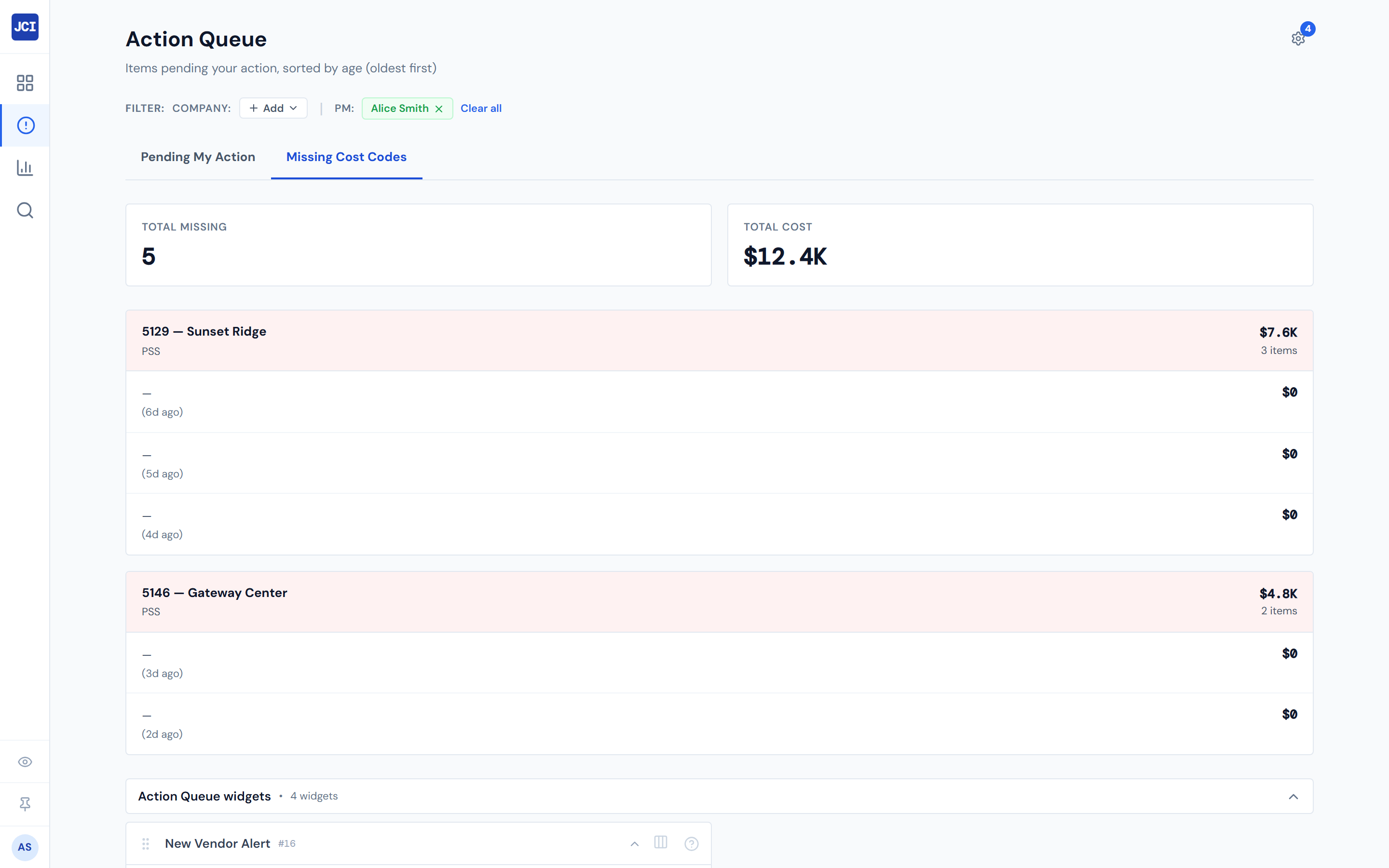
Newer entries are easier to attribute. Yesterday's crew is a fresh memory; last month's takes detective work.
2. Scan the top of the list
Look for entries from the last few days that you remember — a particular crew on a particular job on a particular day. The faster you can match the entry to the work that was happening, the cleaner the fix.
3. For each row you can attribute, capture three things
- Order ID — the rightmost identifier on the row. This is what the timeclock app uses to look the entry up.
- Job number and worker name — visible in the row and in the job-group header.
- The cost code that should have been used — you may need to glance at the Cost Codes sub-tab on the job's Field Data tab to remember the code numbers.
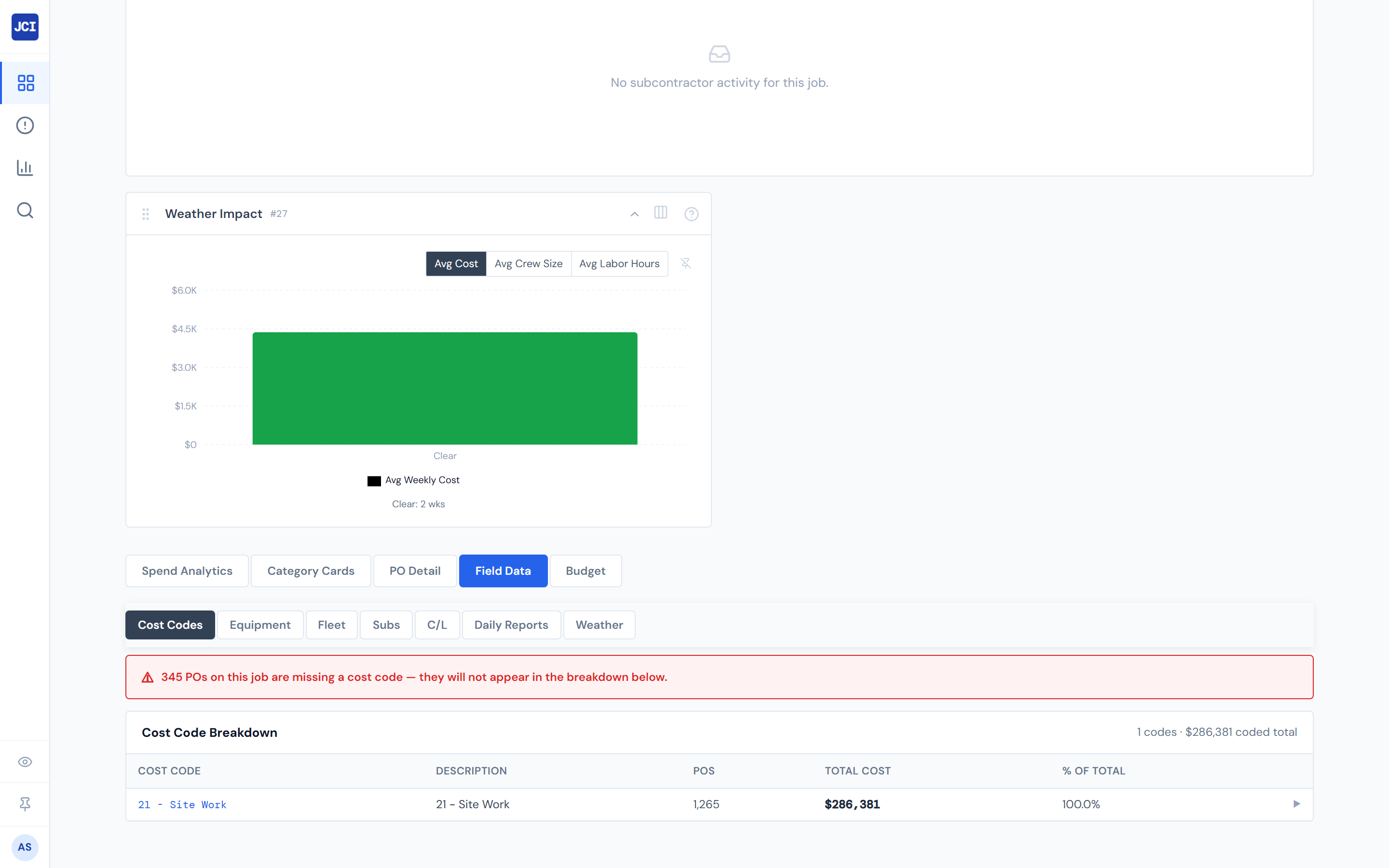
4. Take the fix to the timeclock data owner
JCI surfaces the missing entry; the fix happens upstream in the AppSheet timeclock app. Confirm with your team lead before escalating: who owns the timeclock data, whether PMs self-serve through the AppSheet timeclock app or hand off to an admin, and whether your team uses a Slack channel, ticket queue, or email alias for these.
The dashboard does not document an org-wide fix path because it varies. What's universal: capture the three identifiers from step 3, take them to whoever holds the timeclock-data write permission, and let them apply the cost code in the source app.
5. Wait for the queue to update
A cost code added in the timeclock app this morning will not disappear from this tab immediately. Numbers refresh every four hours. Don't refresh and escalate again — wait one cycle. See Data Refresh Rates.
A cost code added in the timeclock app at 9 AM may not disappear from this tab until early afternoon. The fix took; the dashboard just hasn't caught up yet.
Why this matters
A labor entry without a cost code still hits the job's total cost, so the dollar number on the job is correct. But the cost-code variance reports — Budget vs Actual, the Cost Codes sub-tab, and the field-data widgets — can't tell which scope of work that dollar belongs to.
Over time, uncoded labor inflates "miscellaneous" buckets and silently underrepresents the scopes that workers actually labored on. The fix is mechanical and quick; the cost of leaving it un-fixed is a slowly-distorting variance picture. See the Field Data widgets for the surfaces affected.
Fix-while-fresh: why the tab sorts newest-first
The Pending PM queue sorts oldest-first, because the goal there is "clear the most-overdue items first." Missing Cost Codes sorts newest-first because attribution decays with time. You remember what yesterday's crew was doing on a specific job; you don't remember last month's. The dashboard's default sort matches the recommended workflow: scan from the top.
The empty state
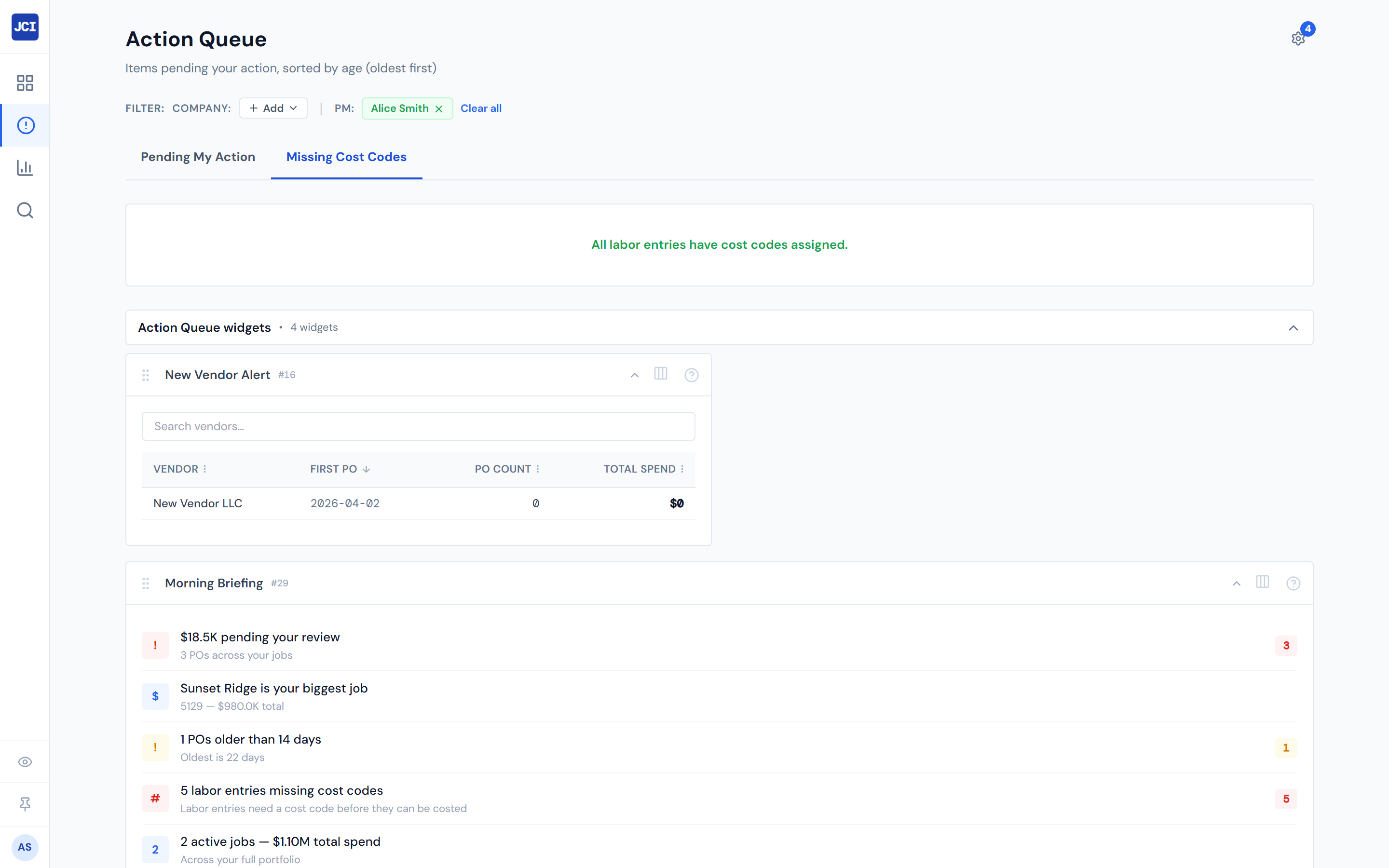
If you see the green "All labor entries have cost codes assigned" message at the top of the tab, you're done. Nothing on your jobs needs cost-code fixing right now. This is the clean state.
A few things to know
- "Missing Cost Code" is not the same as "Missing Ticket." Missing Ticket is a gray PO lifecycle status — a PO without a receipt image attached. Missing Cost Code is a tab in the Action Queue — a labor entry without a cost code. Different problems, different fix paths. See PO Lifecycle Colors for the lifecycle reference.
- The newest-first sort is the opposite of the Pending tab. Switching tabs and expecting the same sort is the most common confusion here. See Pending My Action for the contrasting sort.
- PM scoping is by user account. The queue only shows entries on jobs where you're the PM. If a labor entry on a job you thought was yours doesn't appear, the job's PM field may be a first-name string instead of your user ID — see My Jobs Toggle for the matching nuance.
- Cost codes themselves are documented in the reference chapter. See Cost Codes Overview.
What's next
- This tab is part of your morning routine? See Daily Workflow for the in-queue Mermaid, or Daily PM Routine for the wider day.
- Hunting for a missing cost code on a non-labor PO instead? Open the relevant job's PO Detail tab and chase the code through Purchase Ordering.
- Want to see how uncoded labor distorts variance? See Budget vs Actual and the Cost Codes sub-tab.