Crew
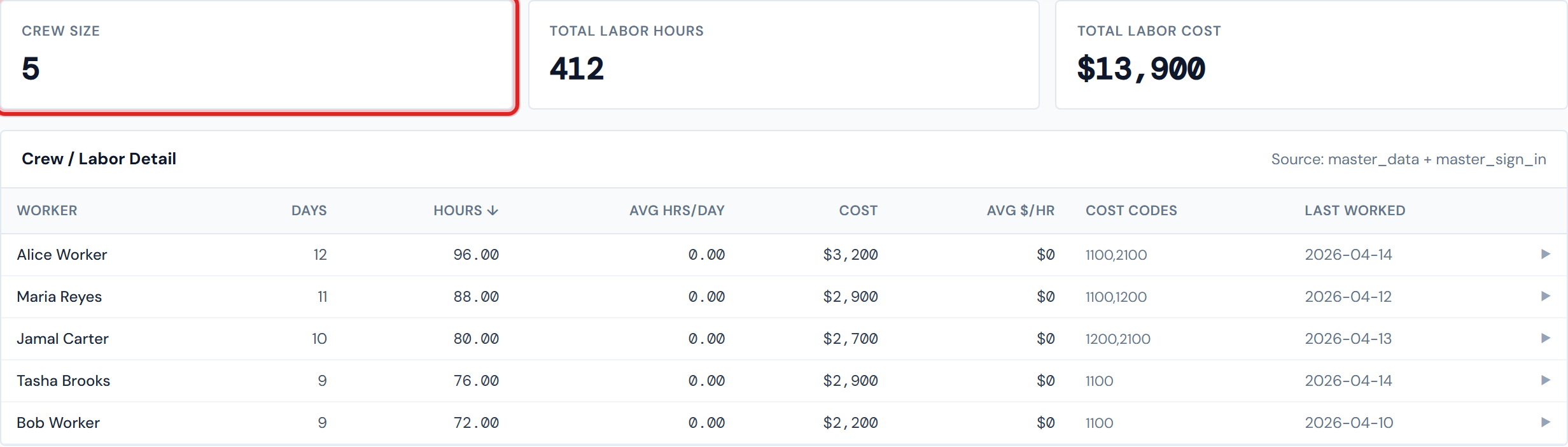
The Crew sub-tab — labeled C/L in the tab strip, short for Crew/Labor — shows every worker who has logged time on this job. Total hours, total cost, average hours per day, the cost codes they've charged time to, and the last day they were on. Each row expands to reveal individual sign-in and sign-out shifts.
It's the answer to "who has been working this job, how much, and what for?" — without leaving the dashboard for the timeclock app.
What you'll see at the top
Three scorecards summarize the job's labor, then a sortable per-worker table sits underneath.
| Scorecard | What it shows |
|---|---|
| Crew Size | Count of distinct workers who have logged any time on this job |
| Total Labor Hours | Every worker's hours added together |
| Total Labor Cost | Every worker's payable amount added together |
The Total Labor Cost scorecard is the same number that rolls up into the Labor card on the main Job Detail header. If those two ever disagree, refresh the page — they shouldn't.
The per-worker table
One row per worker, sorted by Hours descending by default.
| Column | What it is |
|---|---|
| Worker | Employee name as recorded in the timeclock |
| Days | Distinct work dates this worker logged time on this job |
| Hours | Total clocked duration on this job |
| Avg Hrs/Day | Hours ÷ Days — useful for spotting consistent half-days vs. full-days |
| Cost | Payable amount on this job for this worker |
| Avg $/Hr | Cost ÷ Hours — useful for spotting mixed rates |
| Cost Codes | The cost codes this worker has charged time to (up to 6 distinct, comma-separated) |
| Last Worked | The most recent date this worker was on the job |
Click any column header to re-sort. The first click sorts descending; clicking the same header again toggles to ascending. The active column shows an arrow indicator.
Expanding a worker row
Click a worker to see their sign-in detail: per-shift date, in time, out time, computed shift hours, the team they were on for that shift, and whether the system clocked them out automatically. Click again to collapse. Only one worker is open at a time.
What "Auto Out" means
When a worker forgets to clock out, the system closes the shift for them at a default time. The shift drill-down's Auto Out column reads "Yes" for those shifts and stays blank when the worker tapped out themselves.
Auto Out shifts can have inflated or truncated hours depending on how the auto-close policy is configured. When you're investigating an outlier — a worker with surprising total hours, or a shift that looks too round — check the Auto Out column first. A long string of auto-outs usually points at a tap-out habit issue, not bad data.
Empty cells in Team and Cost Codes
Both columns can be blank, and both are normal:
- Team is blank for any shift where the worker didn't have a team assignment in the sign-in record. Imported labor and pre-team-rollout data are the usual suspects.
- Cost Codes shows "—" if the worker has only logged uncoded time on this job.
Workers without sign-in records (manually-entered or imported labor) will show "—" in Team on every shift. That's expected, not an error.
Uncoded labor still counts
Even if a worker has only "—" in their Cost Codes column, their hours and cost still feed the scorecards above and the Labor card on the Job Detail header. The cost-code field is about how the time was categorized, not whether it counts.
Uncoded labor on this page is the same labor that lives in the (Missing cost code) row on the sibling Cost Codes sub-tab. One side of the same coin.
How labor cost is calculated
The Cost column is the payable amount that comes through from payroll — already resolved, no further math applied here.
Labor cost on this page does not go through the same confirmation waterfall that PO costs do. PO costs are confirmed and re-priced as they move through the lifecycle; labor is what payroll sent. Don't try to reconcile a worker's cost row against an individual PO — they're different numbers from different sources.
How fresh the numbers are
Labor data refreshes overnight, not on the four-hour cadence the PO numbers use. So time clocked today won't appear here until tomorrow morning. See Data refresh rates for the full picture.
A note on cross-company workers
Each job belongs to exactly one company — job numbers don't overlap between companies, so a single job number can't legitimately have crew from two different operating companies. If you ever see a worker on this list whose name belongs to a sister company, that's a data-entry error at the timeclock source — flag it to ops to correct upstream.
Empty state
A job with no labor data shows "No labor records for this job." That's normal on brand-new jobs that haven't seen any time clocked yet, or on closed jobs where labor was never logged through the system.
Where this connects
- The Total Labor Cost scorecard equals the Labor card on the Job Detail header.
- Uncoded time on this page is the same time that drives the
(Missing cost code)bucket on the Cost Codes sub-tab. - The same days you see in the Last Worked column are documented day-by-day on the Daily Reports sub-tab — though the worker-count pill there is a sub-crew count, not your own crew.
Related pages
- Cost Codes — uncoded labor's other home
- Daily Reports — the narrative side of the same days
- PO Detail tab — the labor lines as PO rows
- Field Data widgets — Crew Size Timeline and other labor-related widgets
- Data refresh rates — for the nightly cadence
- Glossary — entries for "Crew," "Labor," "Auto Out," "Payable amount"