Subcontractors
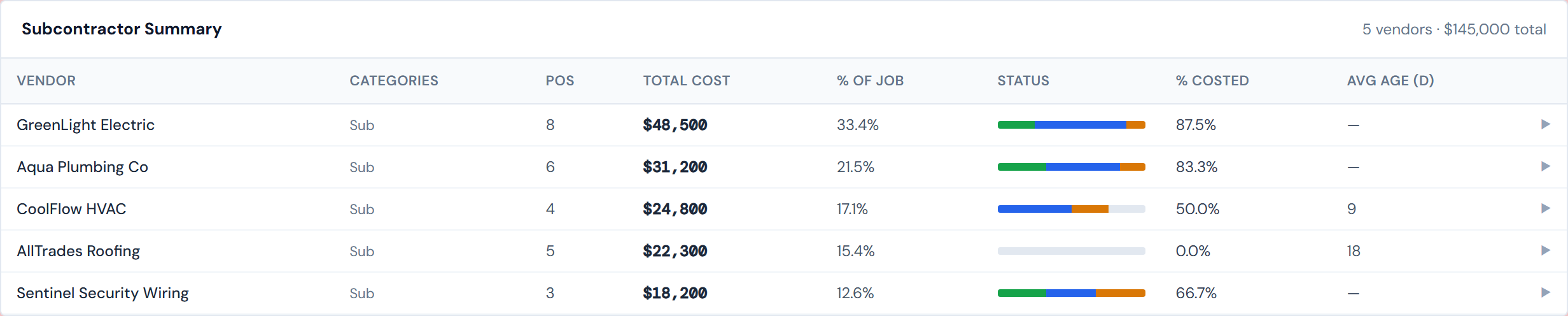
The Subs sub-tab shows every vendor with purchase orders against this job, ranked by spend, with a per-vendor lifecycle bar so you can see at a glance how much of each vendor's spend is costed, confirmed, or still sitting on someone's plate.
Each row expands to reveal the actual POs behind that vendor's total — making this the fastest way to answer "which vendor is the biggest exposure on this job, and what's outstanding with them?"
The tab is labeled Subs in the tab strip, but the content covers every vendor on the job — material suppliers, equipment rentals, concrete pumps, true subcontractors. The short label is a tab-strip space constraint; the page itself is broader.
What the summary table shows
One row per vendor, sorted by Total Cost descending.
| Column | What it is |
|---|---|
| Vendor | The vendor's name |
| Categories | Which spend categories this vendor's POs fall into (Material, Concrete, Sub, etc.) |
| POs | Number of purchase orders from this vendor on this job |
| Total Cost | Summed resolved cost |
| % of Job | Share of total job spend this vendor represents |
| Status | A horizontal lifecycle bar split into colored segments (see below) |
| % Costed | Share of this vendor's spend that has reached Accounting Costed |
| Avg Age (d) | Average days since order creation for POs still pending; blank when nothing is pending |
Reading the lifecycle bar
Each row's Status column is a small horizontal bar split into up to five colored segments showing the share of that vendor's POs in each lifecycle state. Hover the bar to see the percentages.
The five segments are Confirmed (blue), Accounting Costed (green), PM Confirmed (amber), Pending PM (red), and Missing Ticket (gray). For the legend in full, see PO Lifecycle Colors.
This bar shows all five lifecycle states — including Confirmed (auto-confirmed labor lines, which read as blue). That's different from the Status column on the All Jobs page, which omits the auto-confirmed labor segment. On a labor-heavy vendor, the bar here will be mostly blue. That's correct on this page.
Expanding a vendor row
Click any vendor to expand a child table of the actual POs behind that vendor's total: order ID, date, category, description, status badge, and cost. Click again to collapse. Only one vendor is open at a time.
The Unattributed bucket
Some POs categorized as "Sub" come in without a vendor name attached. Rather than drop them, JCI groups all of them under a single Unattributed row in the summary. If you see a large Unattributed total, that's spend that arrived without a vendor selected upstream — not a bug in the dashboard.
Unattributed is real spend. It's just spend that came in without a vendor name attached. Don't ignore the row because it doesn't have a familiar name on it — drill into it the same way you'd drill into a named vendor.
The Unattributed bucket is a permanent bucket — there's no transient state where it eventually resolves to a real vendor. If a PO needs a vendor name, that fix happens upstream in the source system.
How to read % Costed and Avg Age together
The two columns are most useful side by side:
- % Costed — the share of this vendor's spend that's reached Accounting Costed (green) specifically. Confirmed (auto-confirmed labor, blue) does not count as costed here, and neither does PM Confirmed (amber).
- Avg Age (d) — calendar days since order creation, averaged across only the Pending PM and Missing Ticket POs. It reads "—" when the vendor has nothing pending. Calendar days, not working days — weekends count.
A vendor sitting at low % Costed with a high Avg Age means their pending POs are aging without movement. That's a follow-up signal — usually worth a phone call or a nudge in the Action Queue.
% Costed is a green-only measure. A labor-heavy vendor whose POs all auto-confirmed (blue) will read 0% costed even though no human action is outstanding on them. That's expected — Confirmed labor lines aren't accounting-costed yet, they're just locked in. Don't chase the 0% as if it were a problem on those rows.
Pump rows always read $0
If a vendor has Pump in its Categories list, the dollar contribution from those POs is always zero — pump costs aren't populated in source data. So a vendor whose total looks small relative to their PO count may be a pump-heavy vendor. See Categories for the full picture.
How fresh the numbers are
Vendor data flows through the same four-hour PO refresh cycle as the rest of the dashboard's spend numbers. See Data refresh rates for the full picture.
To act on what you see here: jump to the Pending My Action tab in the Action Queue for PM-confirmation work, or to Missing Cost Codes for cost-code remediation.
Related pages
- PO Detail tab — per-PO browsing across all vendors
- Cost Codes — the same spend rolled up by code instead of by vendor
- Pending My Action — where PM confirmation work lives
- Missing Cost Codes — for cost-code remediation
- PO Lifecycle Colors — the legend for the status bar
- Data refresh rates — the four-hour staleness window
- Glossary — entries for "Vendor," "Subcontractor," "Unattributed," "Resolved cost"