Daily Reports
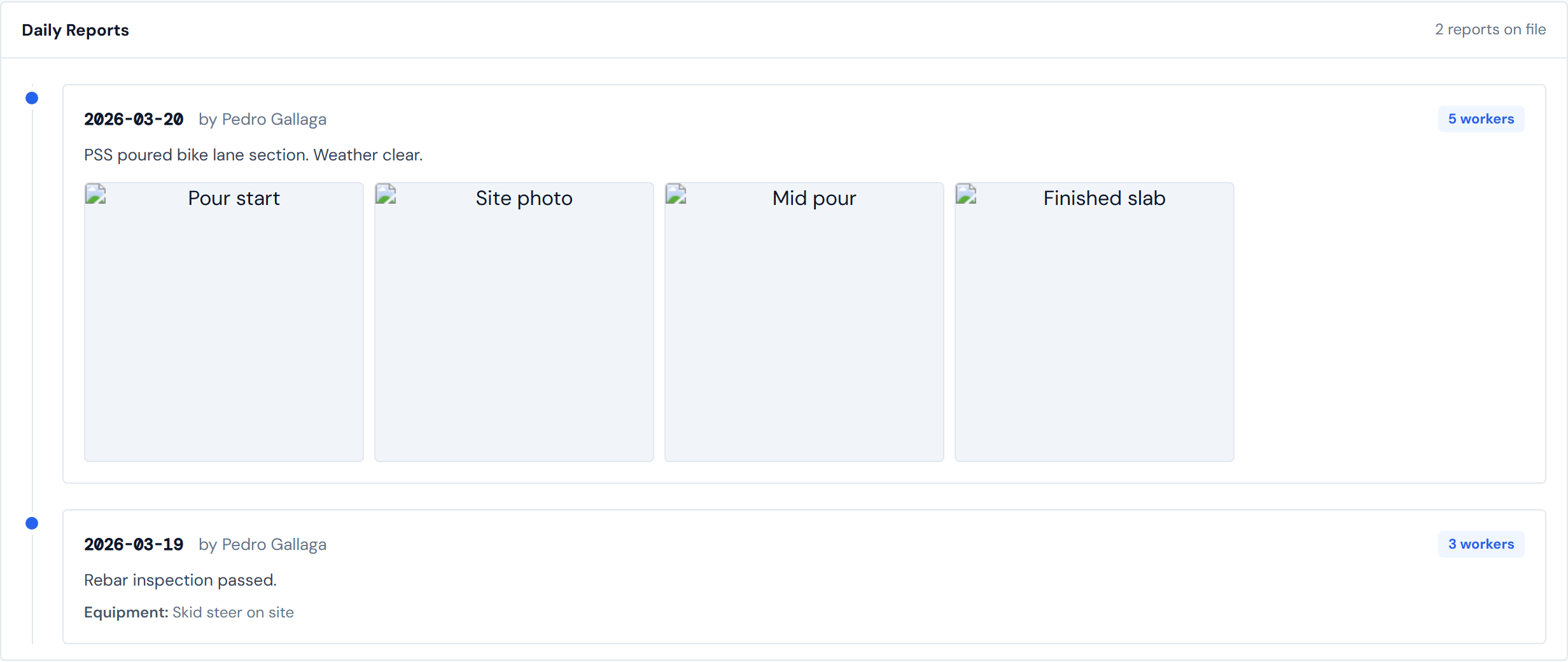
The Daily Reports sub-tab is a vertical timeline of every daily report filed on this job, newest first. Each entry shows the date, who filed it, the work description, equipment notes, a sub-crew worker count, and a thumbnail grid of the photos attached to that report.
This is the dashboard's narrative side — what actually happened on site each day, in the field staff's own words and pictures.
Anatomy of a report card
Each entry on the timeline carries the same pieces in the same places:
- Date — the date of the report (mono-spaced, bold)
- Submitter — "by [Name]" — who filed the report
- Sub-crew pill — top-right blue pill, e.g. "12 workers" — see the warning below
- Work description — the day's narrative; truncated to about 260 characters with a "Show more" expander; preserves line breaks
- Equipment notes — a short line under the description when site staff included an equipment note
- Photos — a thumbnail grid; click any thumbnail to open a full-size lightbox
The worker pill is the sub-crew count, not your own
The blue "X workers" pill in the top-right of each card is only the sub-crew on site that day — the sum of subcontractor crew counts the report logged. It is not your own crew, and it is not the total people on site.
The "X workers" pill is sub-crew only. Your own crew count usually appears as text inside the work description, not as a structured field. PMs who skim the pill and treat it as the day's full headcount will misread it. For your own crew, see the C/L sub-tab.
Pagination — 10 at a time
The timeline shows 10 reports at a time. A "Load more (X remaining)" button at the bottom expands the visible list in 10-report chunks. Up to 500 reports per job are surfaced — that's more than two years of daily submissions on a typical job.
Reports beyond 500 still exist in the source data; they just aren't loaded into this view to keep the page fast. If you ever need to look at reports older than that, ask Ops.
Deep-linking from the Daily Report Calendar widget
Clicking a day in the Daily Report Calendar widget jumps you straight to this sub-tab and auto-opens the matching report, with a brand-blue ring around the card so it's easy to spot in the list.
If the linked report no longer exists on this job, you'll land at the top of the list — no error, just the most-recent reports.
To share that exact view with a teammate, use the Copy Link button in the page chrome. The shared link reproduces the deep-linked card on the recipient's screen.
You don't need to construct the URL by hand. Click a day on the Daily Report Calendar widget to deep-link, and use Copy Link to share that view.
The photo grid and lightbox
Thumbnails are square and lay out as 2 to 5 columns depending on screen width. Click any thumbnail to open a centered lightbox with the full-size photo and its caption.
To close the lightbox: press ESC, click outside the photo on the dark backdrop, or use the X button in the top-right.
Each thumbnail uses the photo's caption as its screen-reader alt text. If a photo has no caption, the alt text falls back to "Site photo." Encouraging field staff to add captions makes this page accessible to readers using screen readers.
Empty states
Three are possible — none indicates an error:
- No reports filed for this job — the page reads "No daily reports filed for this job."
- A report with no photos — the photo grid section is omitted; the rest of the card stays the same.
- A report with no work description — the description area reads, in italics, "No work description recorded."
Submitter name is whatever the timeclock app captured
The "by [Name]" line is whatever name the daily-report app sent through. If a sub or vendor's PM filed a report under a generic account, that name is what shows up here. The dashboard surfaces what the source provided — there's no curated submitter list.
How fresh the timeline is
Daily reports refresh overnight from the source. Today's report won't appear here until tomorrow morning. See Data refresh rates for the full picture.
Reports show up the morning after they're filed. If you don't see today's report yet, that's expected.
What this page does not show
- Your own crew's hours and sign-in/sign-out detail — that's the C/L sub-tab
- The structured equipment list with "On Site" badges — that's the Equipment sub-tab
- Per-day weather conditions in chart form — that's the Weather sub-tab
This page is the narrative layer that ties them together.
Related pages
- C/L (Crew & Labor) — your own crew's hours and sign-in detail
- Equipment — the structured equipment list, sourced from these same reports
- Weather — weather conditions aggregated from these same reports
- Field Data widgets — the Daily Report Calendar widget, which deep-links into this page
- Data refresh rates — for the nightly cadence
- Glossary — entries for "Daily report," "Submitter," "Sub-crew," "Lightbox"