Fleet
The Fleet sub-tab shows live GPS positions of company-owned vehicles inside this job's geofence — a map plus a card list of every truck currently at the site, refreshed about once a minute.
This is the only view in the dashboard that updates faster than overnight, and the only one that talks to a third-party live feed instead of the warehouse.
Fleet is a live view — it polls every 60 seconds, not the four-hour cadence the rest of the dashboard uses. The vehicle positions and timestamps you see here are within a few minutes of where the trucks actually are right now.
What you'll see at a glance
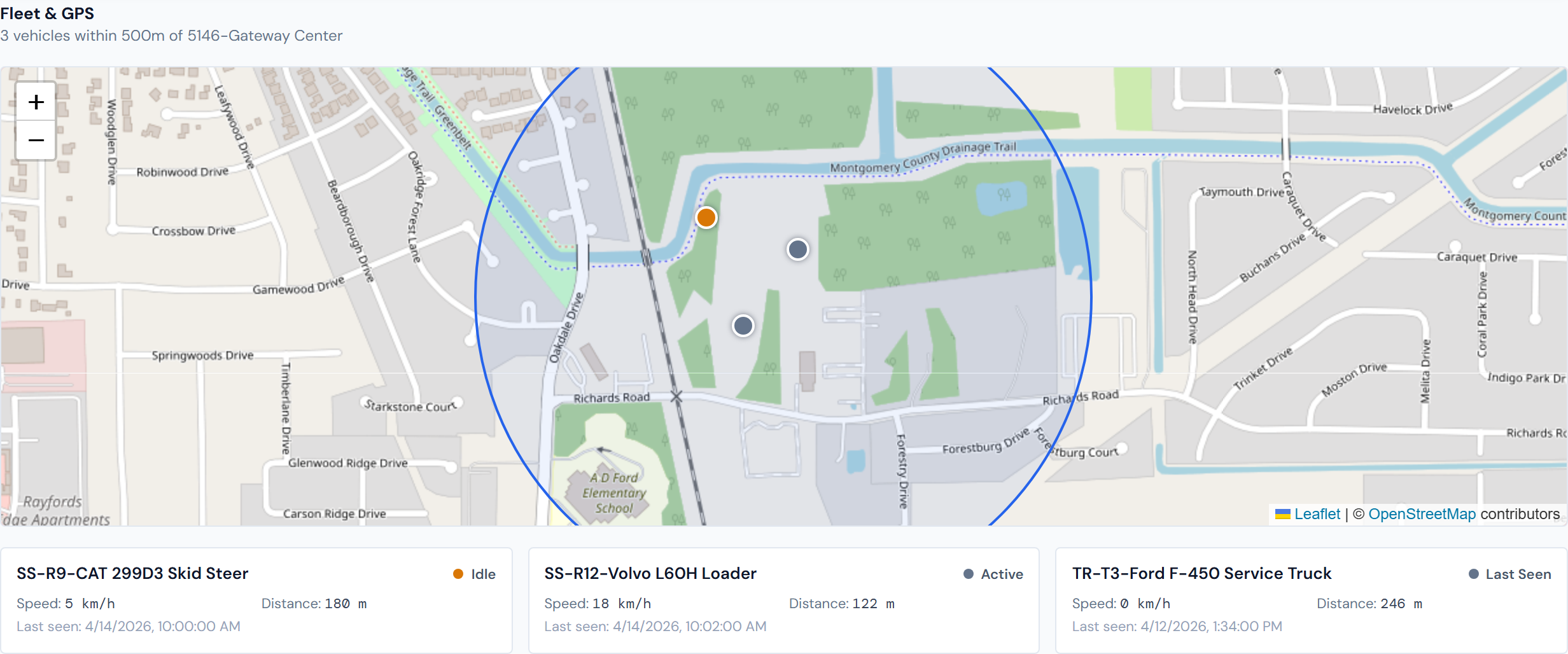
A map centered on this job's geofence, with colored markers for every company vehicle currently inside it. Below the map, a card list shows the same vehicles with name, current state, speed, distance from the geofence center, and last GPS-ping timestamp.
The geofence
Every job site has a virtual circle drawn around it — its geofence. Vehicles inside the circle count as "at the job"; vehicles outside don't appear here at all. The circle shows on the map in brand-blue with a faint fill so the boundary is visible.
The default radius is 500 meters. If Operations has set a different radius for this job, the map uses that instead.
Geofences are configured upstream by Operations. If a job's geofence is missing or the wrong size, that's an upstream fix, not something you change in JCI.
The vehicle states
Each vehicle shows as a colored dot on the map and as a card below it. The dot color matches the vehicle's current state:
| Color | State | What it means |
|---|---|---|
| Green | Moving | The vehicle is actively driving |
| Amber | Idle | Engine on, not moving |
| Gray | Stop | Engine off |
| Slate | (other) | A less common state from the GPS provider |
The vehicle cards
Under the map, one card per vehicle shows:
- Vehicle name
- Current state, with a matching colored dot
- Current speed in kilometers per hour
- Distance from the geofence center, in meters
- Timestamp of the last GPS ping
Click a marker on the map
Clicking any marker pops up the same vehicle name, status, speed, and last-seen time as the card below the map. Useful when several vehicles are clustered close together and you can't tell their cards apart at a glance.
Click a marker for the same details as the card. When trucks overlap on the map, the popup is the easier way to identify them.
Auto-refresh
The page reloads vehicle positions every 60 seconds in the background. The first load shows a spinner; later refreshes update the map and cards in place without a flash.
If a refresh fails — bad network, brief outage at the GPS provider — the screen keeps the last good data instead of clearing the map. You won't get error spam.
What this view does not show
- Third-party rentals, owner-op trucks, subs' vehicles, and any personal vehicles aren't here. Fleet only sees company-owned vehicles tracked by our GPS provider.
- Heavy equipment that lives on a job — loaders, scissor lifts, telehandlers — shows up on the Equipment sub-tab, sourced from the daily reports. Not here.
Only company vehicles in our GPS account appear on this map. If you're looking for a sub's truck or a rental, this isn't the right place — Fleet is for the company-owned fleet specifically.
Fleet vs. Equipment — two different intake paths
Fleet and the Equipment sub-tab look adjacent but they're tracking different things and arrive in the dashboard differently:
- Fleet is company-owned vehicles managed in our GPS provider's account. Live position, real-time. New vehicles join Fleet when Operations adds them to the GPS account.
- Equipment is what site staff write down in the daily report — equipment of any kind (rented or owned) that was on site that day. Rentals enter the dashboard through rental purchase orders and surface here when site staff mention them in a daily report.
So if you're looking for a rented machine's location, the answer is the daily report, not the live GPS map.
How a new vehicle appears here
A new company vehicle shows up on Fleet after Operations provisions it in our GPS provider's account. JCI is read-only on that side — there's no add-vehicle action in the dashboard.
If a truck should be on this map and isn't, the most likely fix is upstream provisioning. Contact Operations to verify it's set up in the GPS account and that the geofence on this job is sized to include where the truck actually parks.
Empty states
Two empty states are common:
- "Geofence not configured" — Operations hasn't created a geofence for this job yet. Until they do, the map can't filter vehicles to this site. Request a geofence from Ops.
- "No vehicles currently within the job geofence" — A geofence exists, but every truck is somewhere else right now. Common at night and on weekends.
Related pages
- Equipment — equipment from daily reports rather than GPS
- Daily Reports — the source of equipment-on-site data
- Field Data widgets — Fleet-related widgets in the catalog
- Data refresh rates — to contrast Fleet's 60-second cadence with the four-hour and nightly refreshes
- Glossary — entries for "Geofence," "Fleet," "GPS provider"